

What are jobs and missions?
To make data files manageable, data is automatically captured in 15 minute segments - referred to as "missions."
A job is comprised of one or more missions.
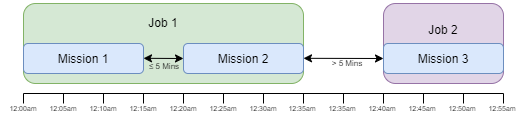
The duration of a job spans from the first mission's start time to the last mission's end time.
If a new mission's start time occurs within 5 minutes of an existing job's end time, the new mission will be added to the existing job (and the job duration is updated), otherwise a new job will be created.
How do I upload data using Cloud Sync?
-
Login to Cloud Sync (how to access Cloud Sync)
-
Load the .cirovermeta for each mission you wish to upload via the 'Select Directory' above the file list. Either a directory or a single file can be selected. The example below shows a single mission and its associated data:
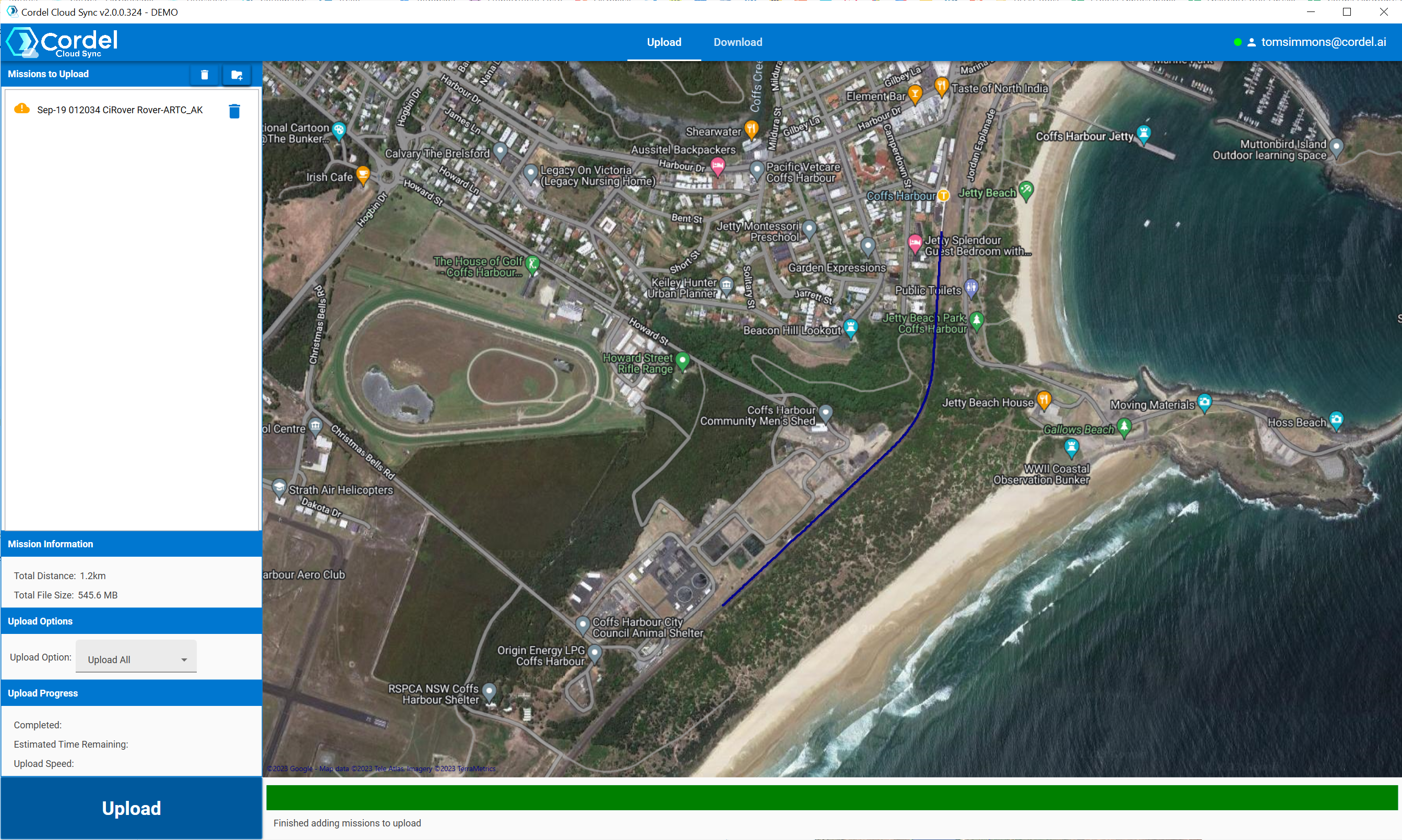
Note: when selecting a file or mission in the file list the associated trajectory is highlighted in the main map:
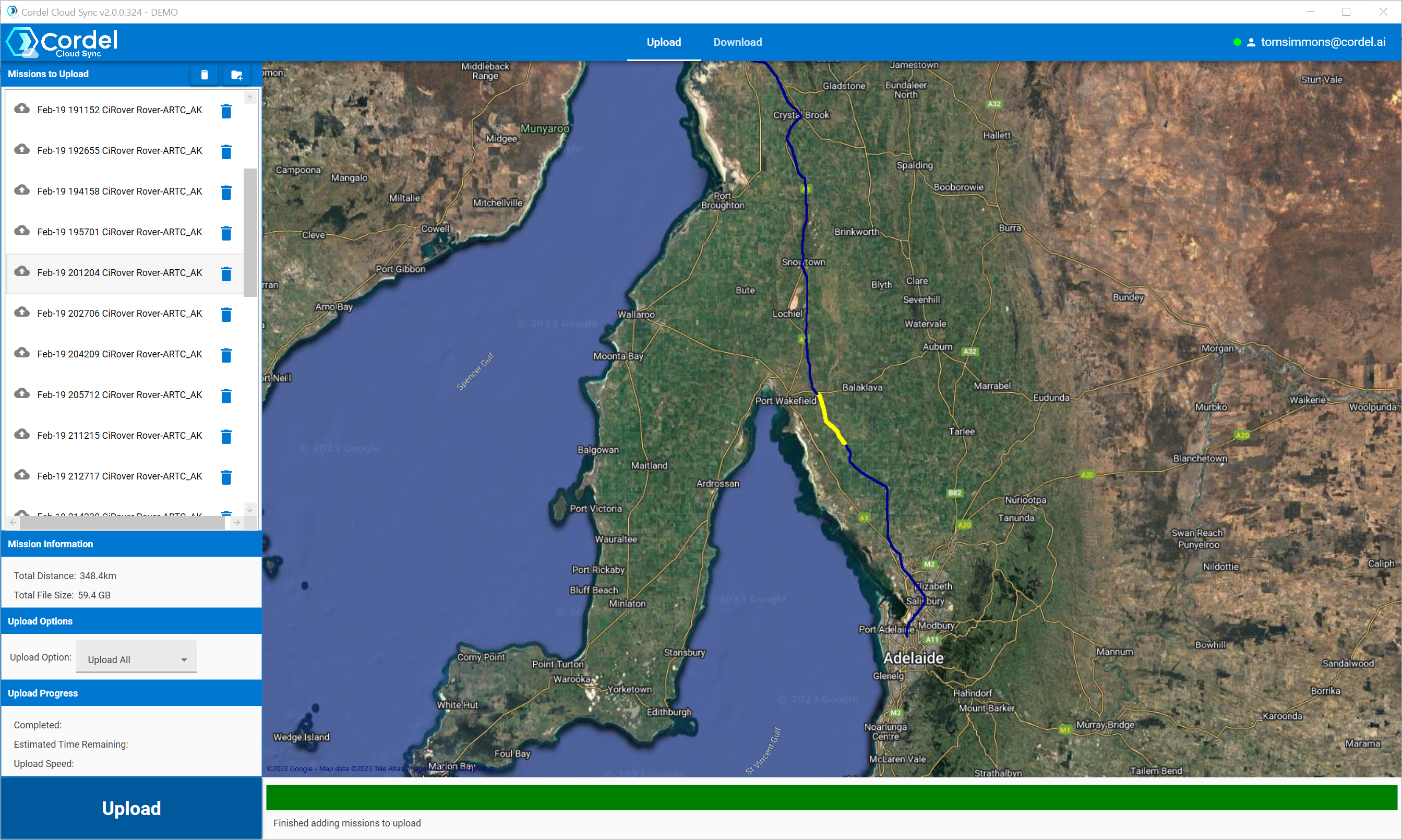
Note: to remove all entries from the list use the Trashcan button next to the mission. Missions can then be reselected using the folder button. Alternatively, all missions can be removed from the list using the top Trashcan icon.
-
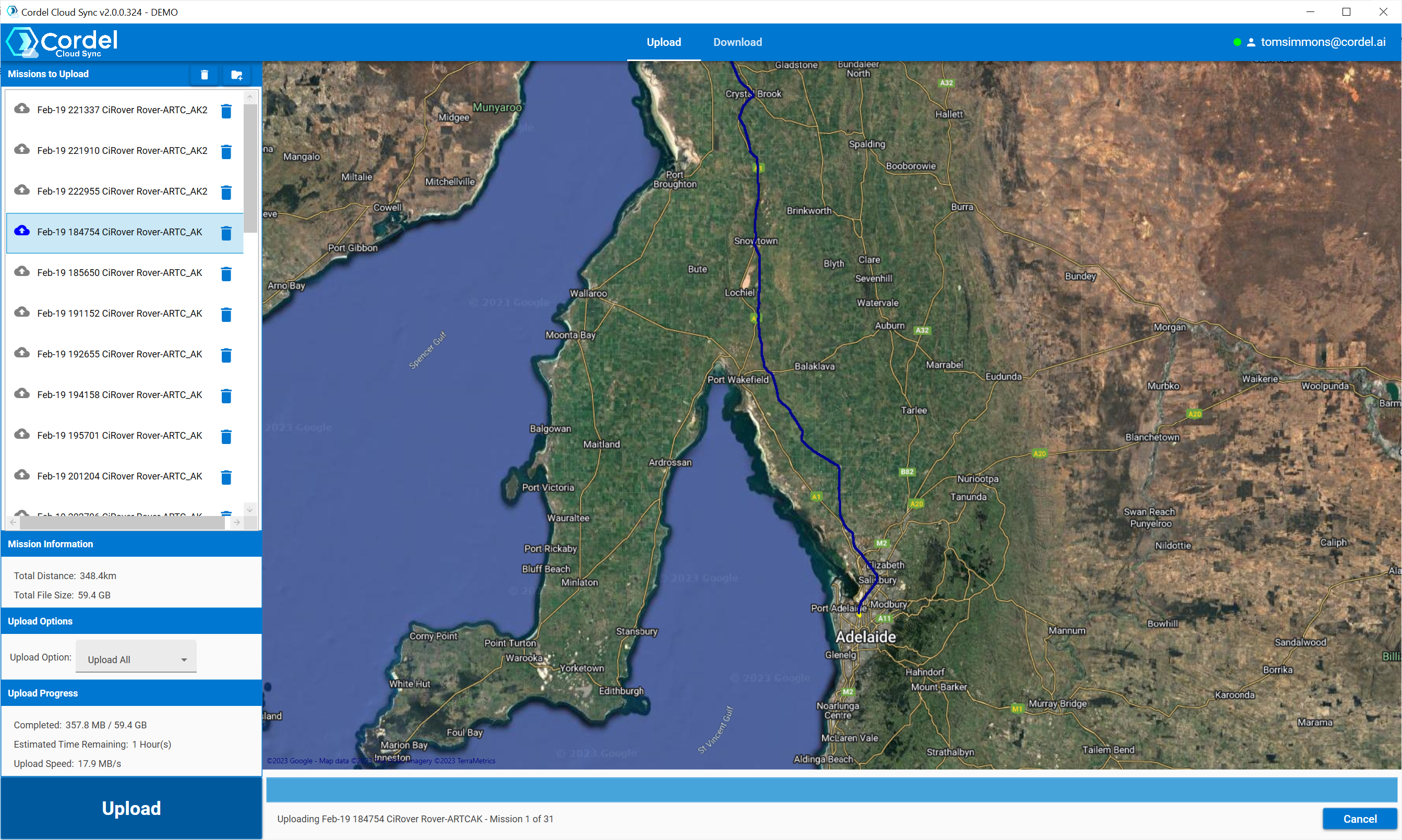
Once the missions have been selected, click 'Upload All'.
The Cloud Sync software will display the progress of each file and the combined set of files, including transfer rates:
-
Once the associated data has been uploaded, it will be available in Cordel Connect.
Mission statuses
The "Mission to Upload" list shows an icon in front of the name of each mission. The icon is used to indicate the status of mission integrity, which is checked when missions are first loaded. The following statuses can be displayed:

Mission has been loaded successfully with no errors or warnings. Mission can be uploaded without further checking

Mission has been loaded but has warnings. Mission can still be uploaded but the user should verify the messages reported

Mission cannot be loaded and is corrupted. Mission cannot be uploaded and the user should review messages and confirm mission data has been copied correctly
Warning messages
The following warnings may be displayed and possible resolutions:
-
Mission time maybe excessively long → missions are typically limited to approximately 15 minutes, and this warning is displayed for missions over 30 minutes
-
Irregular file sizes for mission data → this warning is displayed when mission data files do not meet the average file size for each type of file
-
Multiple video files → more than 1 video file is present
Error messages
The following errors may be displayed and possible resolutions.
Note: for corrupt missions it is likely the mission data has not been copied successfully from the Ground Station or Rover.
-
Corrupt Mission → corrupt *.cirovermeta and/or *.gnc file is missing or corrupted
-
Mission cannot be uploaded. Lidar or gnss file(s) not found → missing Lidar and/or gnss filename from *.cirovermeta
-
Mission cannot be uploaded. Invalid Lidar file → *.lidar file is not the correct format or corrupted
-
Mission cannot be uploaded. The following errors were found:
-
Missing files → listed files not contained in mission data folder. Check for missing file (s) during copy operation
-
Incorrect Size Files → listed files are not the same size as files in the mission data folder. Check the file (s) are copied correctly
-