

If you have already searched for information in the Cordel Knowledge Base (http://support.cordel.ai) and still need assistance, please submit a request for help. Users and members of the general public can request assistance and information from Cordel via three channels:
-
The Service Desk Portal
-
Email
-
In Cordel Connect (using the widget)
Accessing the Service Desk Portal
The Cordel Service Desk Portal is accessible via the Cordel Help Centre (under the User Guides section).
Cordel Help Centre: View Documentation
https://support.cordel.ai/
Cordel Service Desk Portal: Ask A Question or Get Help
https://corridor1.atlassian.net/servicedesk/customer/portal/4
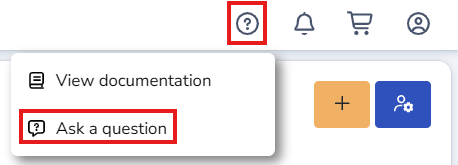
Users are also able to access the Cordel Help Centre using the ‘question mark’ icon from the Cordel Connect shortcut menu in the application:

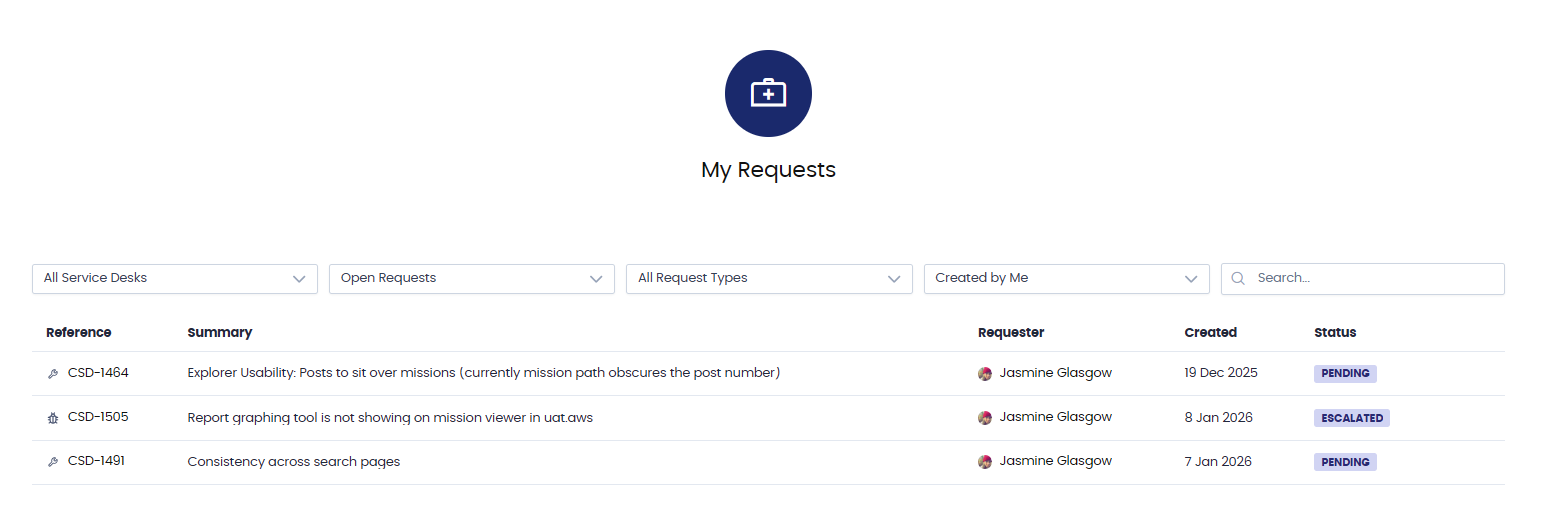
Users have the option to submit a request as a guest or as a logged in Service Desk user. Logged in Service Desk users are able to track the progress of their tickets via the Service Desk Dashboard.
Guests receive ticket updates via email notification.
How to request support via the Service Desk Portal
How to submit a ticket as a guest (no login required)
-
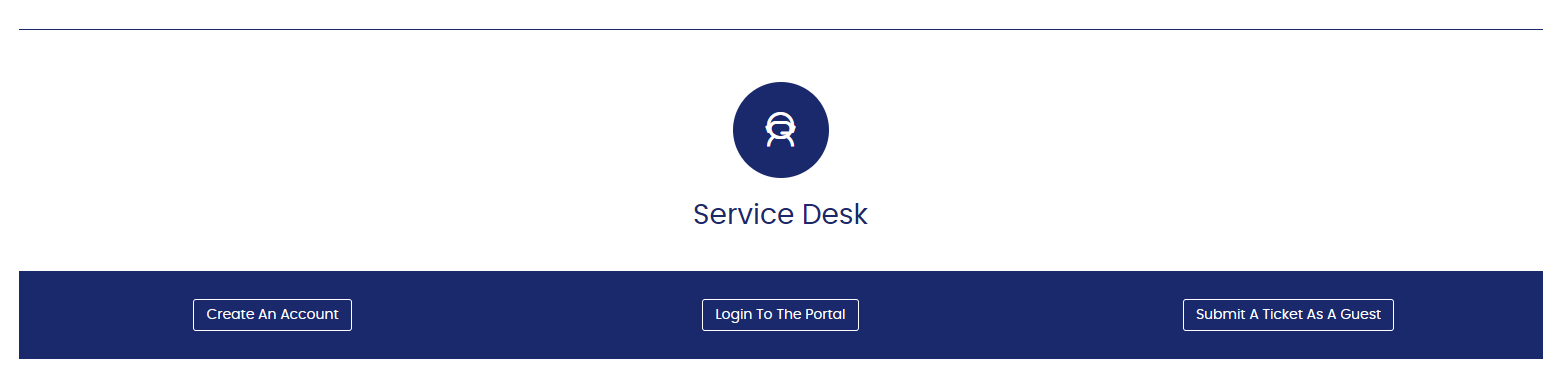
On the Cordel Knowledge Base page, scroll down to the Service Desk section.
-
Click “Submit A Tickets As A Guest” which launches the Service Desk Portal.
-
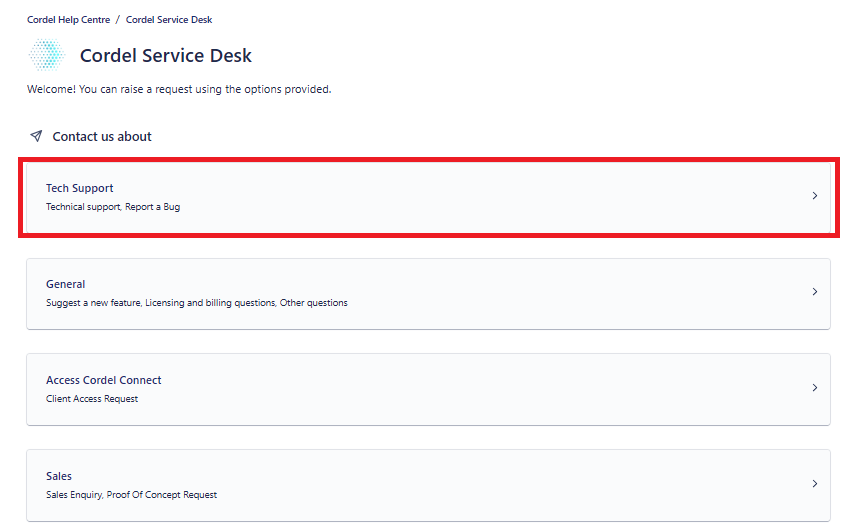
Select a category. Typically, this will be Tech Support:
-
Select the appropriate request type:
-
Technical Support: Use this option to request technical assistance for Cordel's hardware and software solutions.
-
Report a Bug: Use this option to report software that is not behaving as expected.
-
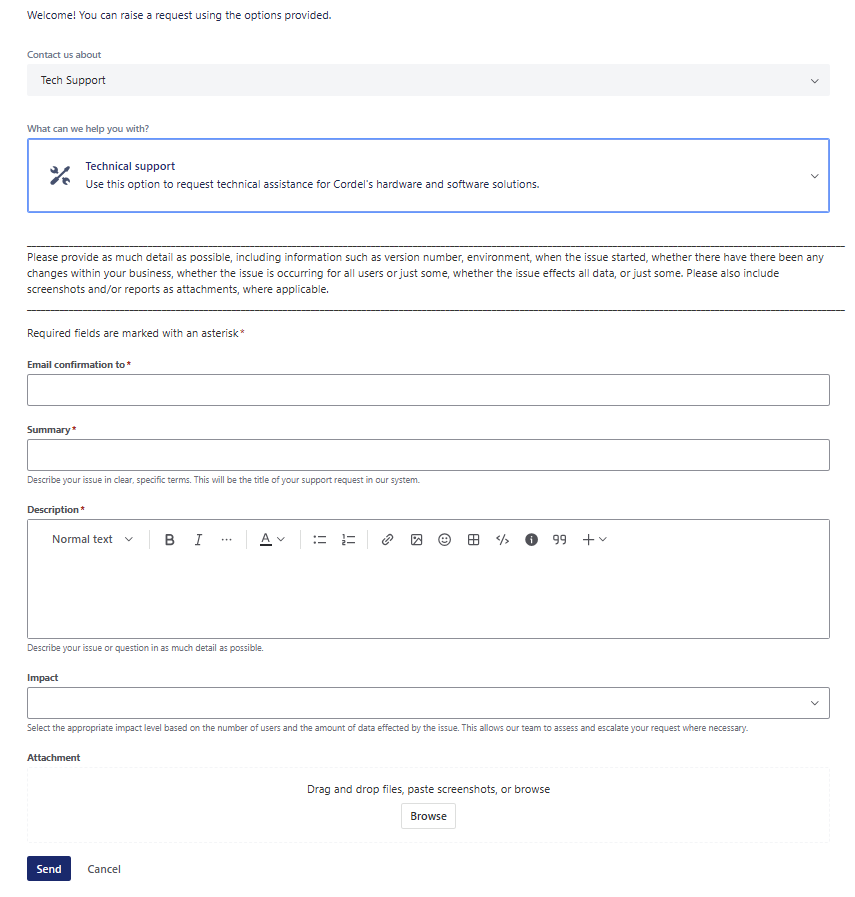
You will be presented with a form based on the type of request you are submitting. The information in this article describes how to submit a Technical Support ticket.
-
Complete the request form
When you complete the Technical Support request form, remember to provide as much detail as possible, including information such as version number, environment, when the issue started, whether there have there been any changes within your business, etc.
-
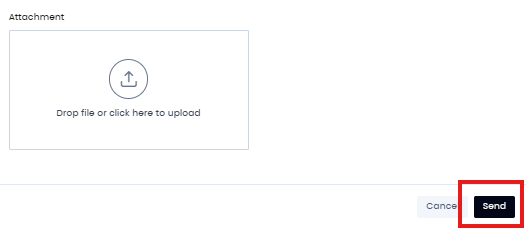
Click ‘Send’

How to create a Service Desk account
Best for users who will submit more than one ticket
Note: this is not the same as your Cordel Connect account/login.
-
On the Cordel Knowledge Base page, scroll down to the Service Desk section.
-
Select “Create An Account”
-
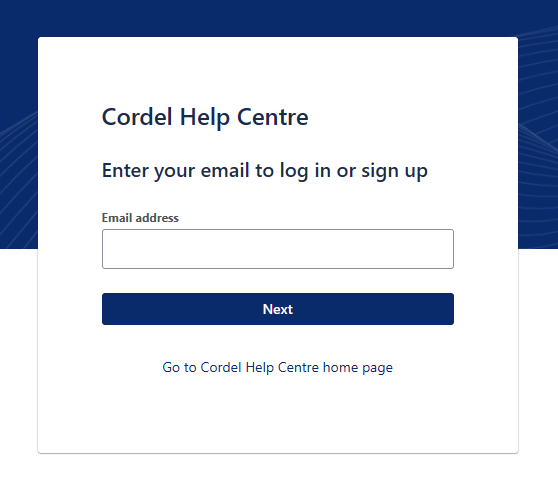
Enter your email address and click next
-
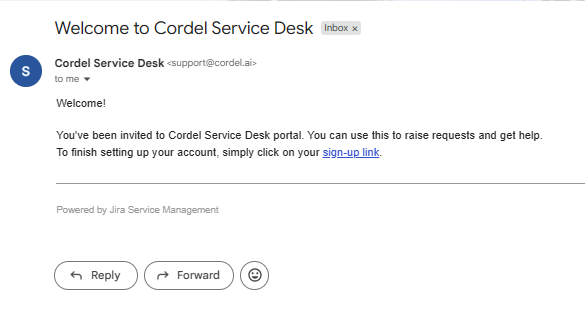
Open your email inbox and click the ‘sign-up link’ in the Service Desk invitation email
-
Add your password and complete your account setup.
How to submit a ticket as a logged in user (account required)
-
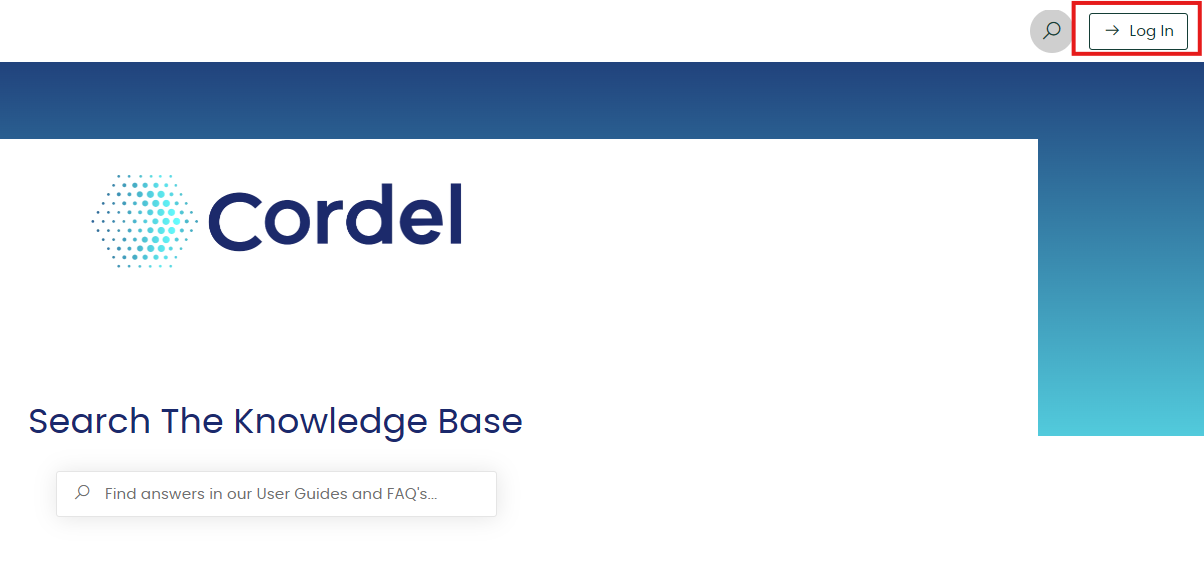
Login to your Service Desk account using the ‘Log In’ button in the top righthand side of the Cordel Knowledge Base screen.
-
Scroll down to the Service Desk section of the page. Select the appropriate request type (these options are only visible to logged in users).
Typically this will be Technical Support - used to request technical assistance for Cordel's hardware and software solutions.
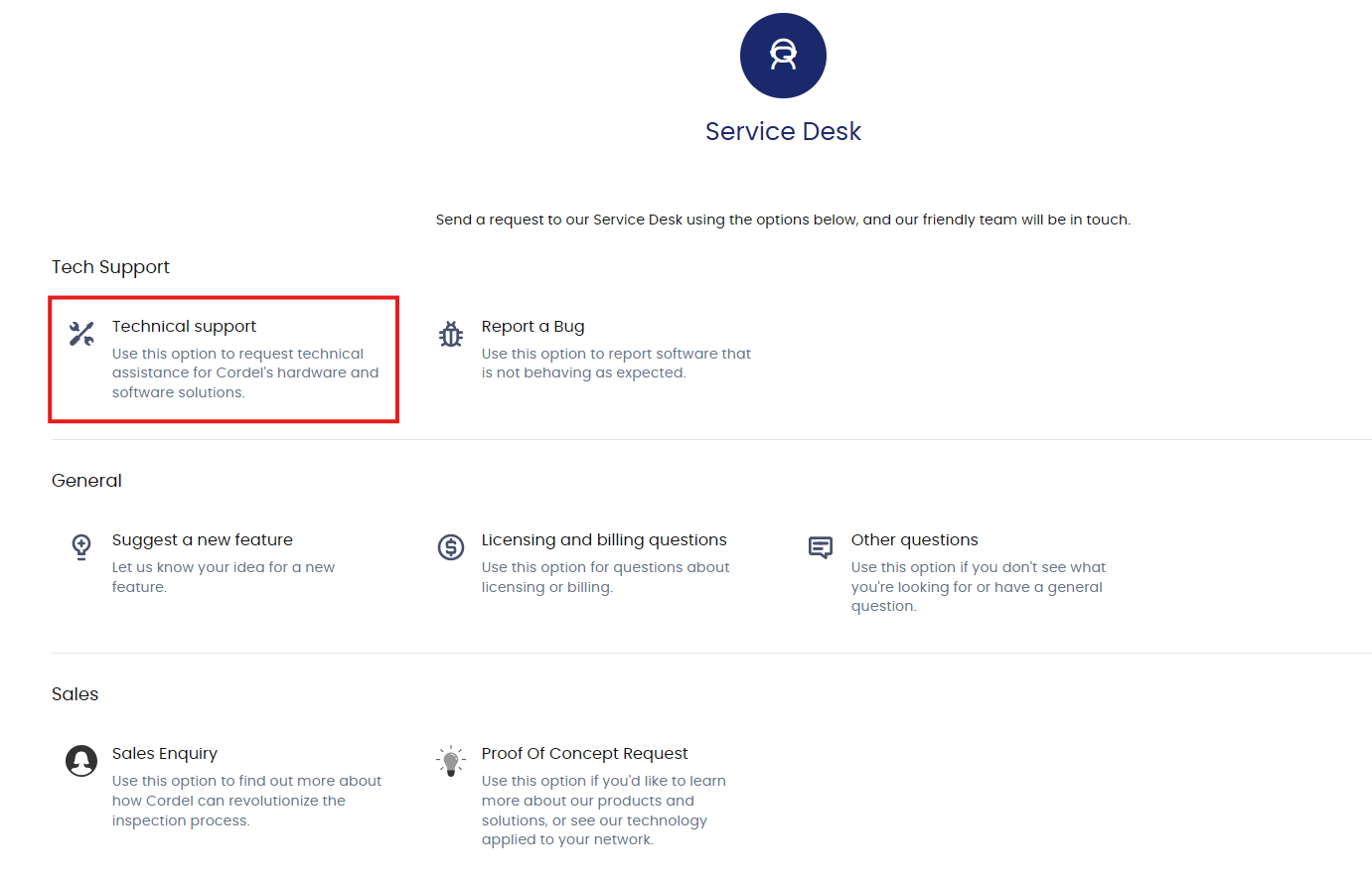
The information in this article describes how to submit a Technical Support ticket.
-
Complete the request form
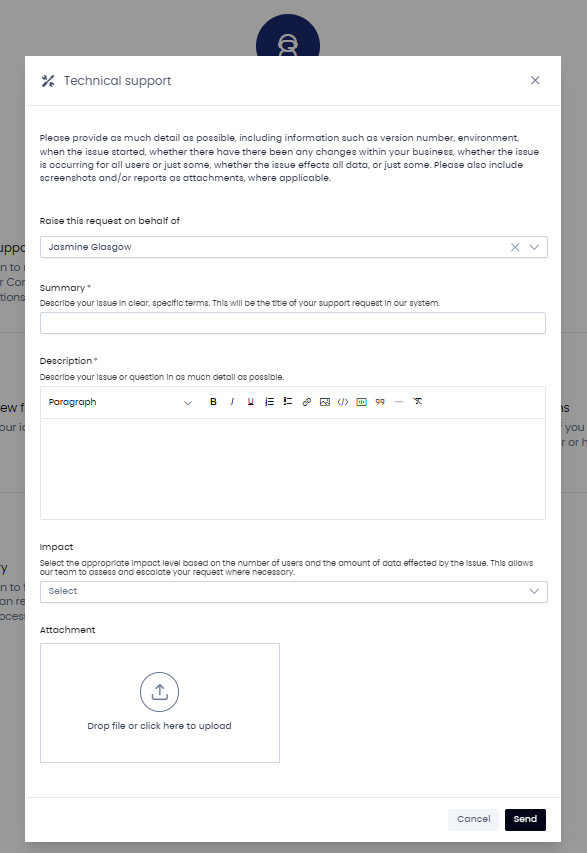
When you complete the Technical Support request form, remember to provide as much detail as possible, including information such as version number, environment, when the issue started, whether there have there been any changes within your business, etc.
-
Click ‘Send’
How to view your open Service Desk requests (account required)
Other Support Request Types
Full list of support request types
|
Icon |
Request Type |
Use |
|---|---|---|

|
Technical support |
Use this option to request technical assistance for Cordel's hardware and software solutions. |

|
Report a bug |
Use this option to report software or hardware that is not behaving as expected. |

|
Suggest a new feature |
Use this option to suggest new functionality or improvements to our existing technology. |

|
Proof Of Concept Request |
Use this option if you'd like to learn more about our products and solutions, or see our technology applied to your network. |

|
Sales Enquiry |
Use this option to find out more about how Cordel can work with your business to revolutionize the inspection process. |

|
Licensing and billing questions |
Use this option for questions about licensing or billing. |

|
Other questions |
Use this option if you don't see what you're looking for or have a general question. |
How to request support via email
Send an email to the Service desk
For RGDS Customers: rsd@corridor1.atlassian.net
For Cordel Connect Customers: support@cordel.ai
Email Subject - Describe your issue in clear, specific terms. This will be the title of your support request in our system.
Email Body - provide as much detail as possible, including information such as version number, environment, when the issue started, whether there have there been any changes within your business, whether the issue is occurring for all users or just some, whether the issue affects all data, or just some.
Impact - Where possible, please indicate the impact this issue is having on the business:
FAILURE MODE: UNSAFE, Extensive/ Widespread, Significant/ Large, Moderate/ Limited, Minor/ Localized.
Attachments - Upload any relevant attachments here (such as screenshots, reports, emails etc) to assist our team in understanding the issue you are reporting.
How to request support in-app
-
From within the Cordel Connect platform, click the ‘question mark’ icon in the shortcut menu to open the Support ticket form
-
Select “Ask a question”
-
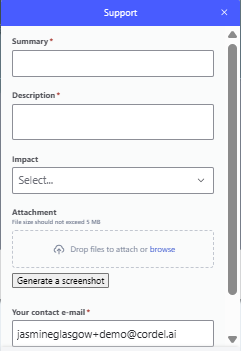
Complete the Support request form. Fill in each field with the required information.
Technical Support Request Form Fields (In-App)
Summary* - Describe your issue in clear, specific terms. This will be the title of your support request in our system.
Description* - provide as much detail as possible, including information such as version number, environment, when the issue started, whether there have there been any changes within your business, whether the issue is occurring for all users or just some, whether the issue affects all data, or just some.
Impact - Where possible, please indicate the impact this issue is having on the business:
FAILURE MODE: UNSAFE, Extensive/ Widespread, Significant/ Large, Moderate/ Limited, Minor/ Localized.
Attachment - Upload any relevant attachments here (such as screenshots, reports, emails etc) to assist our team in understanding the issue you are reporting.
Generate a screenshot - This captures a screenshot of the current screen and attaches it as a .png to the ticket when you submit it. This is a particularly useful feature for issues or questions of a visual nature.
Your contact e-mail* - Enter your email address - or the email address of the person who should be notified of updates.
-
Click ‘Send’ to submit your request.
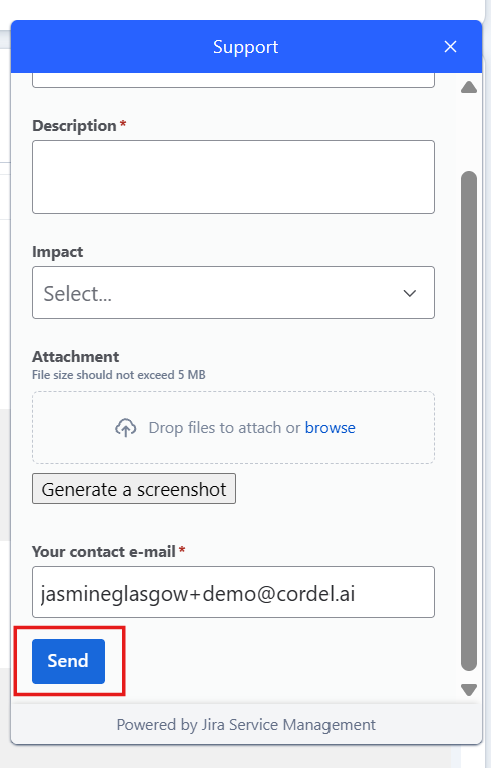
This generates a ticket in the Cordel Service Desk.
Logged in Service Desk users are able to track the progress of their tickets via the Service Desk Dashboard.
Guests receive ticket updates via email notification.
Don’t have a Cordel Service Desk account yet? How to Create a Cordel Service Desk account.