
What is an Asset?
Any entity found along the corridor, including Derails, Turnouts, Diamonds, Milepost signs, Grade crossings, Signs and Signals.
Where can I search for an Asset?
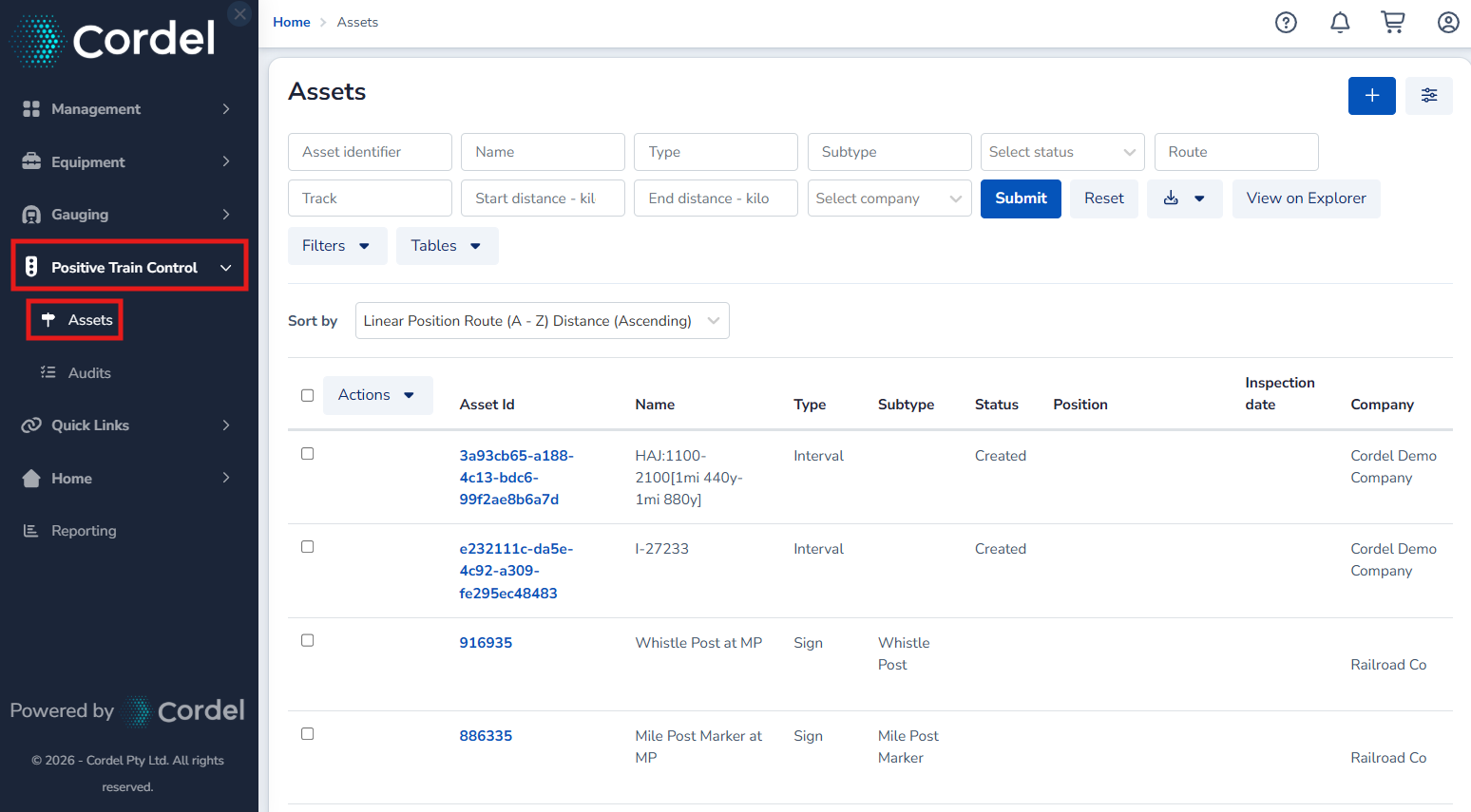
To search for an Asset, navigate to Positive Train Control>Assets
Which fields can I search by?
The Asset Search page allows users to search for a particular Asset by Asset ID, Asset Name, Asset Type, Asset Subtype, Status, Linecode, Track, Start Distance or End Distance. Users are also able to search for all Assets under a certain company.
How do I search for an Asset?
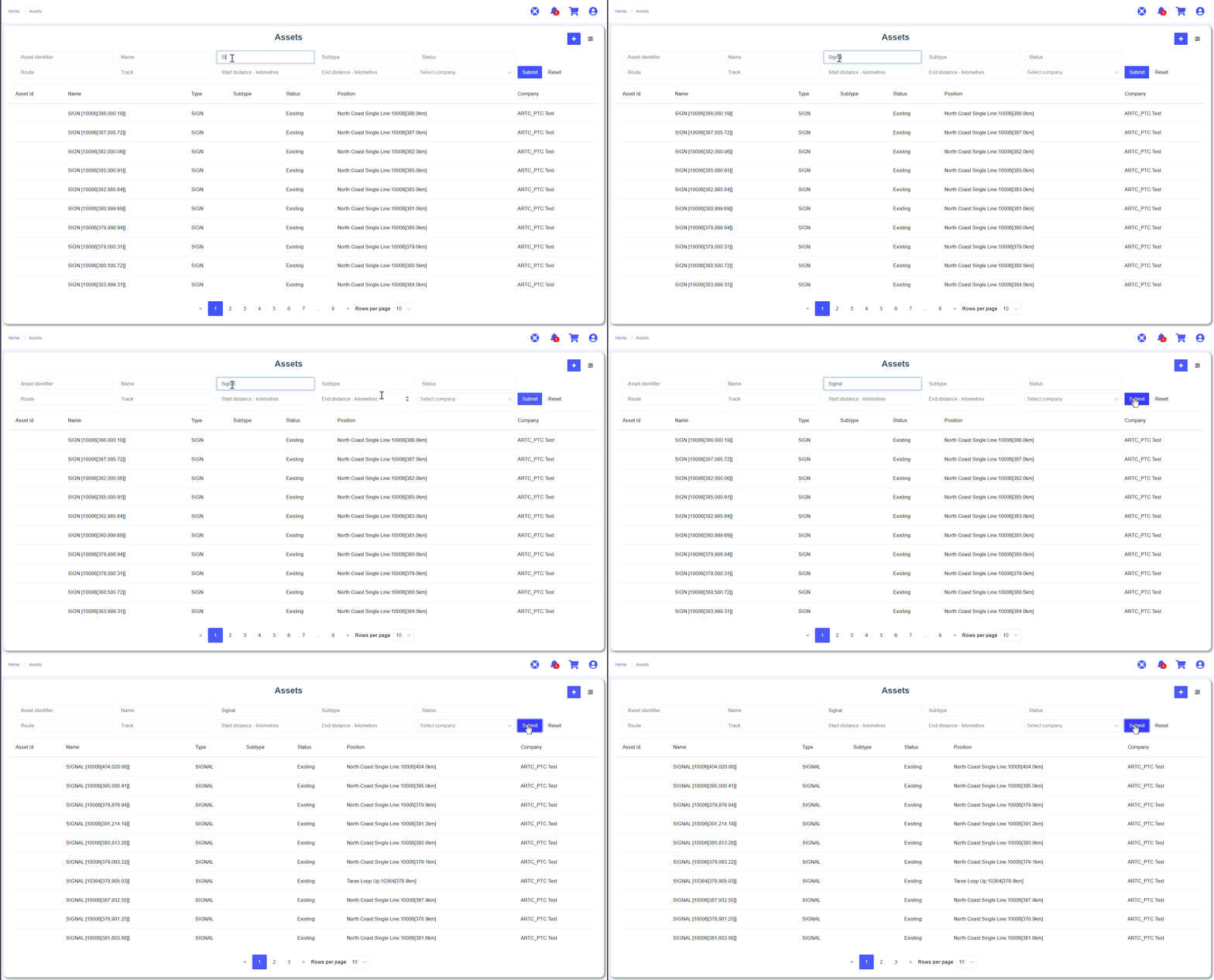
Enter the criteria you wish to search for and click 'Submit'.
How do I manage Search results?
Users are able to manage how results are displayed, viewed, and exported.
-
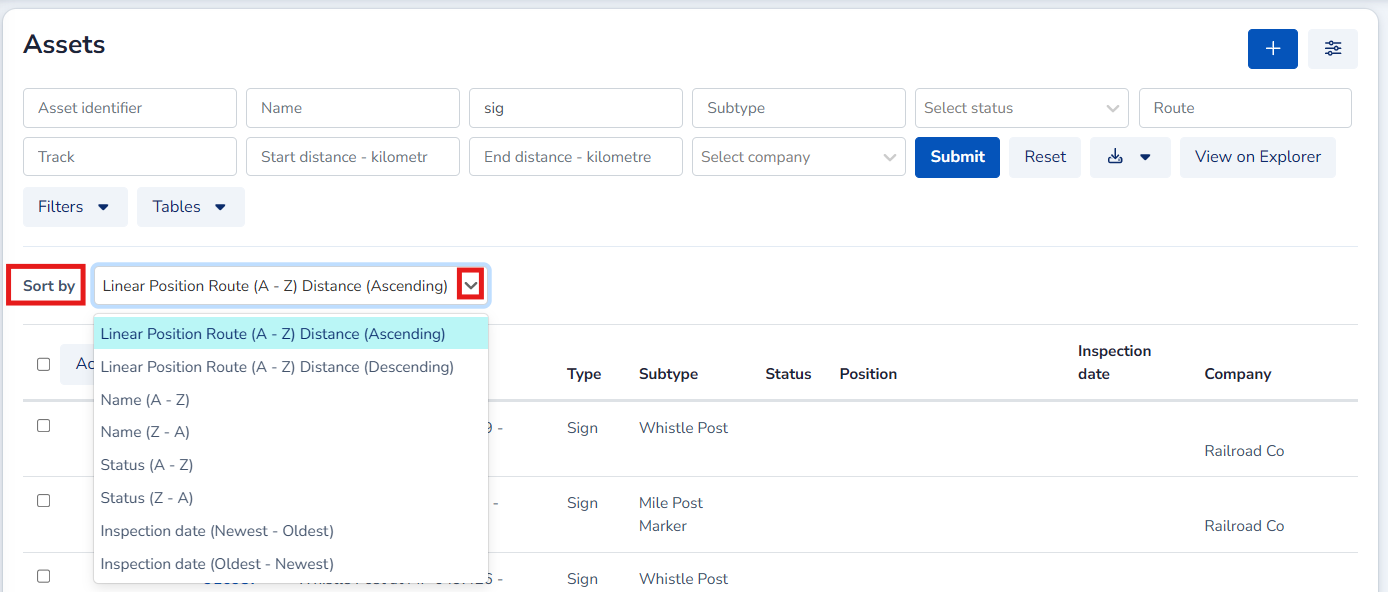
Sort results: select the 'Sort by' dropdown and choose the option you wish to sort by.
-
Change results per page: select the 'Rows per page' dropdown and choose how many results to display.

-
Navigate between pages: select a page number, or use '<' and '>' to move backwards or forwards.

-
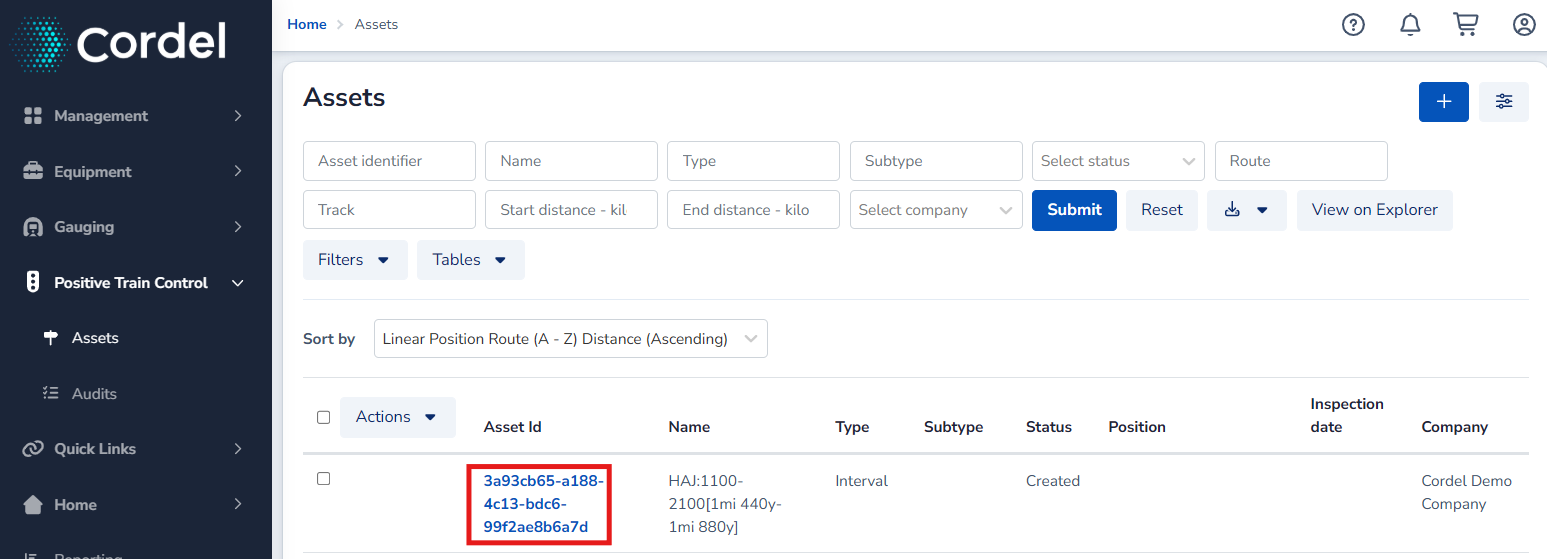
View a result: click the blue hyperlinked Asset ID to open an Asset view mode; or right click the blue hyperlink and choose to open a result in a new window or tab. This keeps the search screen open for later use.
-
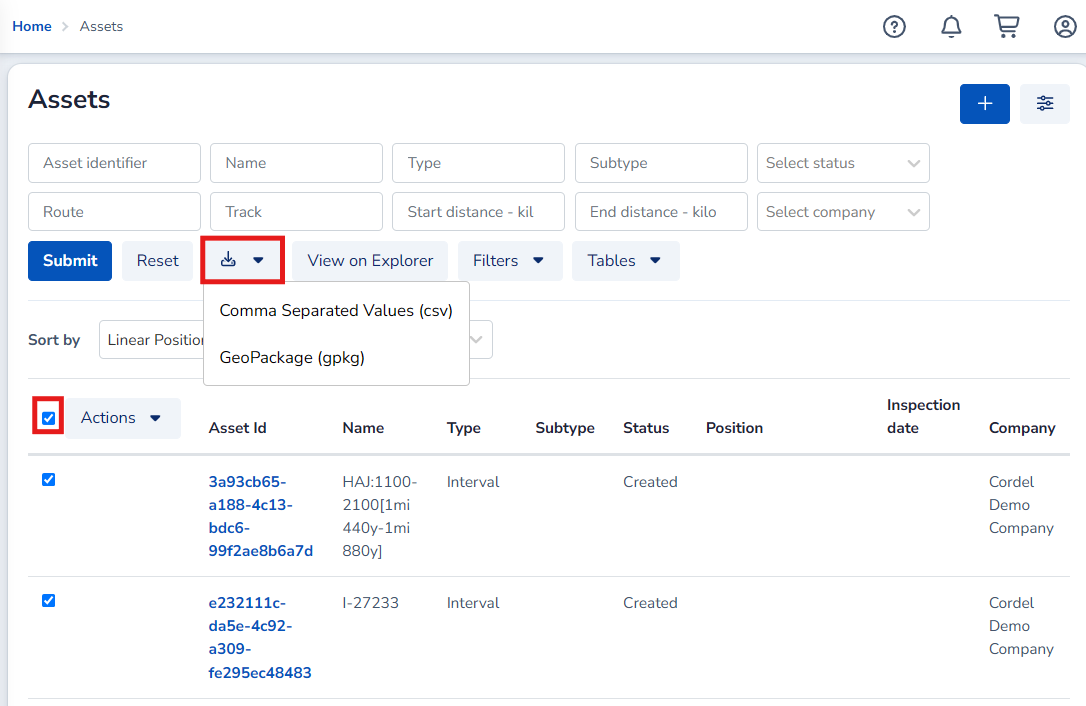
Export results: select the checkboxes against the results you wish to download, then click the Download icon to download them as a .CSV or .GPKG file.
-
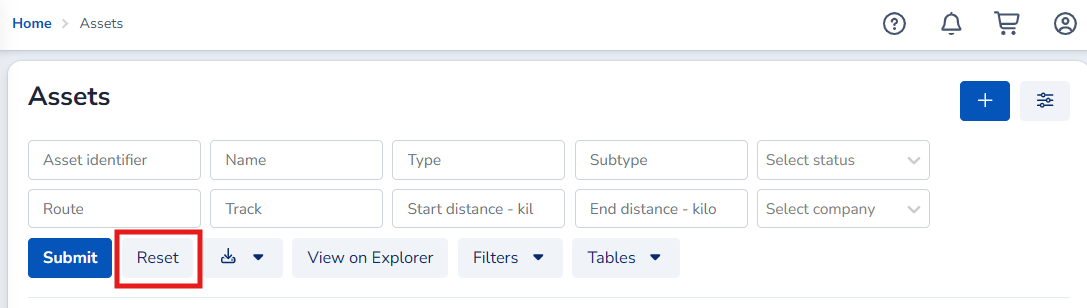
Reset the search: click the reset button to clear all current search criteria.