

What is an Audit?
A PTC Connect Audit is a group of Assets, detected by Cordel machine learning, that is ready for human review. Assets are assigned to one of the various statuses [New, Moved, Matched, Missing] and user's provided with a range of visual and geospatial tools required to make data informed decisions about the accuracy of the information associated with each Asset.
Users are able to 'accept' or 'ignore' an Asset within an Audit, allowing accurate data to be published - and problematic data to be flagged for further review or removed all together.
Where can I find Audits?
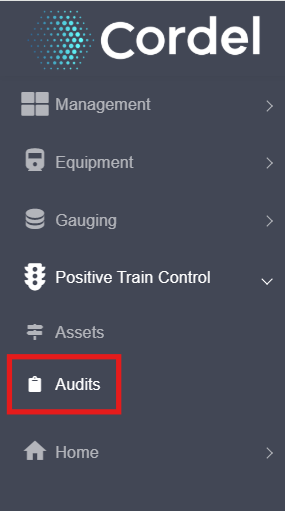
To search for an Audit, navigate to Positive Train Control>Audits
What information is shown on the Audit page?
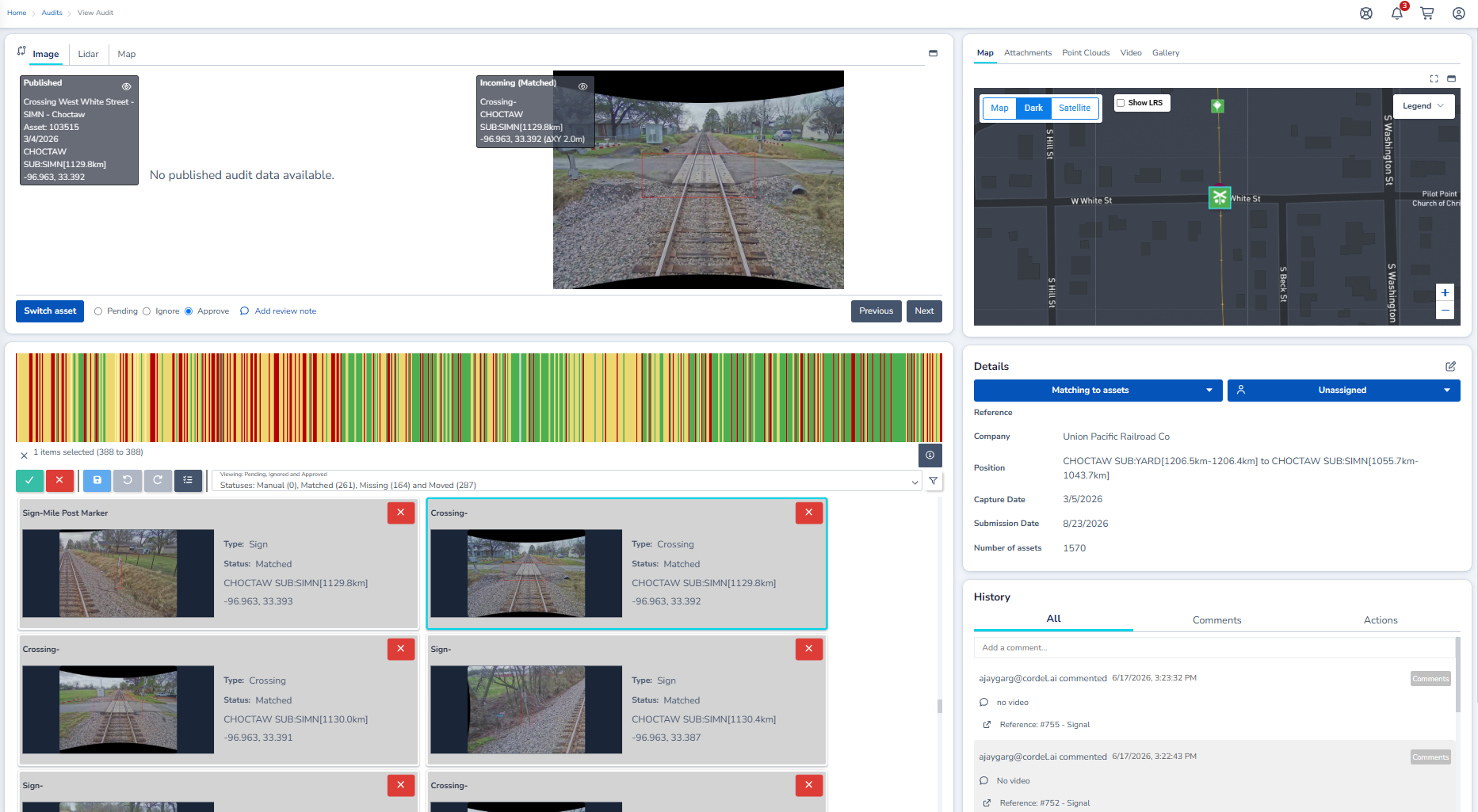
The PTC Asset Viewer Area
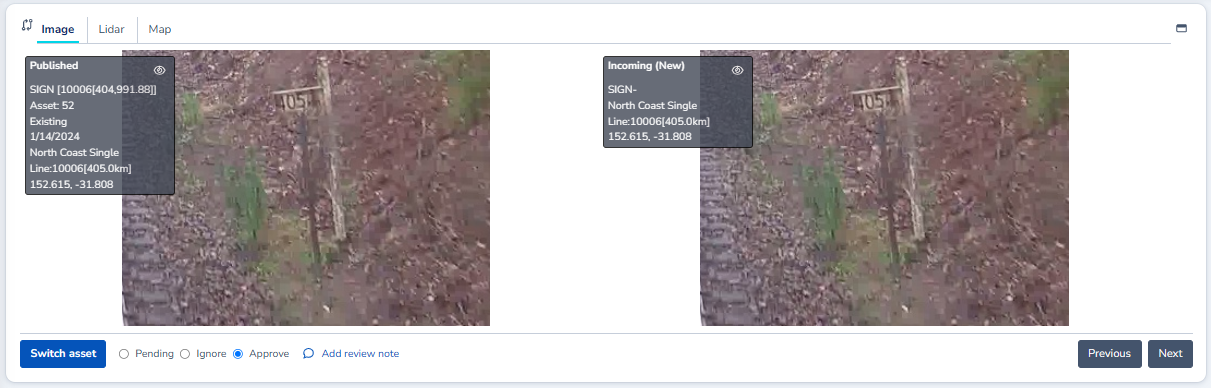
This area of the platform provides a visual and geospatial comparison of a detected asset to its historical record. This allows users to audit the captured information, transition the asset to a different status (Pending, Ignore or Approve), add a note for additional context, or switch the detected asset with another detected asset.
The PTC Asset Viewer menu options

Image
Displays a still image from the most recently captured video footage next to a still image from the most recently published Audit.
LiDAR
Displays the point cloud from the most recently captured LiDAR data next to the point cloud from the most recently published Audit.
Map
Displays a single map with the location of the asset in the most recent capture, the location of the asset in the most recent published Audit - and the distance between them (where applicable).
Maximise
Users can maximise the PTC Asset Viewer using the rectangle icon
The PTC ‘Switch Asset’ function
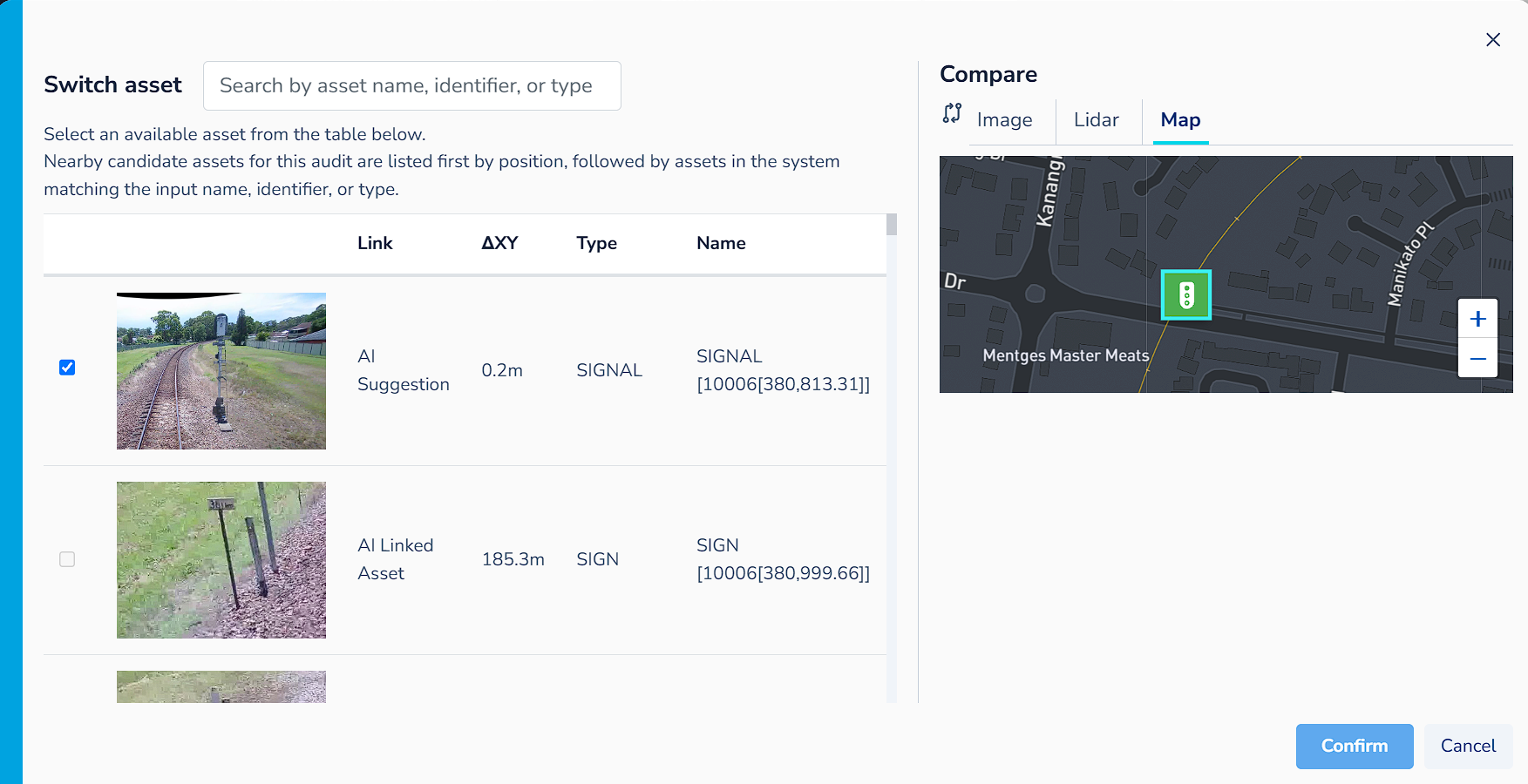
The 'Switch asset' button is available below the PTC Asset Viewer on the audit page. It allows users to reassign an asset to a different match during the audit process.
Clicking 'Switch asset' opens a modal displaying AI-suggested matches, including unmatched assets and already-matched assets. Users can also search for assets by name, ID, or type using the search bar in the modal.
Switch asset has two constraints:
-
Assets are only listed if they are candidates for this audit based on position.
-
Assets cannot be selected if they are already assigned to the current audit.
The PTC Asset Selection Area
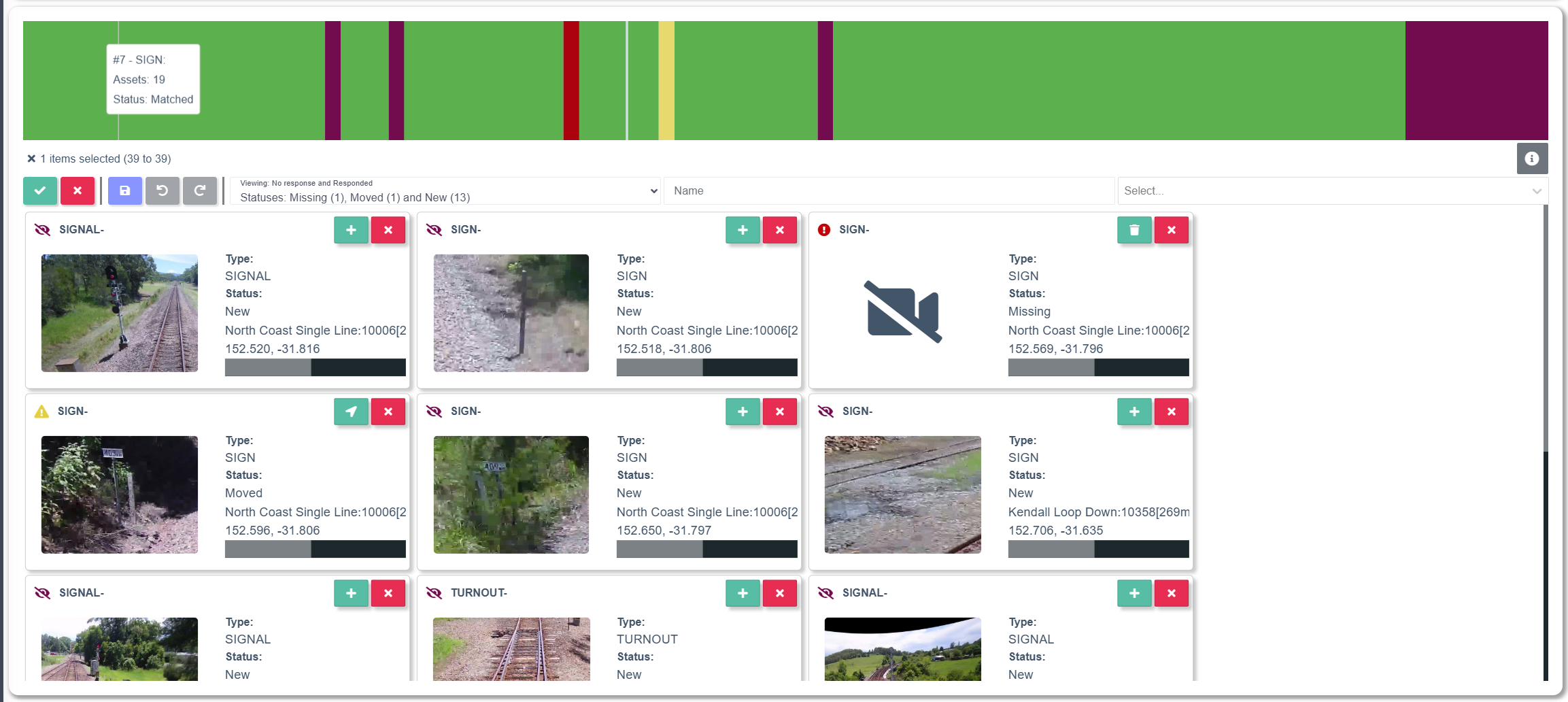
This area of the platform is made up of the coloured Asset Selection bar (top), and the Asset List (bottom). Each PTC asset detected in the selected audit is presented as both a coloured-coded stripe in the Asset Selection bar and as a detailed card in the Asset List.
Selecting an asset stripe automatically selects its corresponding card in the Asset List.
The Asset List can be filtered and users can bulk select assets that match their criteria.

The selected asset(s) get be transitioned to ‘approved’ or ‘ignored’ and changes can be saved, undone or redone using the icons.

The PTC Asset Context Viewer
The Audit Context Viewer provides a map view, attachments, point cloud, video and image information for every asset detected in the selected audit, enabling data-driven decision making and accurate record keeping.
Map
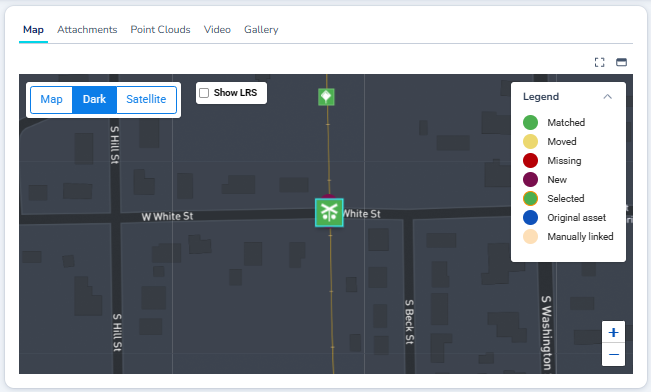
Assets are displayed geospatially on a map, which zooms to the selected Asset's location. Map markers are colour coded to reflect the status of each Asset contained in an Audit.
Matched Assets
The map displays detected assets that have been matched a known asset as a ‘matched asset’ in green
Moved Assets
When an asset is detected and mapped to an existing asset, but the location of the matched asset differs to the original asset, the map displays this as a ‘moved asset’ shown in yellow.
When a user selects a Moved Asset card and zooms in to a certain level on the map, the map displays the selected Asset's current position (orange) and original position (blue).
The distance between the current and original position is also displayed.
Missing Assets
The map displays a red map marker where an asset is expected to be, but no asset has been detected. The ‘missing asset’ marker is displayed at the asset’s last known location in red.
New Assets
Where an asset is detected, but no known asset exists at that location, the map displays a map marker at the ‘new asset’s' detected location in maroon.
Selected Asset
When a user selects an asset, the asset marker is displayed with an orange outline.
Original Assets
Where an asset is known to exist historically (i.e. detected in a previous survey capture, or exists in an asset database prior to the current survey) a map marker is shown at the location of the original asset in blue.
Manually Linked Assets
Where a user has linked two assets together, the map displays a map marker for both assets in peach.
Details
This area displays the metadata relevant to the selected audit. It includes information such as Reference, Company, Position, Capture Date, Submission Date and Number of assets.
History