

Active Capture
What do the colours mean on the sensors and components?
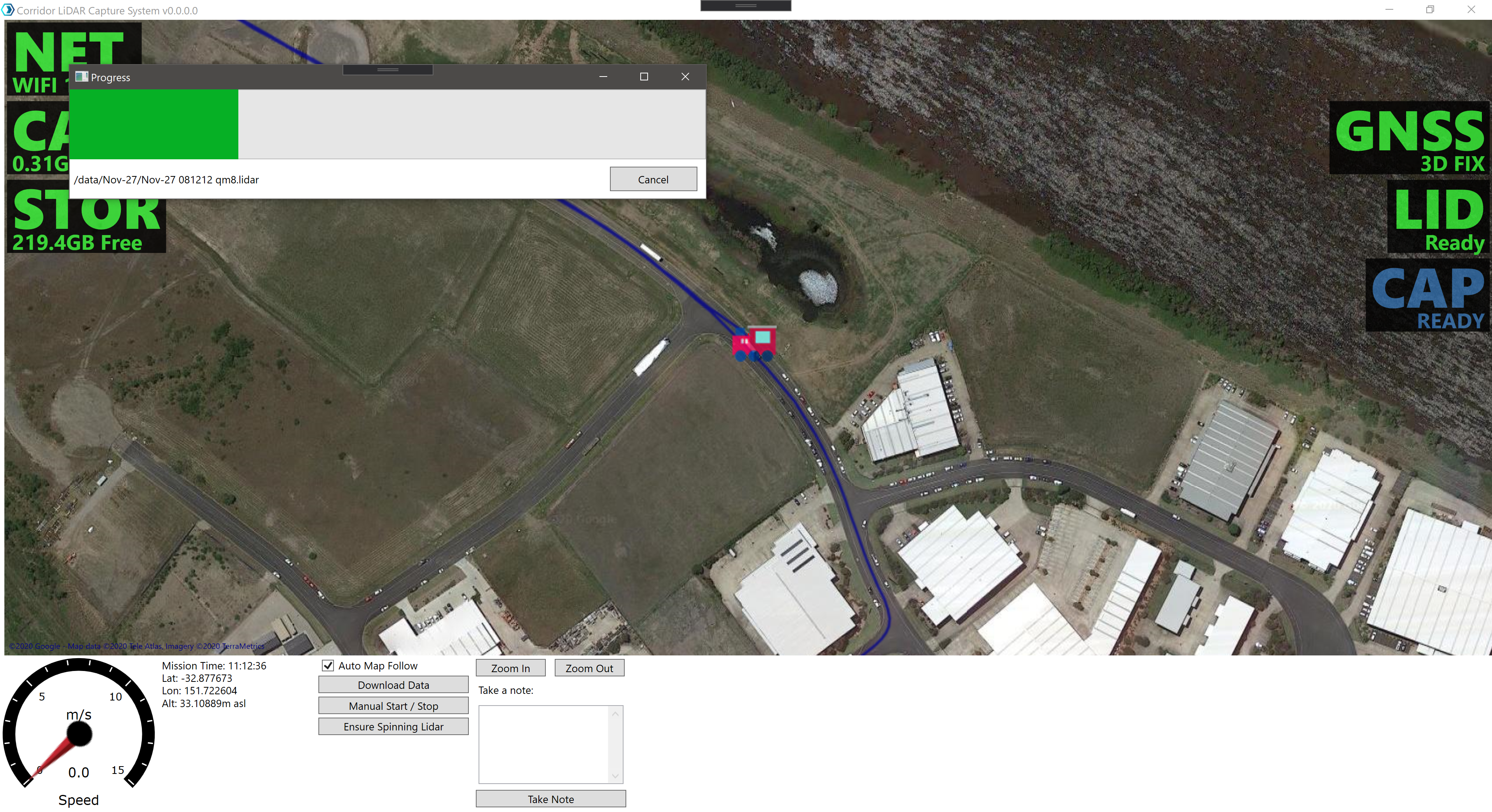
One of Ground Station’s primary functions is to monitor the health of the Cordel capture system in real-time, allowing potential capture issues to be identified and resolved in the field.
Ground Station shows health status information for:
|
NET |
Network Connection |
🟩 The hardware unit has a connection to Ground Station
|
|---|---|---|
|
CAM |
Camera Sensor |
🟩 The camera is connected
|
|
STOR |
Storage |
🟩 There is sufficient storage space available on the hardware unit
|
|
GNSS |
Global Positioning |
🟩 The hardware has a good GNSS fix
|
|
LID |
LiDAR Sensor |
🟩 The LiDAR sensor is connected
|
|
CAP |
Capturing |
🟩 The hardware is currently recording capture data
|
The LiDAR and GNSS indicators can take up to 2 minutes to reach the capture state and may show warning icons until then.
What should I do if a sensor is red or not functioning as expected?
-
Check the hardware unit and host machine have power.
-
Check all cables are securely attached to their respective ports.
-
Inspect antenna cables for pinches or kinks.
-
Power-cycle the camera and the hardware unit.
-
Restart the host machine.
-
If still red, contact Cordel Support support@cordel.ai with a brief description of steps taken.
How can I validate captured data in the field while I am offline?
To prevent the need to revisit and recapture data at a later date, users should validate data at the end of each capture.
No internet connection is required to perform this check.
-
Go to C:\Users\<USERNAME>\AppData\Local\Cordel\Data (A shortcut to this folder is also available on the OBC desktop page)
-
Search for the folder with today’s capture date and open it. Open 3-5 .MP4 video files and check if they open and can be played/viewed.
-
Open the Cordel Cloud Sync application.
-
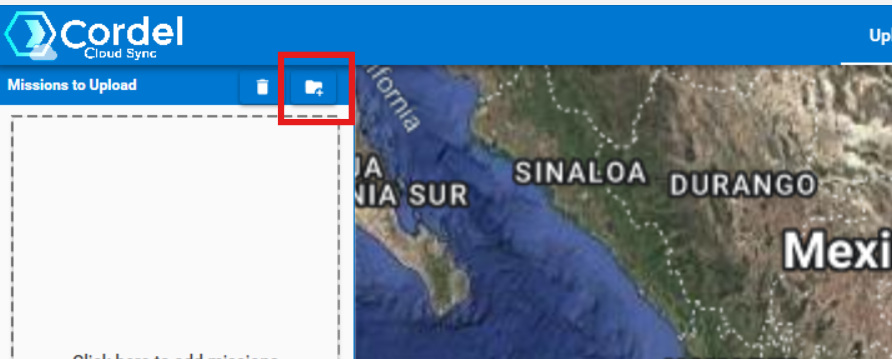
Click the ‘Select Directory’ icon above the file list
-
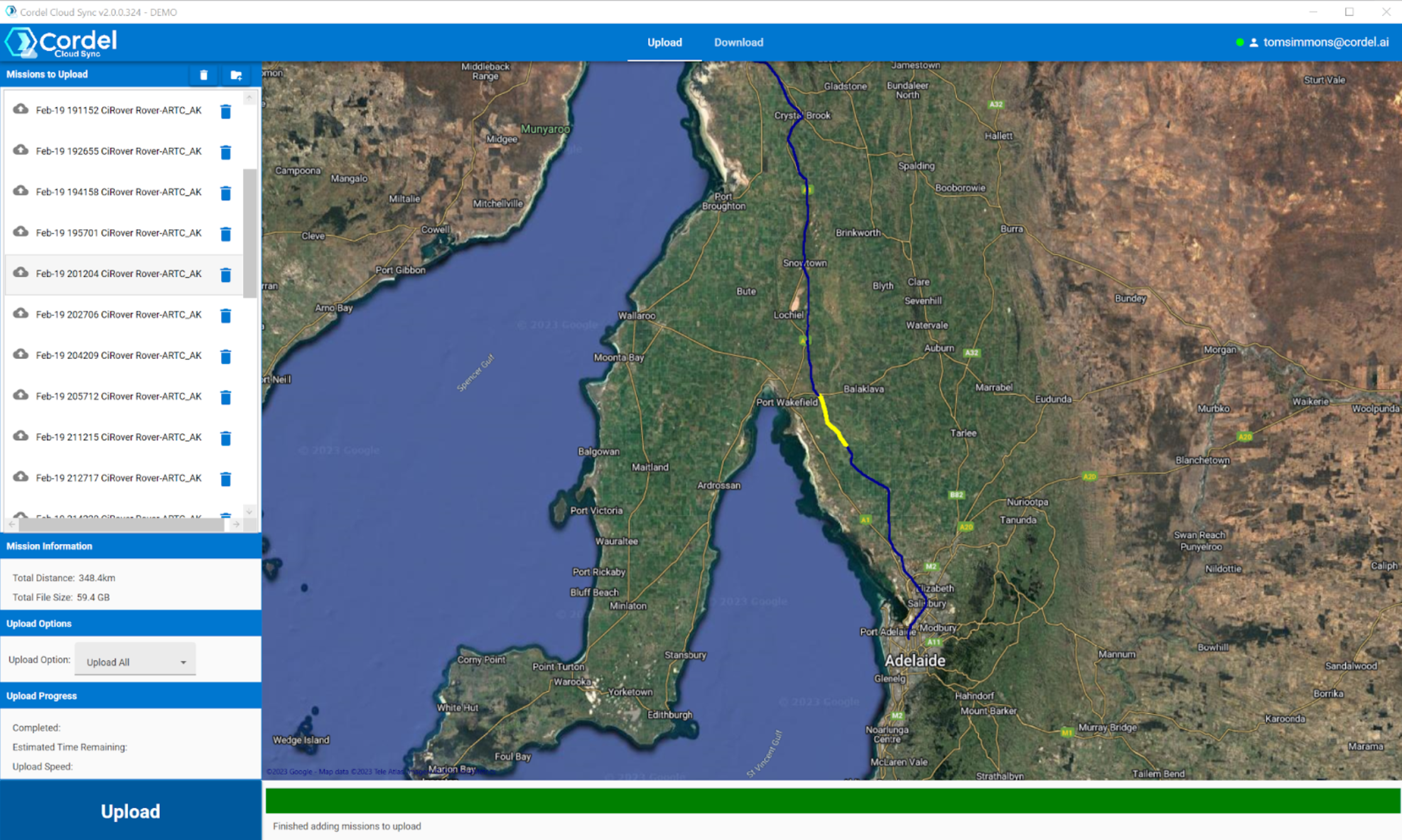
Select all missions inside today’s folder and click upload
-
Check the map has a continuous blue line, indicating data has been captured continuously.
What should I do if data has not been captured successfully?
-
Re-capture any missing sections of the track
-
Contact Cordel Support support@cordel.ai
Data Management
How does data get saved on the Cordel capture device (the Rover)?
Manual capture: When capture is manually stopped, data begins to synchronize between the hardware unit and the Host Machine automatically.
Automatic capture: Data is automatically synchronized between the hardware unit and the Host Machine during capture - at the conclusion of every mission (typically every 15 minutes)
How does data sync between Cordel capture device (the Rover) and the host machine?
On start-up, Ground Station will also compare the files on the Rover to those on the host machine. If there are files on the Rover that aren’t present on the host machine, it will open the data download panel. This panel can also be manually opened by pressing the “Download Data” button in Ground Station

Related links:
How do I transfer data from the host machine to external storage (copy/paste)
Usually, this process is completed at the end of the capture day.
Users should transfer today’s data into an external drive by copying the folder with today’s date from C:\Users\<USERNAME>\AppData\Local\Cordel\Data to an external hard drive.
What configuration/hardware options are the most suitable for my business?
Please speak to your Cordel Account Manager prior to install to determine the best setup for your business.
What happens if my data is being transferred from the Cordel capture hardware to the host machine and one or both devices lose power?
When data transfer is unexpectedly ended, the system marks that file as “undownloaded”. The next time both devices have power and internet connectivity, the system will automatically resume the data transfer, including any “unfinished” transfers.
What happens if my data is being transferred from the Cordel capture hardware to the host machine and one or both devices lose internet connectivity?
When data transfer is unexpectedly ended, the system marks that file as “undownloaded”. The next time both devices have power and internet connectivity, the system will automatically resume the data transfer, including any “unfinished” transfers.
How can I check what data exists on the Cordel capture hardware that has not yet been transferred to the host machine?
-
Open Ground Station on the host machine.
-
If the Download Data panel does not open automatically, click Download Data.
-
Review the list of files shown as not yet downloaded. Items marked Undownloaded exist only on the Rover.
Can I manually transfer data from Cordel hardware to the Ground Station host machine?
Yes. If Ground Station is not available, you can copy data directly via USB/Ethernet from the Rover’s Data folder to the host machine. Use Windows File Explorer to copy the dated mission folders from C:\Users\<USERNAME>\AppData\Local\Cordel\Data on the Rover to the equivalent folder on the host. Ensure the transfer completes before disconnecting.
Can I manually transfer data from the Ground Station host machine to Cordel Connect?
Yes. Use the Cordel Cloud Sync application on the host machine. Sign in, click Select Directory and choose C:\Users\<USERNAME>\AppData\Local\Cordel\Data. Select today’s missions and click Upload. Sync will queue and upload when internet is available.
Can I manually transfer data from the Ground Station host machine to an external hard drive?
Yes. Connect the external drive to the host machine and open Windows File Explorer. Browse to C:\Users\<USERNAME>\AppData\Local\Cordel\Data. Copy (do not move) the dated mission folder(s) for the day to the external drive. Wait for the copy to finish, then use Safely Remove Hardware to eject the drive. Finally, verify file counts and total size on the external drive match the source, and ensure there is sufficient free space before starting the next capture.