

Preparing to capture data
Power the relevant devices
-
Power on the Cordel hardware unit (Wave-OEM or Wave-Rugged), referred to as “the Rover”
-
Power on the Host Machine, typically a Toughbook or DI-1100, located on the capture vehicle that houses the Cordel capture hardware.
Launch the Ground Station software
Double click the Ground Station icon to launch the software. Some configurations automatically open the Ground Station software when the host machine is turned on. In these cases, you may skip this step.
Without an internet connection, the map will not load. Attempting to zoom in on any region of the map will not increase the display quality.
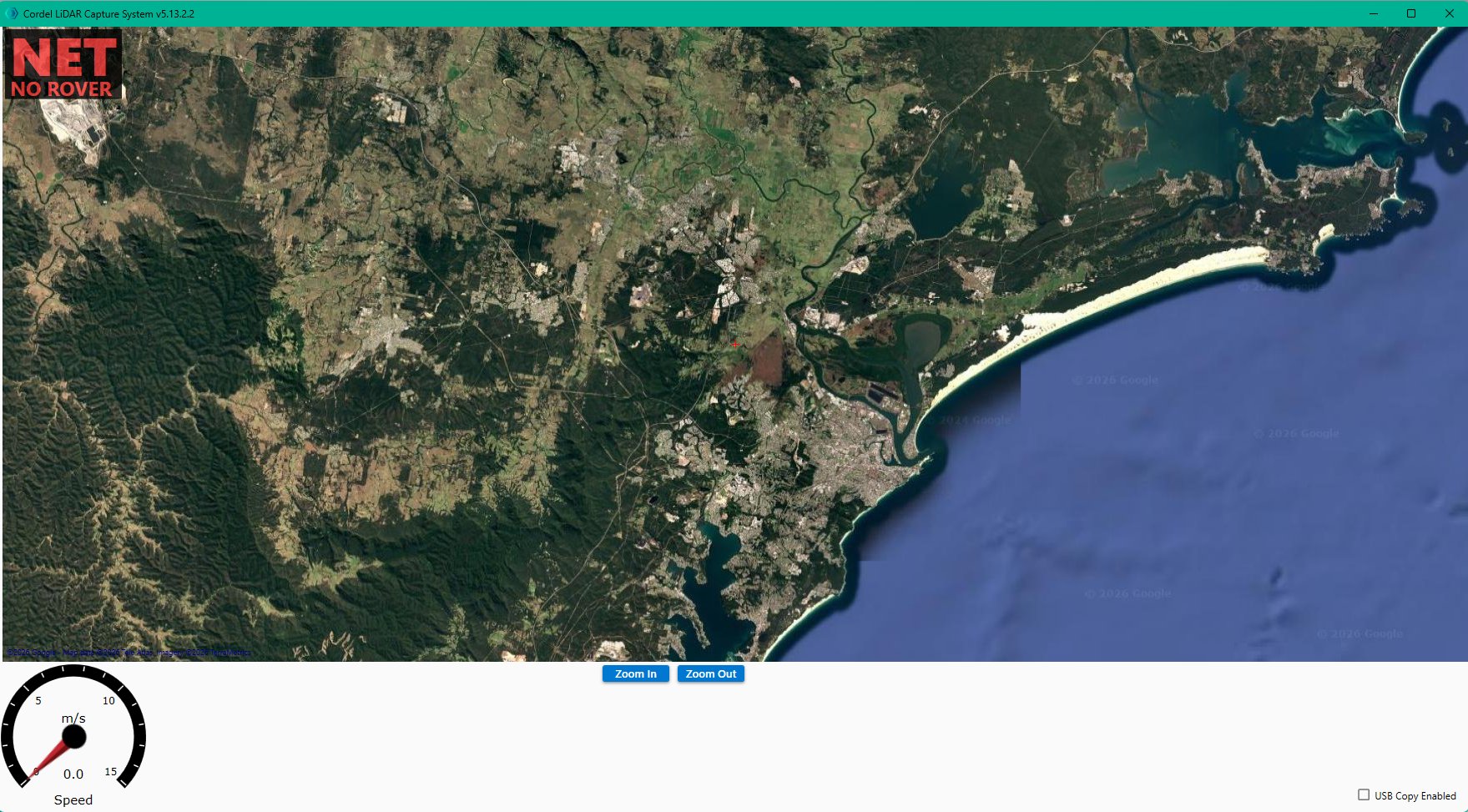
Ground Station: Not connected state
If the Rover is not connected to the Host Machine, the following screen will be displayed:
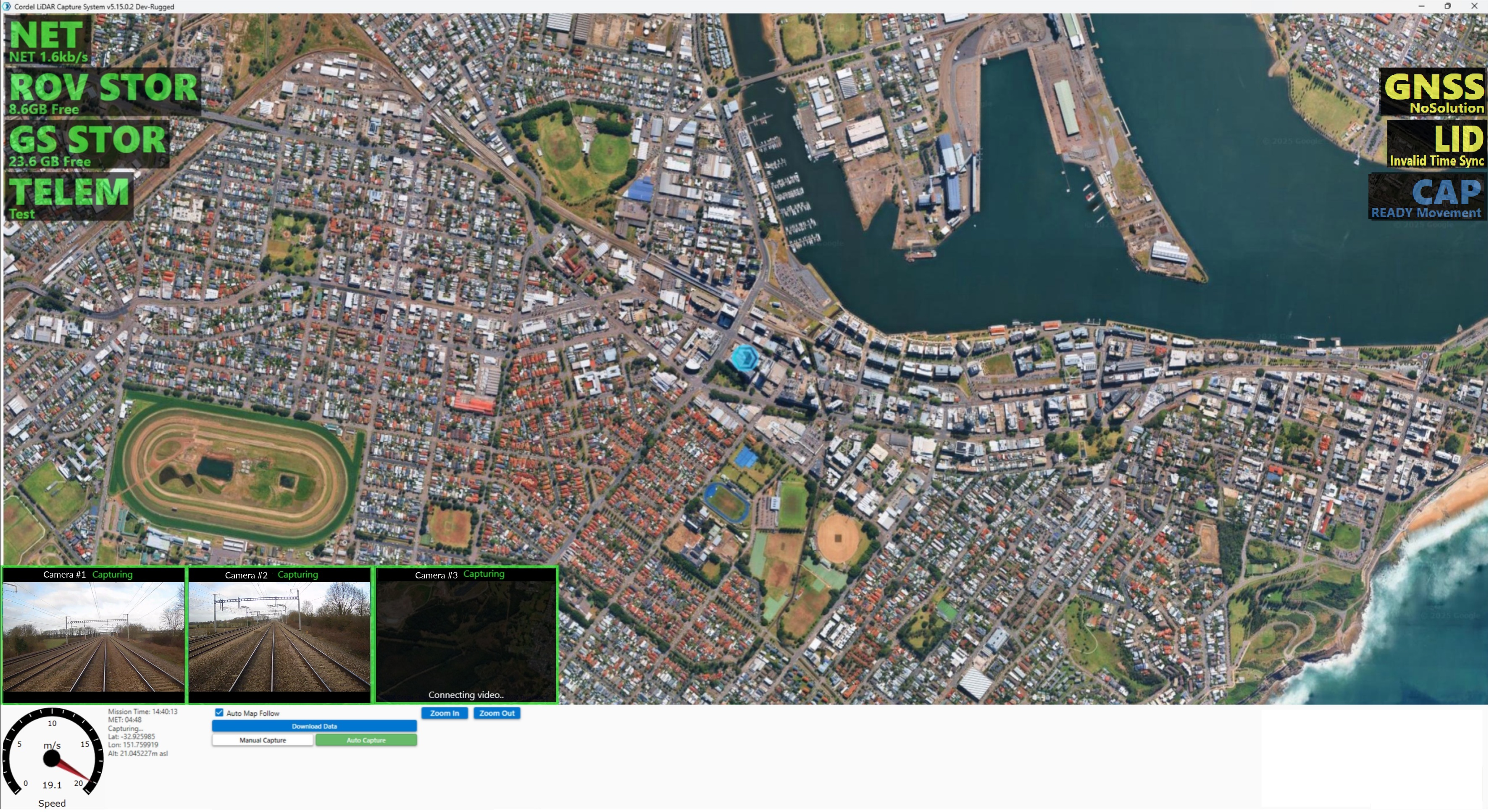
Ground Station: Inititalising
As the Ground Station software establishes a connection to the Rover, it is not uncommon for sensors to show warnings:
Ground Station: Connected state
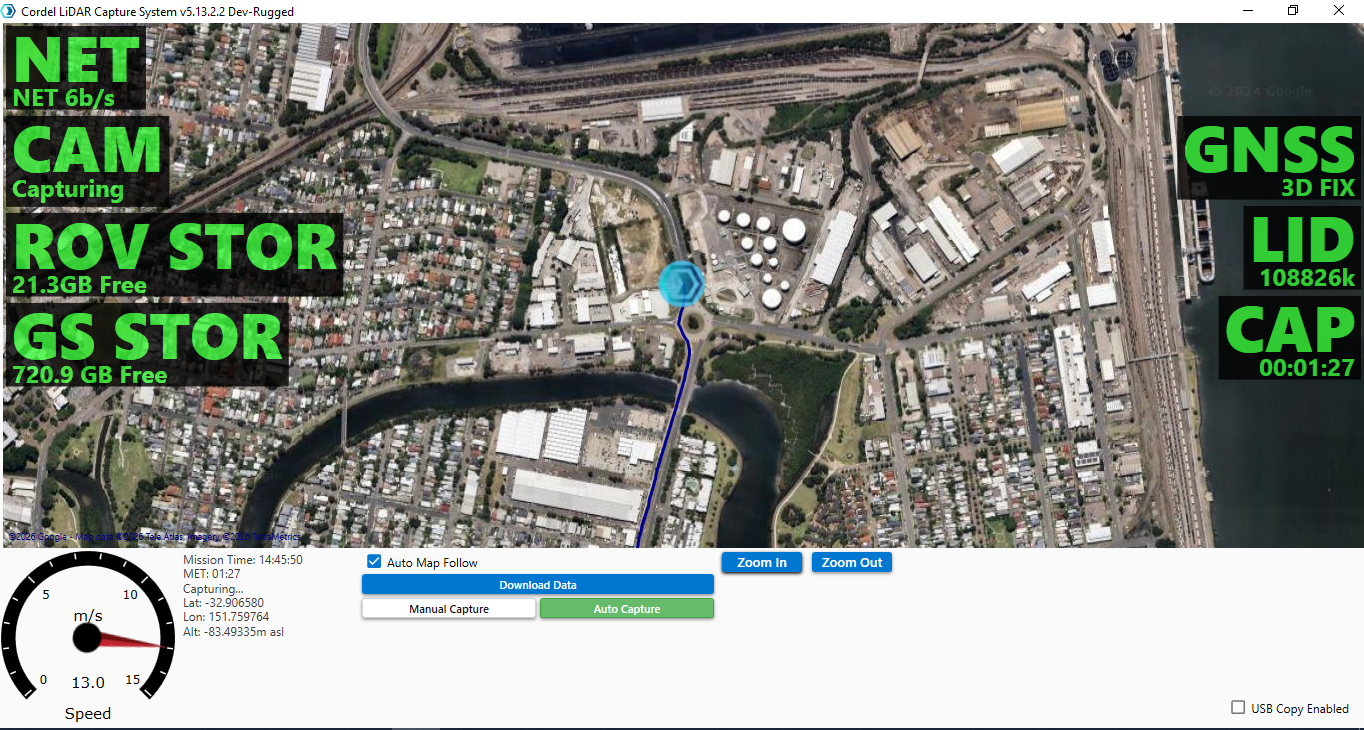
If Ground Station is connected to an active Cordel capture device, it will display health information each sensor, as shown below:
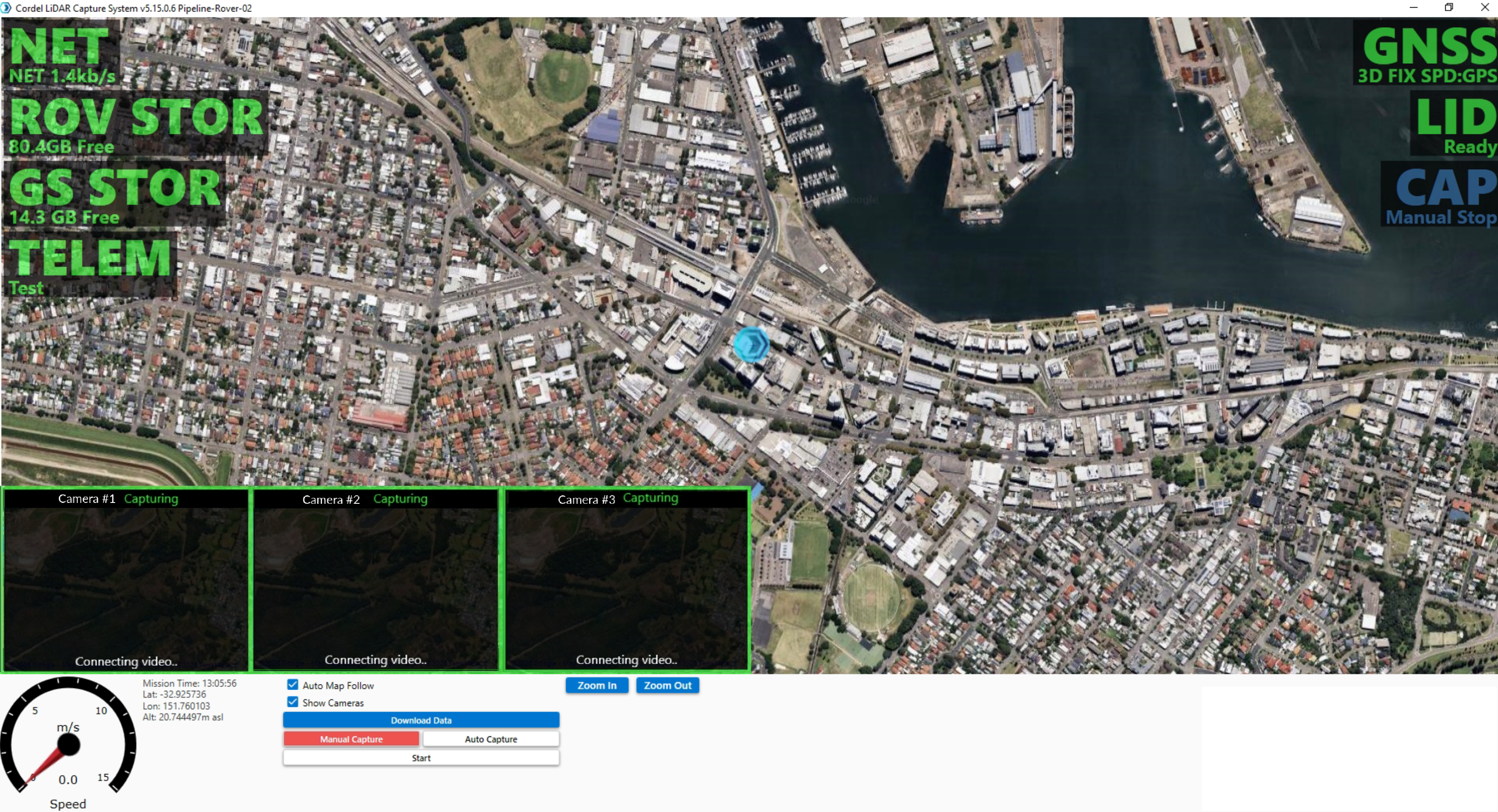
Once the LiDAR sensor is ready and the GNSS is reporting a position lock they will be displayed in green, and this means the unit is ready to begin data capture.
GNSS may remain red or yellow depending on GPS coverage.
Data Capture mode
There are two ways to start/stop data capture: automatic and manual.
Automatic Capture: data capture is based on vehicle movement being detected.
Manual Capture: data capture is started and stopped manually by the user, using the corresponding buttons.

Users are able to change Capture mode during capture. When a user switches to a different Capture mode during active capture, the current mission is stopped and is saved to the Rover.
How to start data capture
When Ground Station is configured for automatic capture, the system automatically begins capture when it detects motion and stops capturing when motion ceases (i.e. the vehicle stops). Captured data is automatically ‘split’ into a new mission every 15 minutes in automatic capture mode.
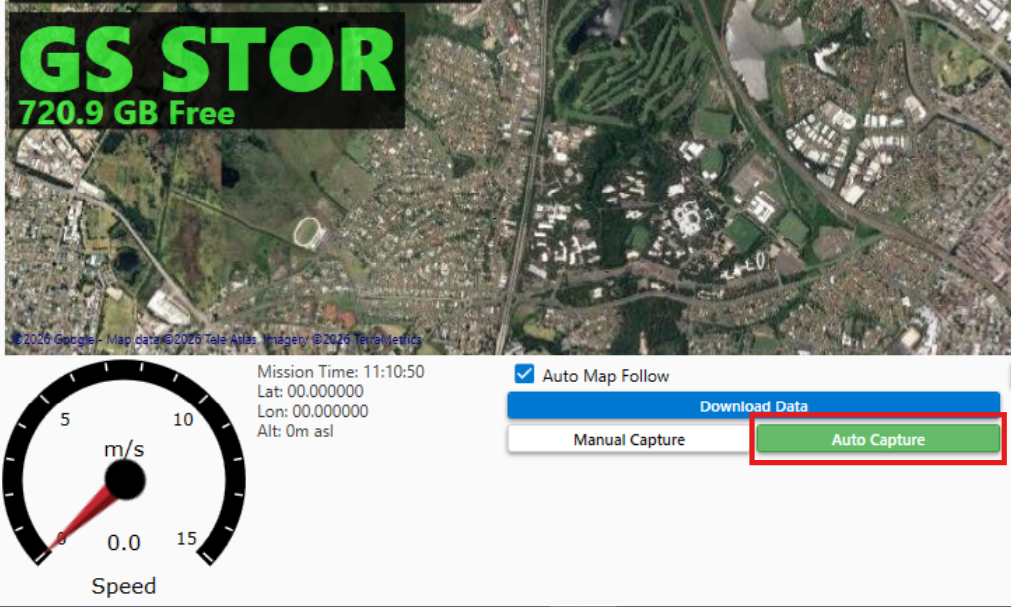
When Ground Station is configured for manual capture, the user manually starts and stops capturing data using the buttons.
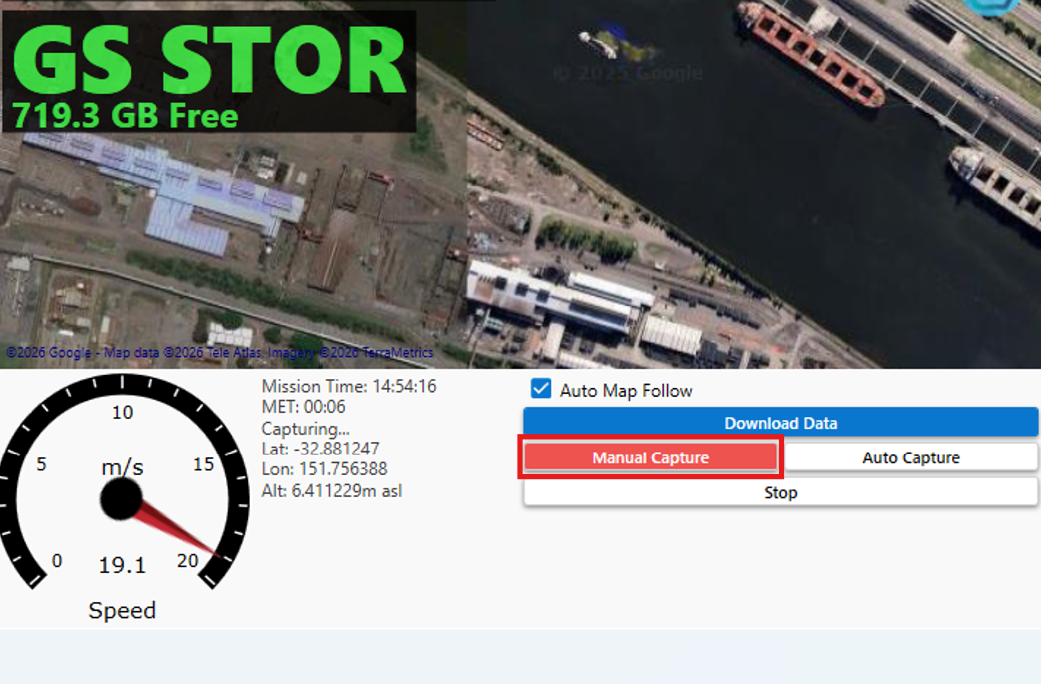
recording has started the CAP icon will be displayed in green and the other sensors will update to show the current data capture information.
How to end data capture
Automatic Capture
There are two conditions that will trigger the end of capture: to stop data capture:
-
The vehicle stops moving; capture will begin again automatically when movement is detected.
-
15 minutes have passed. To make data file sizes manageable, Ground Station automatically “splits” data into 15 minute blocks. This means data capture stops at 15 minutes and automatically resumes to begin the next 15 minute mission.
Whenever capture concludes, is is automatically saved to the Rover.
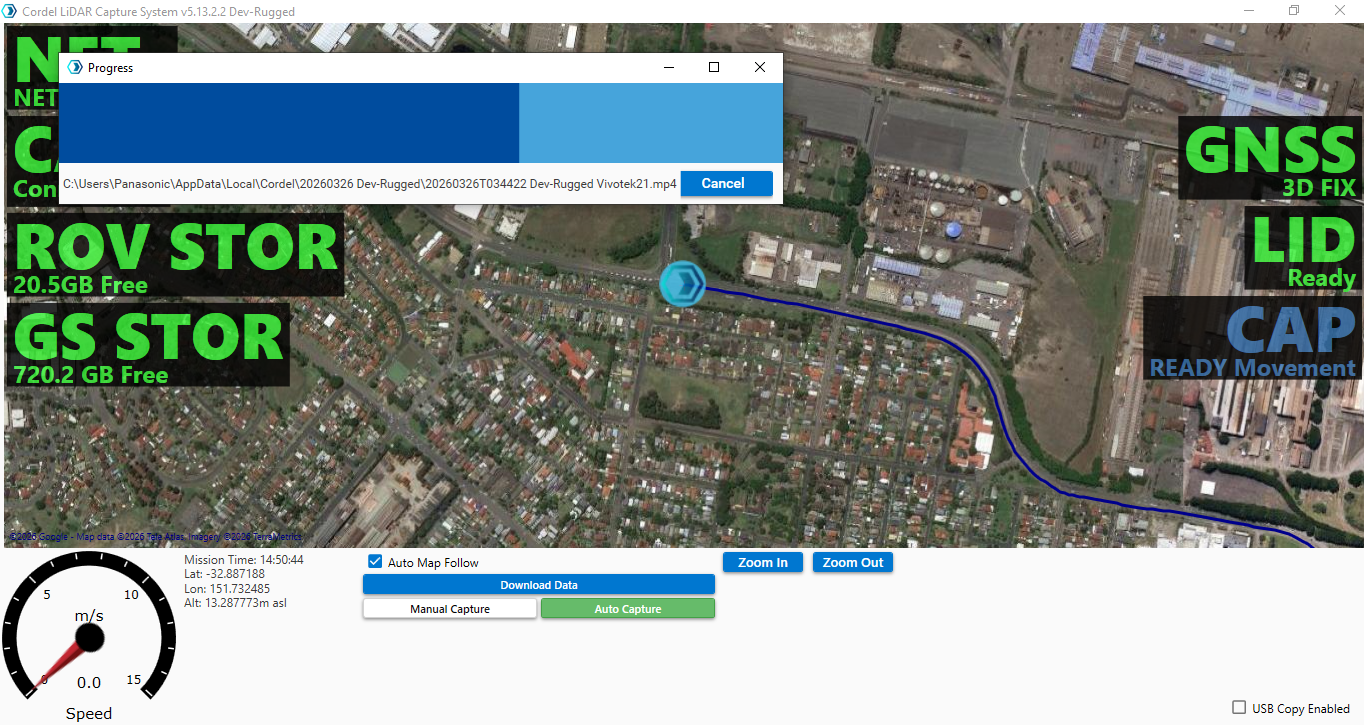
Manual Capture
To end capture when manual mode is selected, use the ‘Stop’ button:
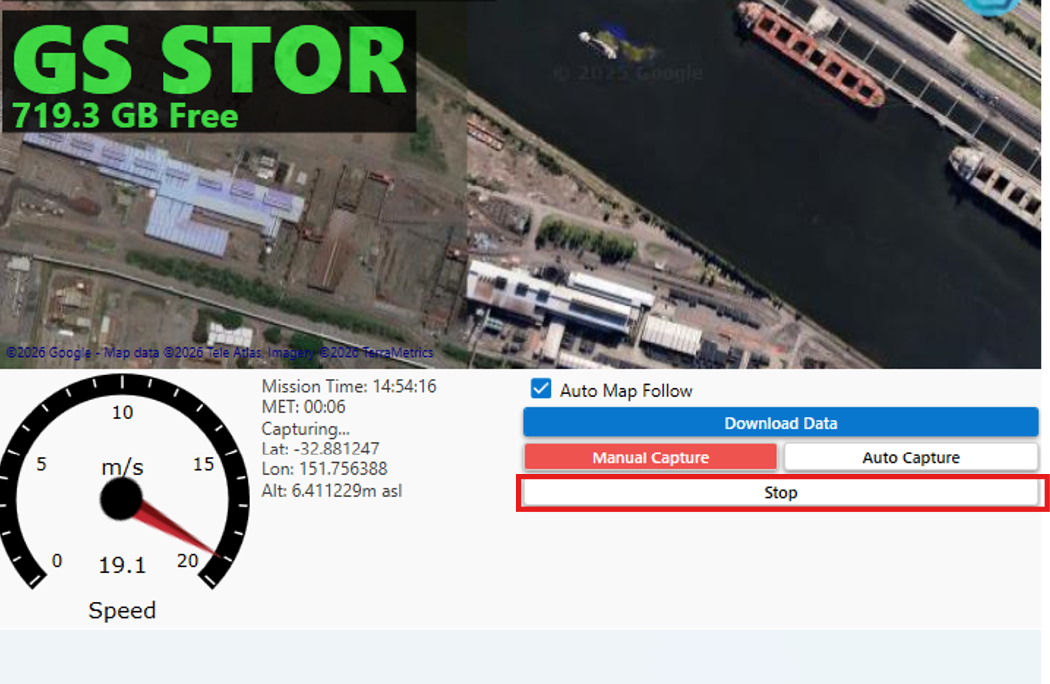
The ‘Stop’ button is only visible when the Manual Capture mode is enabled. It is hidden when Automatic Capture mode is enabled.
How to save captured data to the Rover
All captured data is automatically saved to the Rover at the conclusion of capture.
Hot to save captured data to an external device
(V4.0) How To Transfer Data To An External Drive Automatically
How to transfer Cordel captured data
There are several workflows that relate to the transfer of Cordel captured data, described in the following articles:
-
(V4.0) How Transfer Data From Cordel Capture Hardware To The Host Machine
-
(V4.0) How To Transfer Data From The Host Machine To Cordel Connect
Related Articles
How to monitor the health of capture hardware in Cordel Connect
Cordel Ground Station is connected to Cordel Connect, allowing remote tracking of hardware units and their status where there is good 4G coverage.