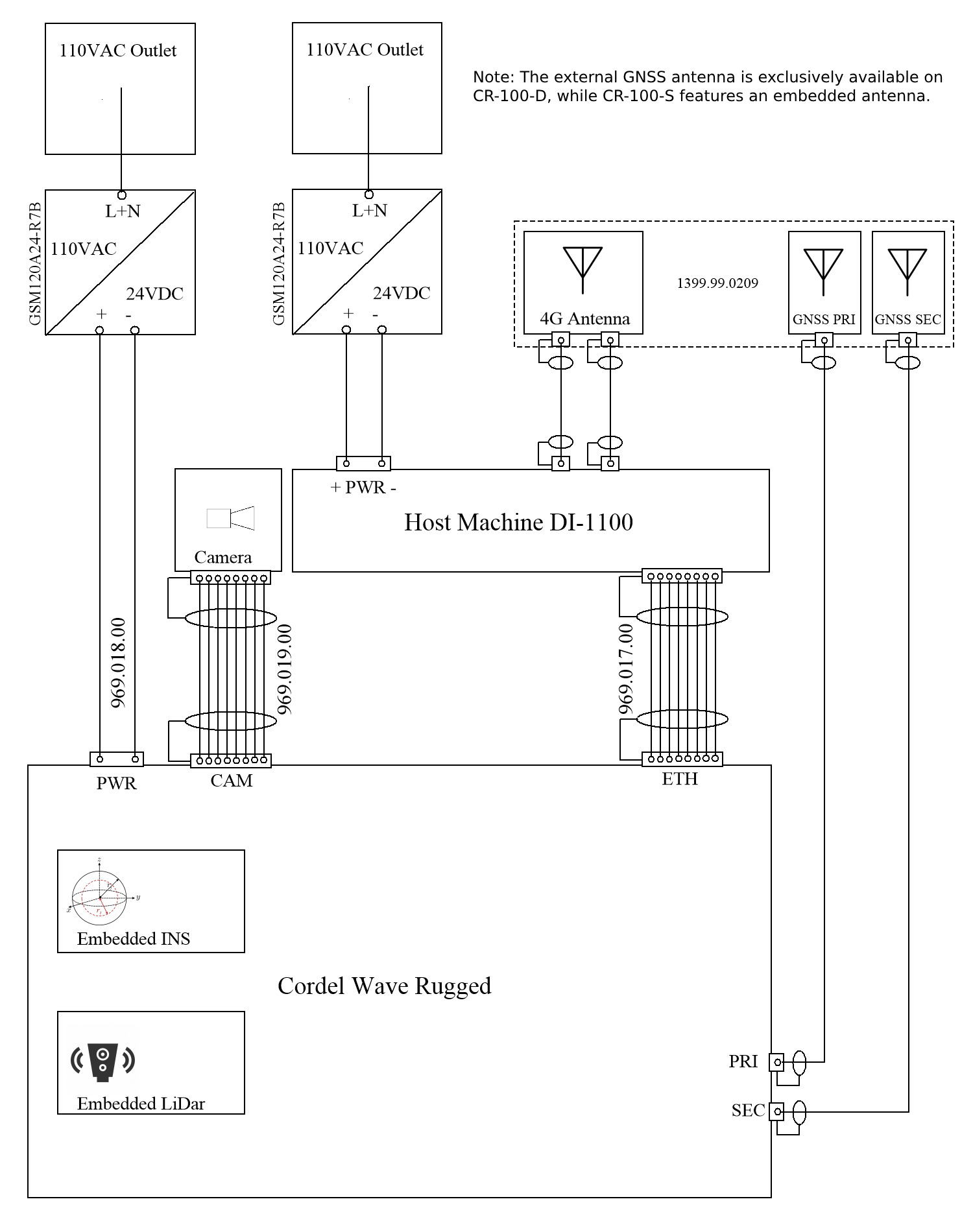

The Wave-Rugged sensor is designed as an always-on module. Any time the system is powered, it captures LiDAR, INS and video data, and stores capture data on its internal 2TB drive. It is highly recommended to run a host machine to view the live status of the sensor as well as to download data in real-time.
The host machine requires a Windows operating system with the ability to connect to the Cordel Control Unit via an ethernet cable.
Operation of Cordel’s Ground Station live monitoring software is available in the Cordel Ground Station User Guide.
Setting a Static IP
For the system to connect to the local area network, the Host Machine must have a Static IPv4 address set.
Recommended Address:
IP address: 192.168.1.7
Subnet Mask: 255.255.255.0
First Use
It is recommended you power the unit on and conduct a bench test before mounting the Cordel Wave-Rugged to your vehicle. To ensure that the unit and accessories are in good working order, please follow these steps:
-
Position the unit on a flat surface, such as a bench or table.
-
Connect the camera cable.
-
Connect a laptop/computer (DI-1100) to the unit using the provided Ethernet cable.
-
Connect Y-splitter power cable (187.005.00) to Rugged and Camera (Camera Gen 2 Only)
-
Connect the power cable.
-
Connect the AC/DC adapter output into the power cable plug.
-
Plug the AC/DC adapters into power outlet
-
Turn on the computer if it is not on yet.
-
Allow a minute for the system to initialize.
-
Check the IP address on the Ethernet adapter of your laptop/computer (e.g. 192.168.1.13 See Note 1).
-
Power on the system