

Prerequisites
-
A supported web browser
-
Access to the Cordel Connect login page URL for your organisation
-
An email address with a domain that matches ‘allowed’ domains (where allowed domains have been configured).
Note: No Cordel Connect account is required to submit an access request.
How It Works
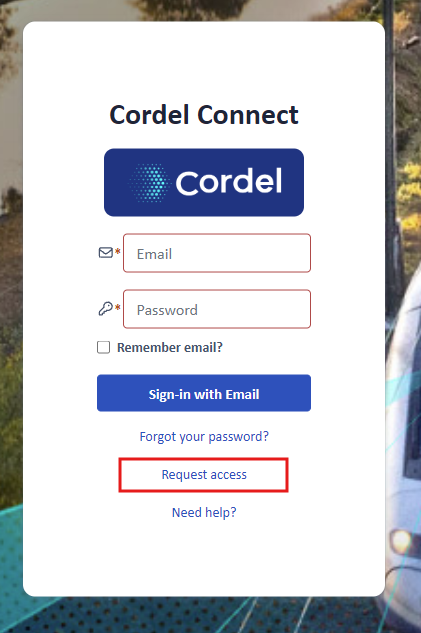
The "Request access" link on the login page opens the Access Request from. Submitting the form creates an access request notification in the Administration area of Cordel Connect.
Access is not granted automatically — the request is reviewed by your Cordel Connect administrator before your invitation is generated.
Steps
-
Navigate to the Cordel Connect login page for your organisation.
-
Click Request access, located below the 'Forgot your password?' link.
-
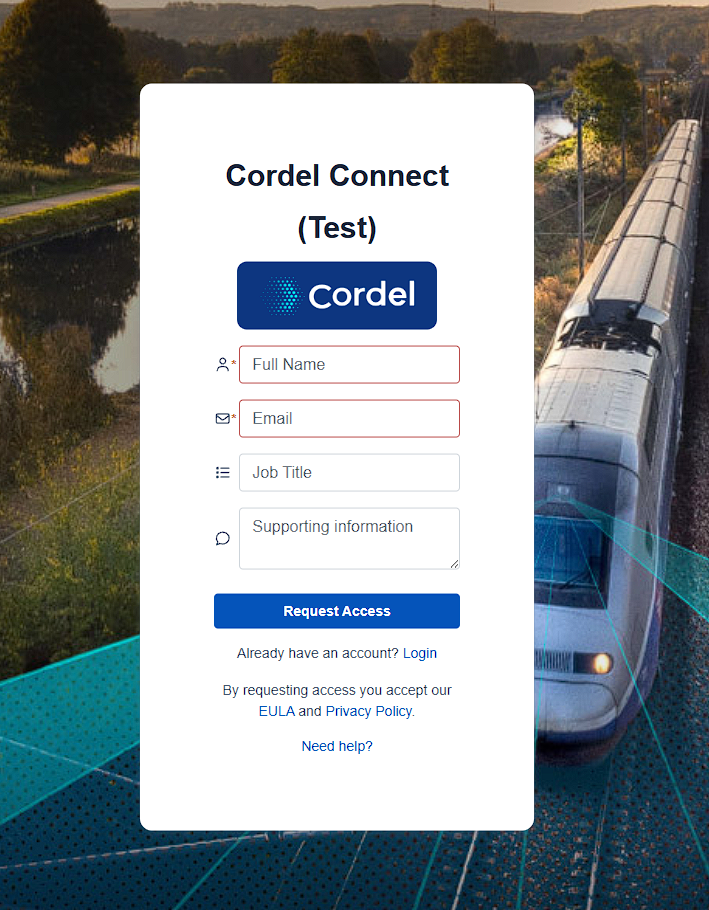
Complete the access request form.
-
Click 'Request Access' to submit the form.
Form Fields
Use the expand section below to understand each field on the User Access Request form.
Administration of Access Requests
Administrators can manage incoming access requests via the Administration area of Cordel Connect. For setup and configuration instructions, see Admin: How to Manage Access Requests in the Administrator FAQ section.
Notes / Limitations
-
Access is not provisioned automatically. All requests are reviewed before an account is created.
-
The link is not available in all environments. If you are accessing Cordel Connect via the RGDS environment, the link is not displayed. Contact your Cordel account manager to request access.
Next steps
Once your request is reviewed and approved, you will receive an email inviting you to the Cordel Connect platform.
Accept your invitation to Cordel Connect to finish creating your account.
Related Information