
What Are Jobs?
A job is comprised of one or more missions. This is shown below:
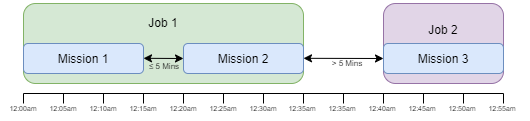
One job contains one or more missions. The duration of a job spans from the first mission’s start time to the last mission’s end time. If a new mission’s start time occurs within 5 minutes of an existing job’s end time, the new mission will be added to the existing job (and the job duration is updated), otherwise a new job will be created.
Each mission is limited to 15 minutes of capture time by the Cordel hardware (this is configurable, but currently 15 minutes is the standard among the hardware we operate).
Mission data is only captured when the vehicle the Cordel hardware is mounted to has commenced moving and is greater than a minimum threshold. This may result in some small gaps in the available data when looking at related/close-by missions.
The Job Search page
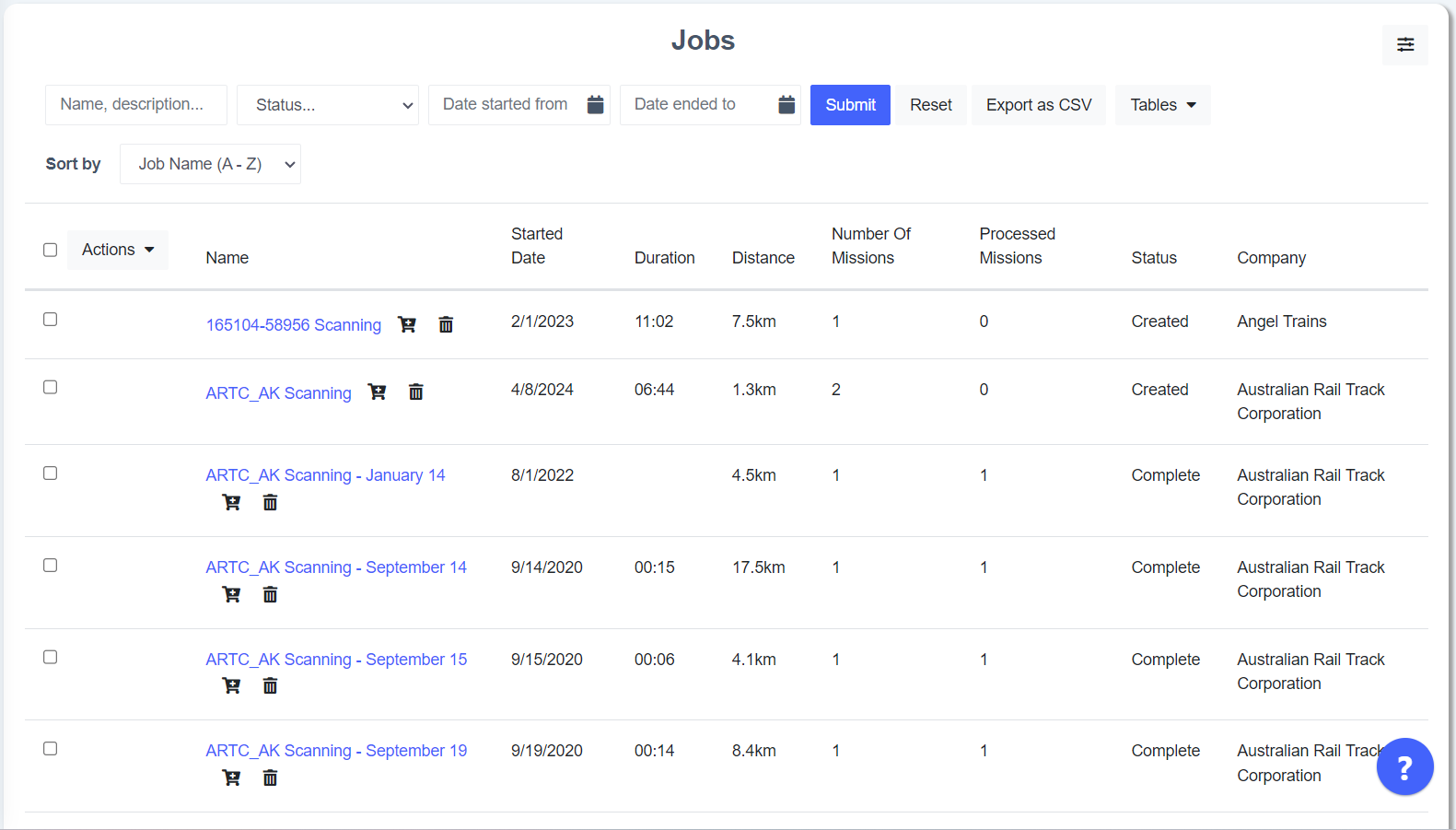
The Job Search page contains a list of jobs that have been uploaded to your Cordel Connect environment.
Each job listed includes a summary of the job details, including:
-
The job name
-
The job start date
-
The total length of all the missions in the job
-
The total distance covered by all the missions in the job
-
The number of missions in the job
-
The number of missions that have been processed in the job
-
The status of the job
-
The company the job corresponds to
How to search for jobs
The fields along the top row of the Jobs Search Page allows users to search by Job Name/Description, Job Status or Job start/End Date.
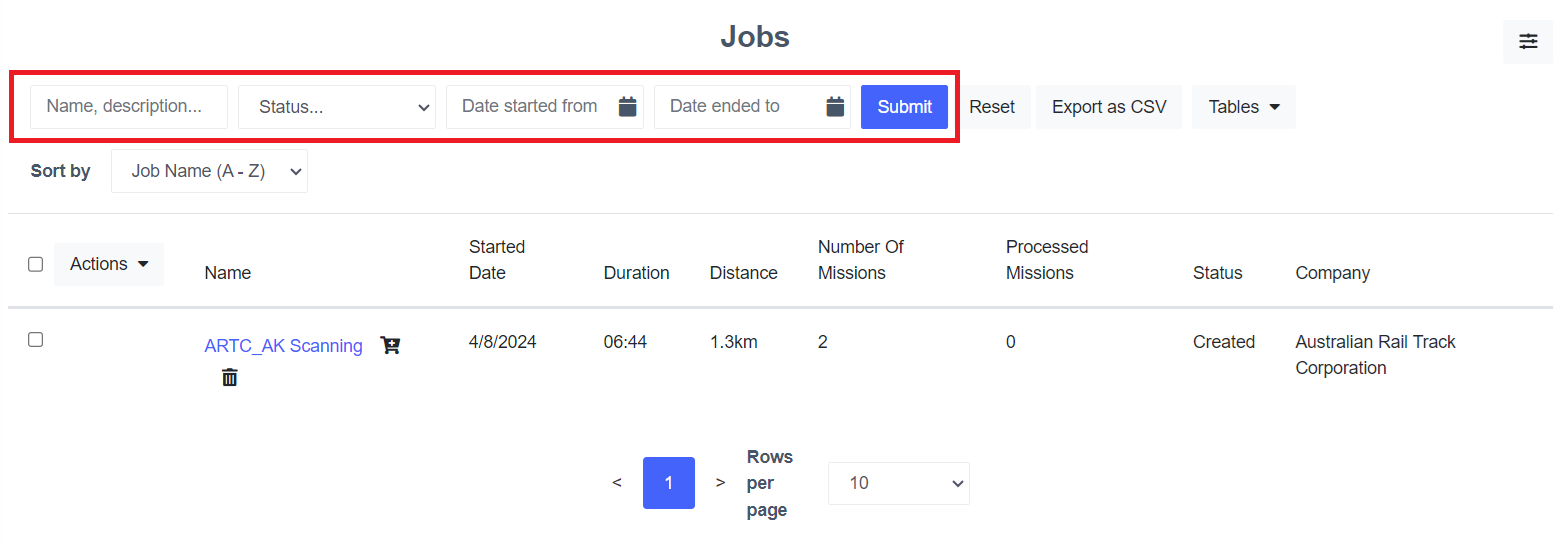
Name/Description: Each job has a name and a description. To search for a job that goes from "London to Ibiza" enter that text into the leftmost textbox and click the 'Submit' button.
Status: Jobs are assigned a status based on their current state in the processing pipeline. Select the status of the job you are searching for and click the 'Submit' button.
Start/End Date: It is possible to use either or both of the date range fields to search for a job. When clicked, they will open a calendar selection tool. Select the start and/or end date of the job you are searching for and click the 'Submit' button.
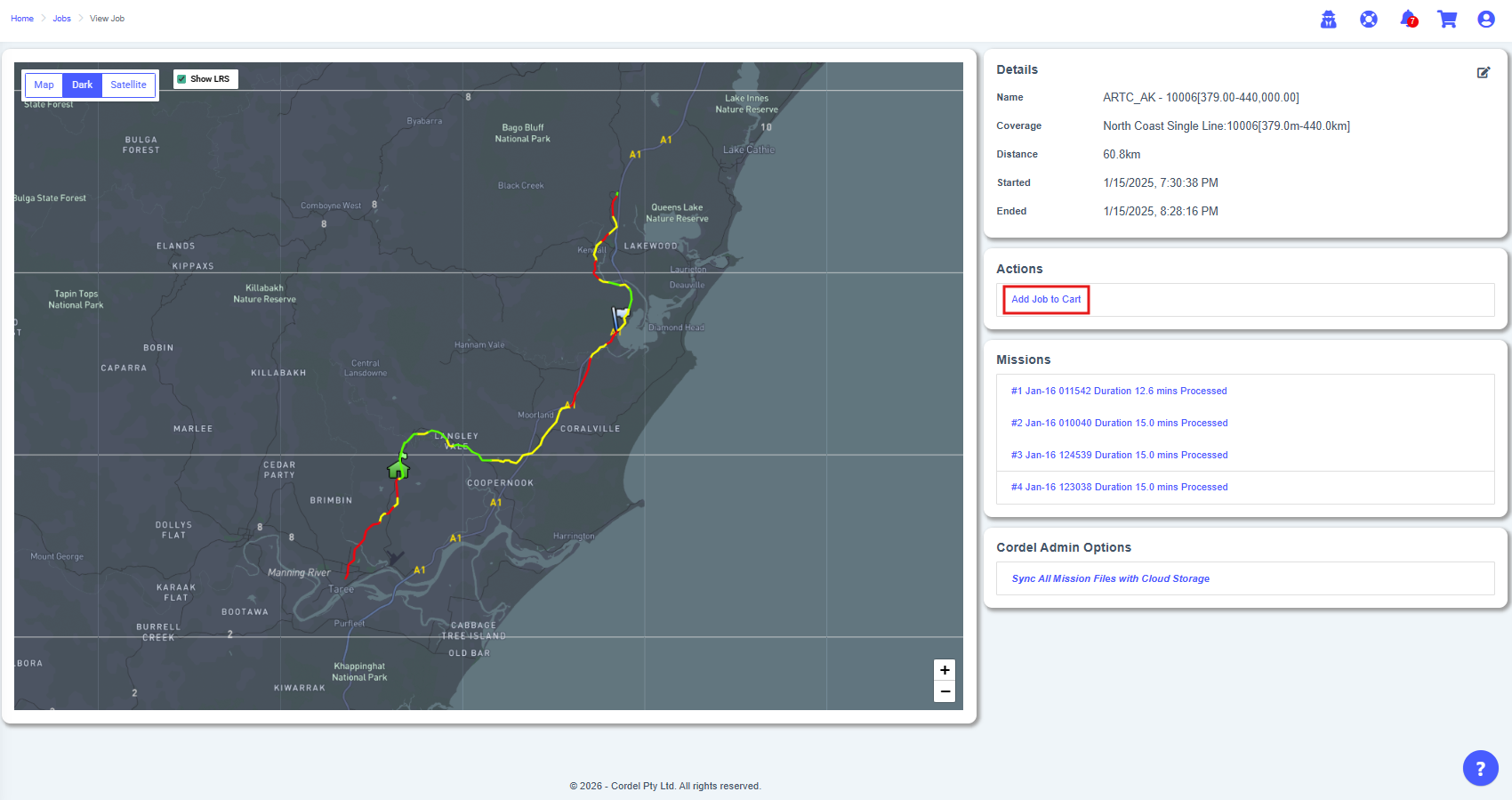
The Job Viewer
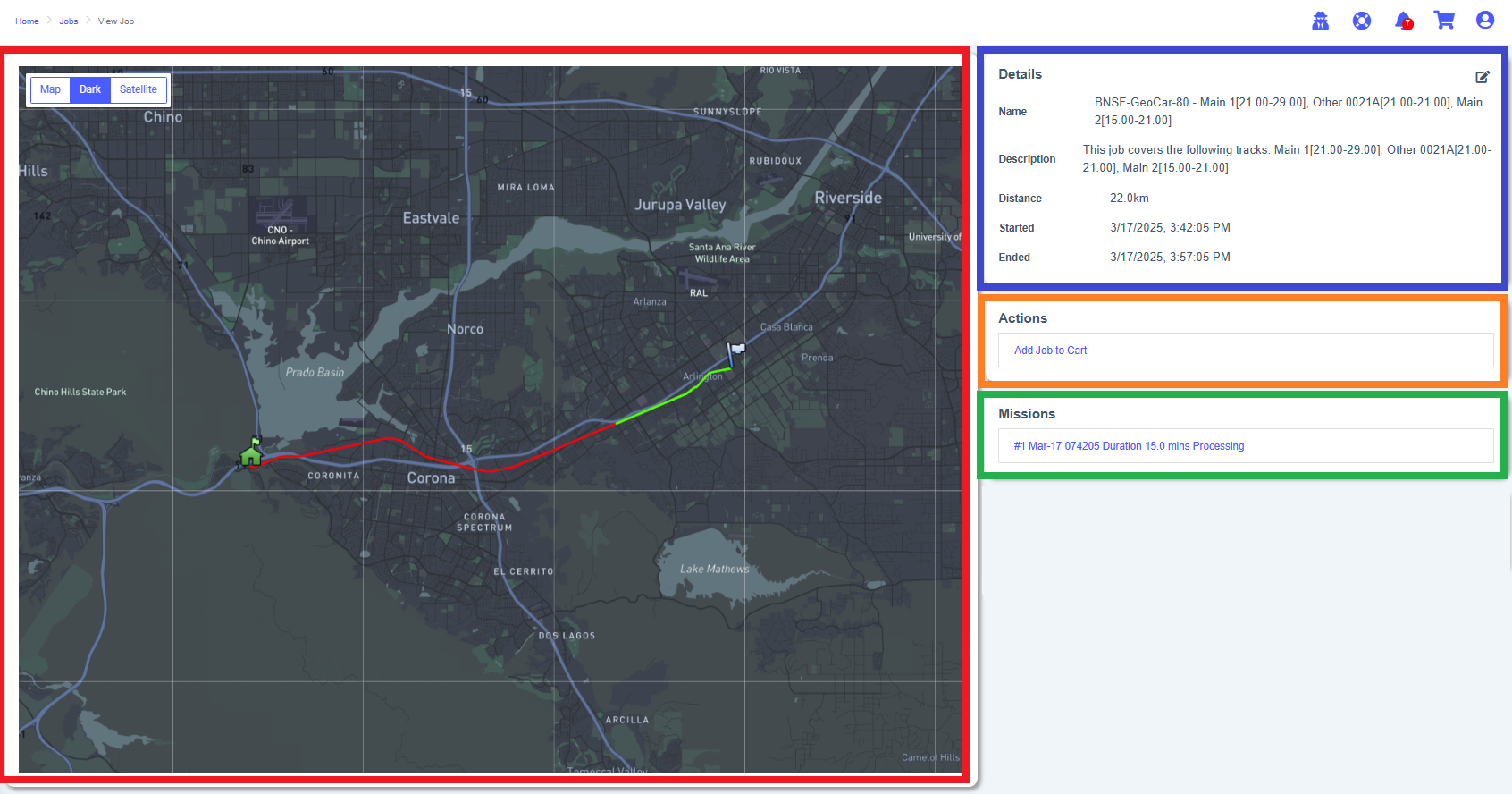
🟥 Map Overview
The map (red) shows the path the Cordel capture unit took.
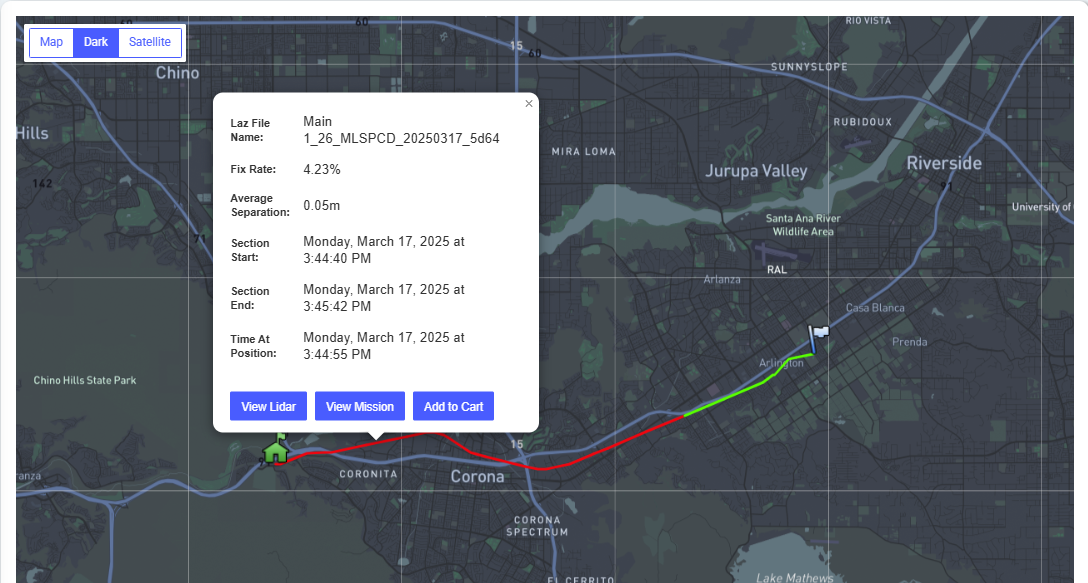
Users can view the Mission Details card by clicking on any of the missions displayed on the Job Viewer map:
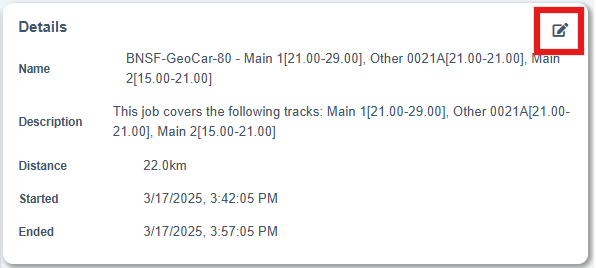
🟦 Details Card
The details card (blue) lists the fundamental details of the job.
Name: The name is based on name of the Cordel Capture Hardware.
Description: The description will include relevant track codes and network information (when this is supplied to Cordel).
Distance: the total distance covered by this job. This will include any overlapping missions, so if the same 1km section of track is scanned twice, the total distance will be 2km.
Dates: the start and end dates of the job
You can edit the job name and description by clicking the edit button in the top right hand corner of the details card.
🟧 Actions
The actions card (orange) allows users to add this job to the cart for further processing.
🟩 Mission List
The mission list (green) provides an ordered list of missions associated with this job.
Click on the mission hyperlinks to open a mission in Mission Viewer.
Adding Jobs To The Cart
Adding To The Cart From The Job Search Page
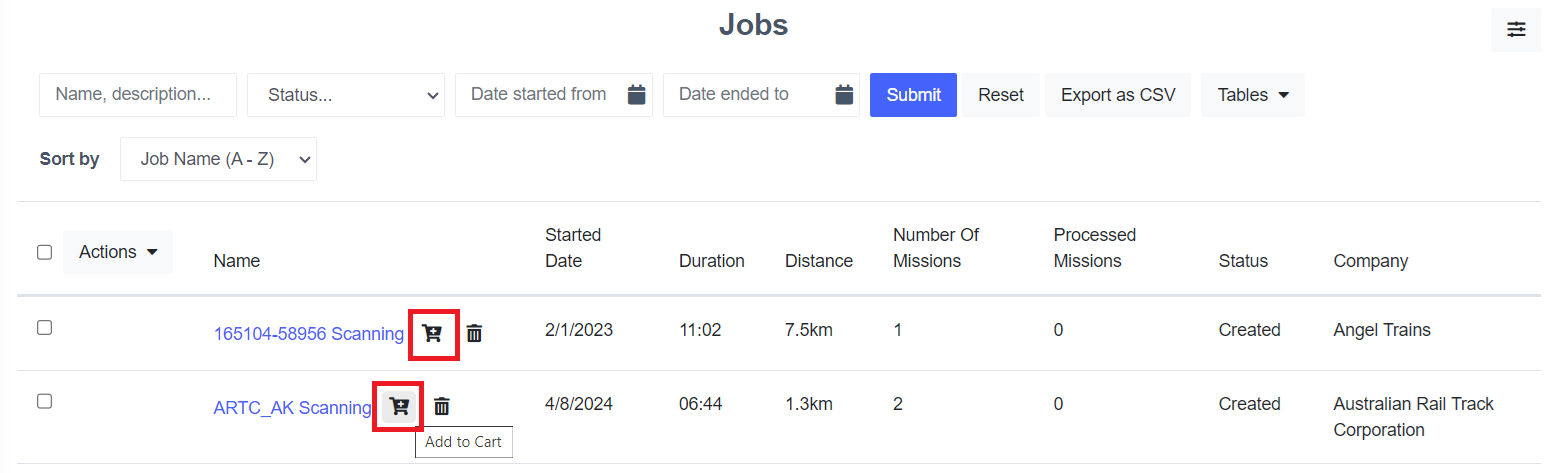
The job search offers a tabular way of filtering and viewing the list of available scan jobs that Cordel has captured.
Click the small 'cart' icon next to a job's name to add the job (ie. the group of missions contained with the selected job) to the current cart.
Adding To The Cart From The Job Viewer Page
The job viewer page contains the job information, a map of the scanned area, and a list of missions contained within the selected job.
To add the entire job to the cart (and all of the missions contained with the job) click the 'Add Job to Cart' hyperlink in the 'Actions' section to the right of the map.