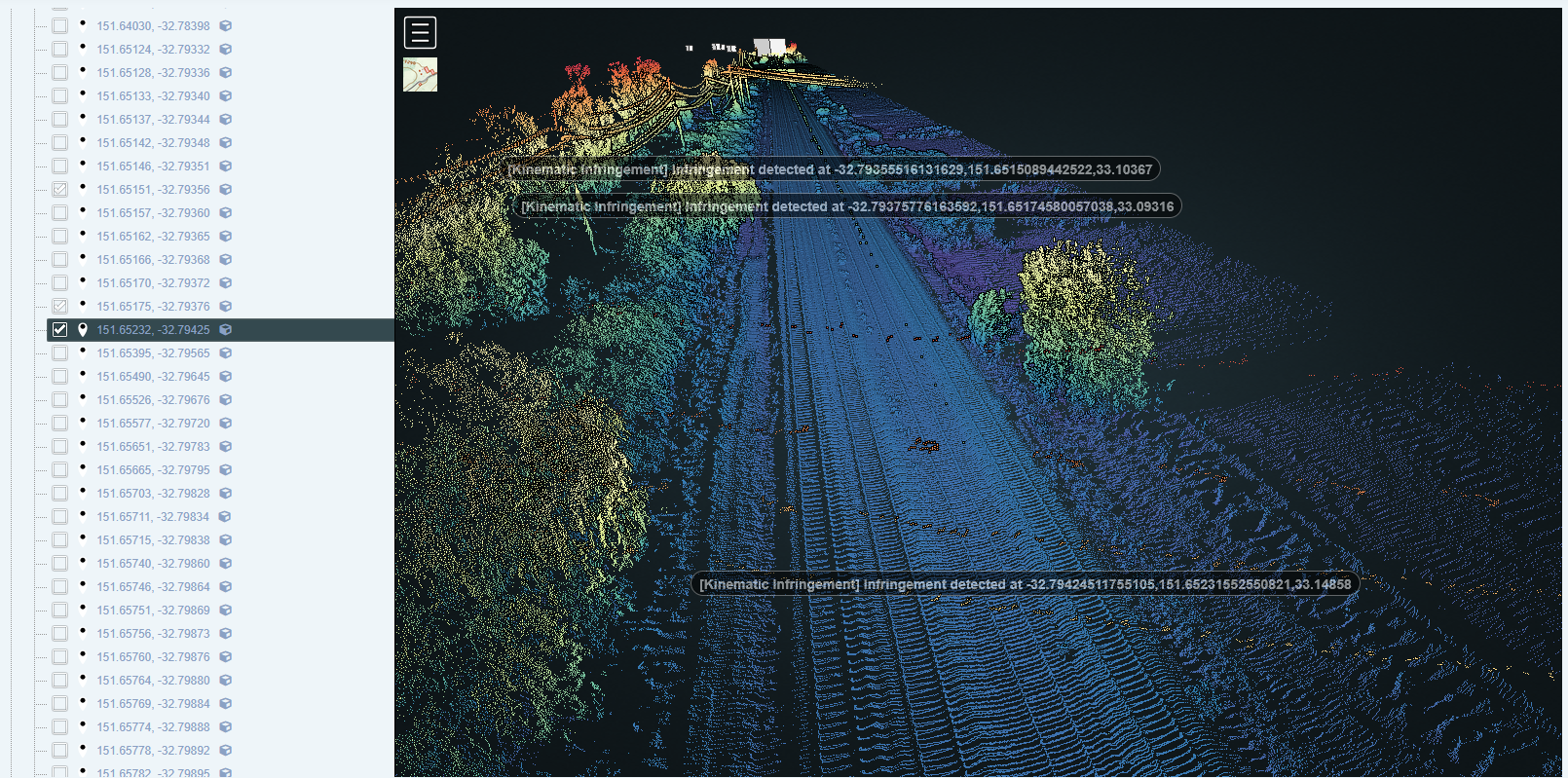

Tickets are generated during processing when an exception to client defined standards is detected. A ticket represents a possible infringement on the network.
The Ticket Search page
The ticket search provides a list of all tickets in the system.
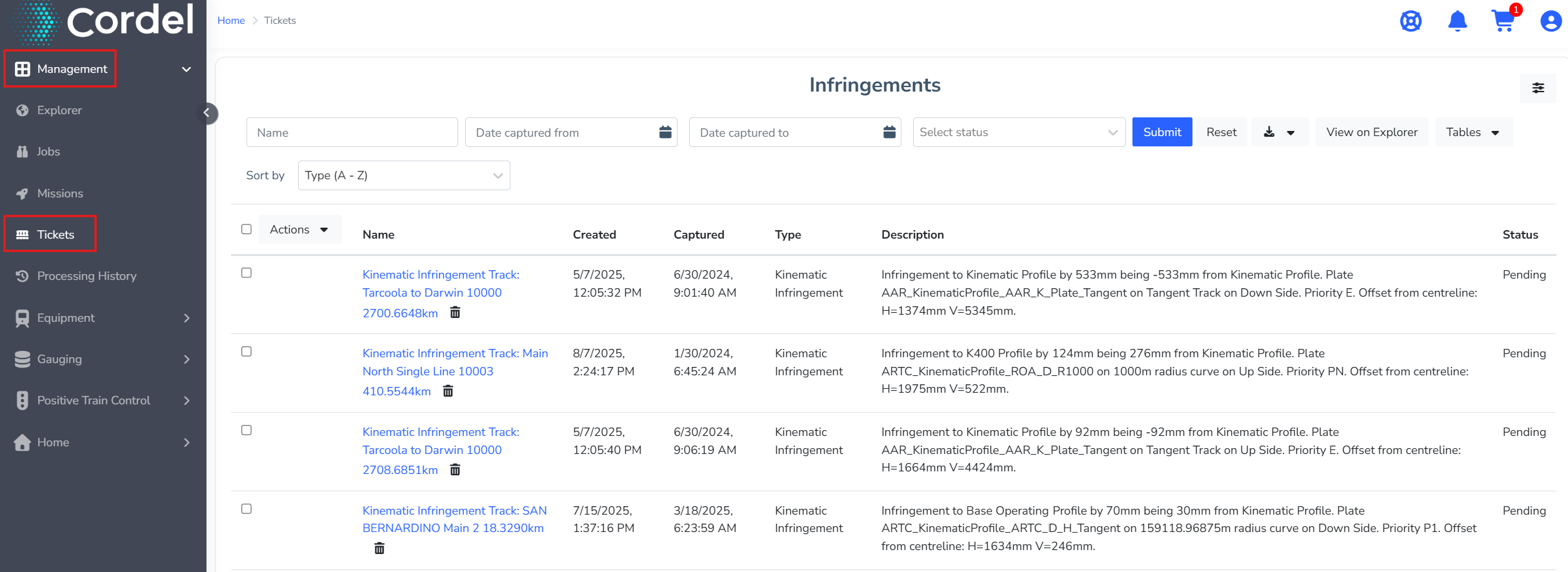
The fields along the top row of the Tickets Search page are shown in red below. The search fields allow users to search by ticket name/description, ticket capture data (start/end) and ticket status.
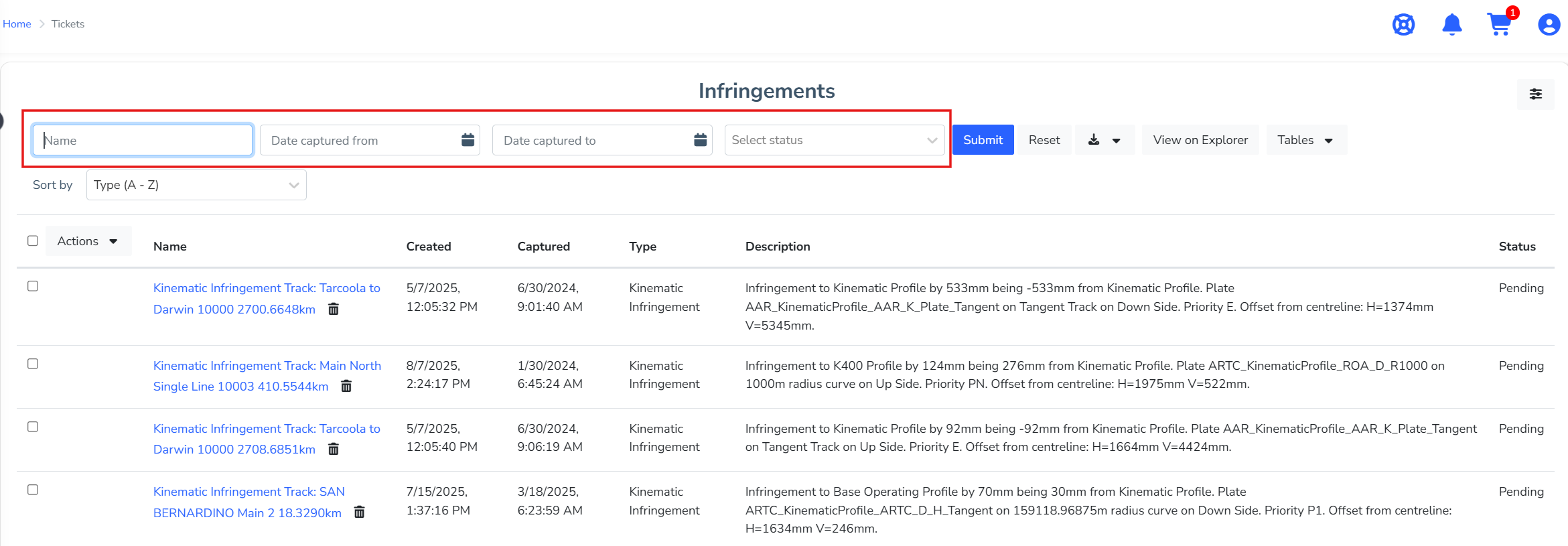
The Ticket Search page also has a 'sort' function, which allows users to sort by ticket name, created time, ticket type and captured time.
Typically, users sort by ticket type
The Ticket Viewer
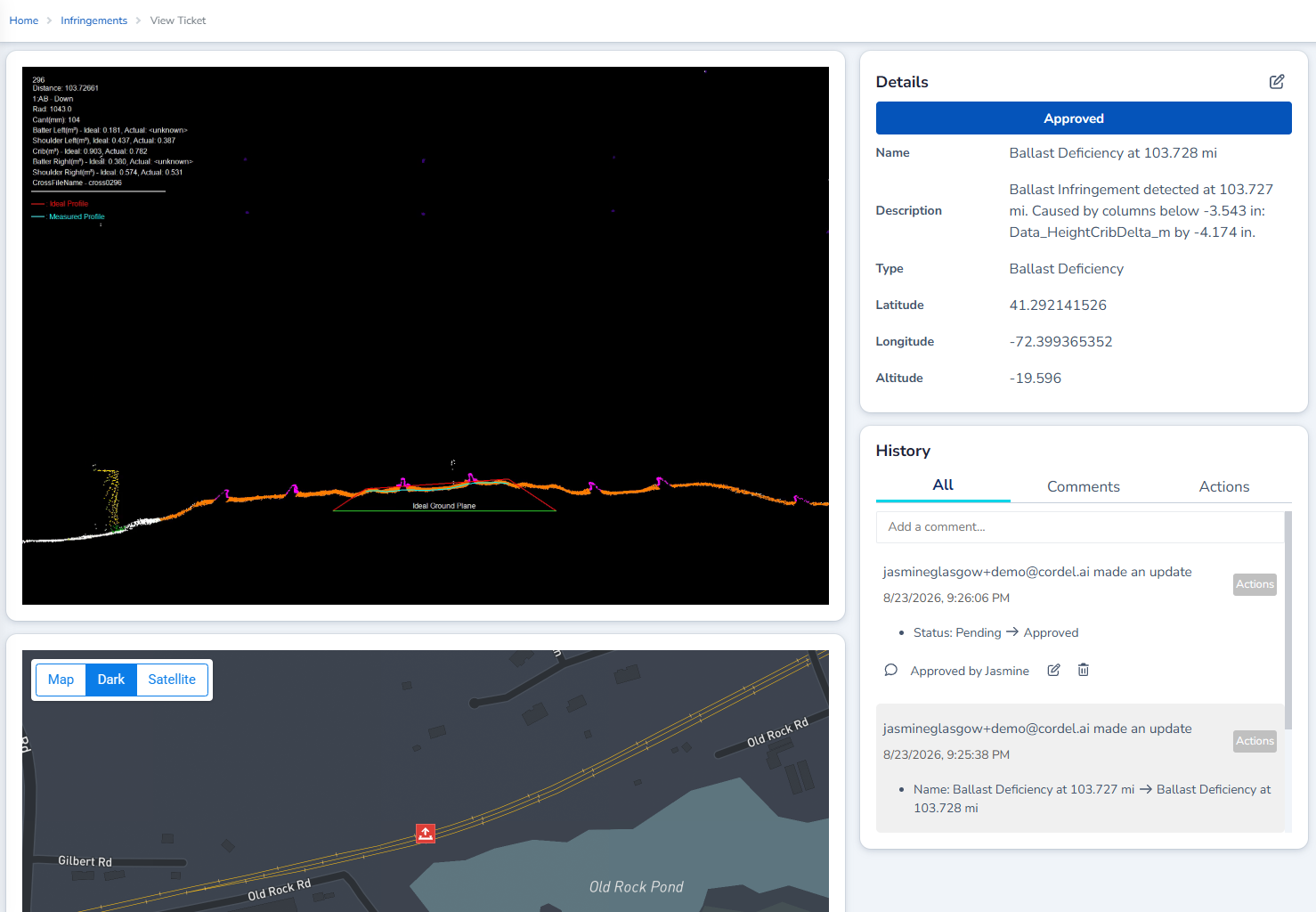
The ticket viewer page provides the following information for each ticket:
-
The cross section shows the area of the point cloud that was used to classify the ticket.
-
The map shows the location of the ticket with a pin.
-
The Details card includes the name, type of ticket, positioning data.
-
The History card shows system generated audit notes as well as user-authored comments that relate to the ticket.
Infringement Ticket Status Functionality
Infringement Tickets are assigned to a status and can be transitioned to different statuses by a user with the appropriate permission. Tickets can also be filtered by status on the 'Ticket Search' page.
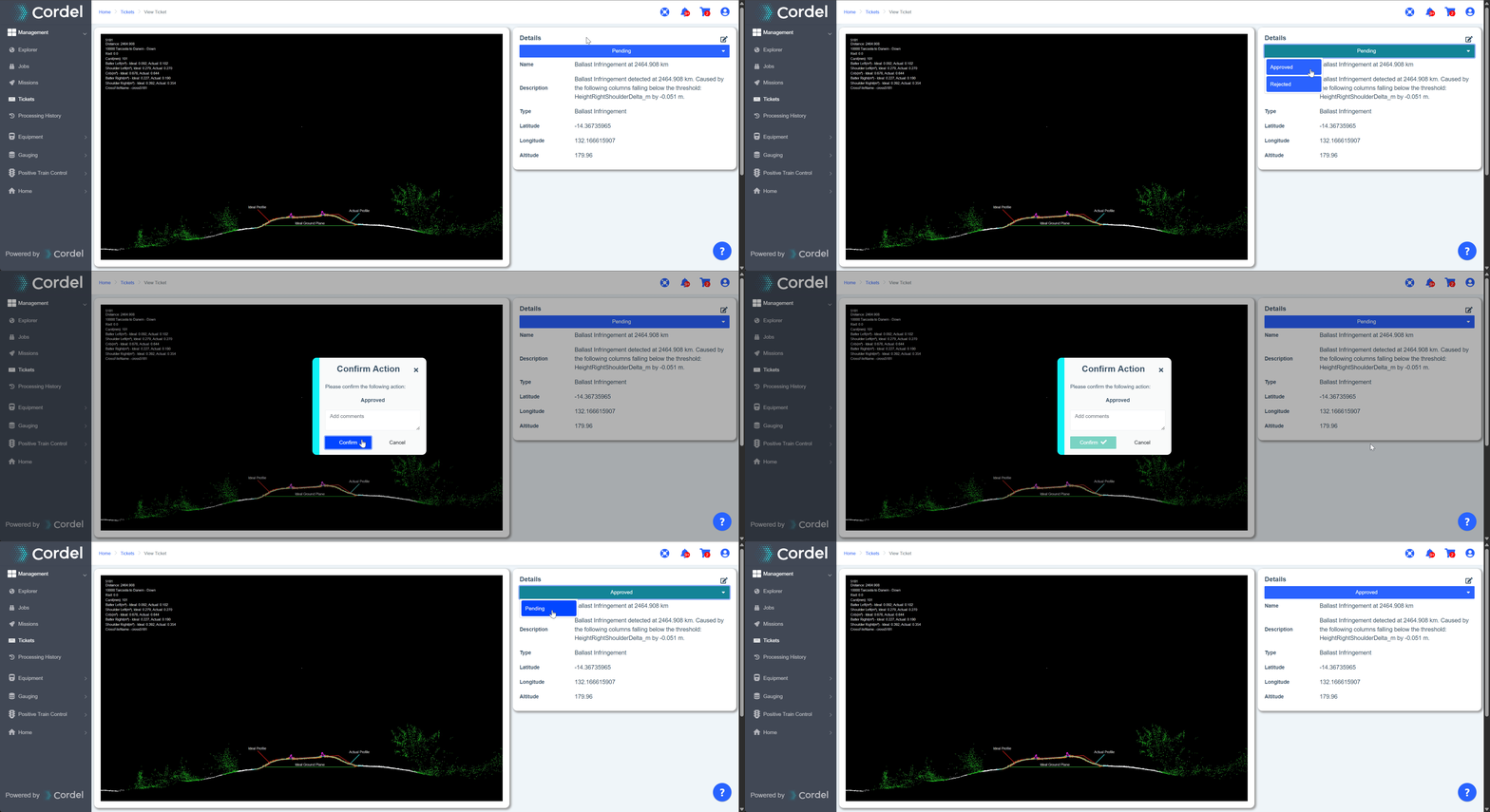
By default, all infringement tickets are set to 'Pending'.
If enabled, users will have the option to transition from 'Pending' to another status (for example, 'Approved' or 'Rejected') on the details card on the ticket viewer page. This functionality is flexible by design, allowing statuses to be configured in a way that reflects client workflows.
Viewing Infringement Tickets in the LiDAR Viewer
Infringement tickets can also be reviewed in the LiDAR Viewer.
Tickets are plotted geospatially in the point cloud and can be toggled on/off using the check boxes in the sidebar.