
-
Login to your Cordel Connect account
-
Click the Account Management icon on the shortcut menu:

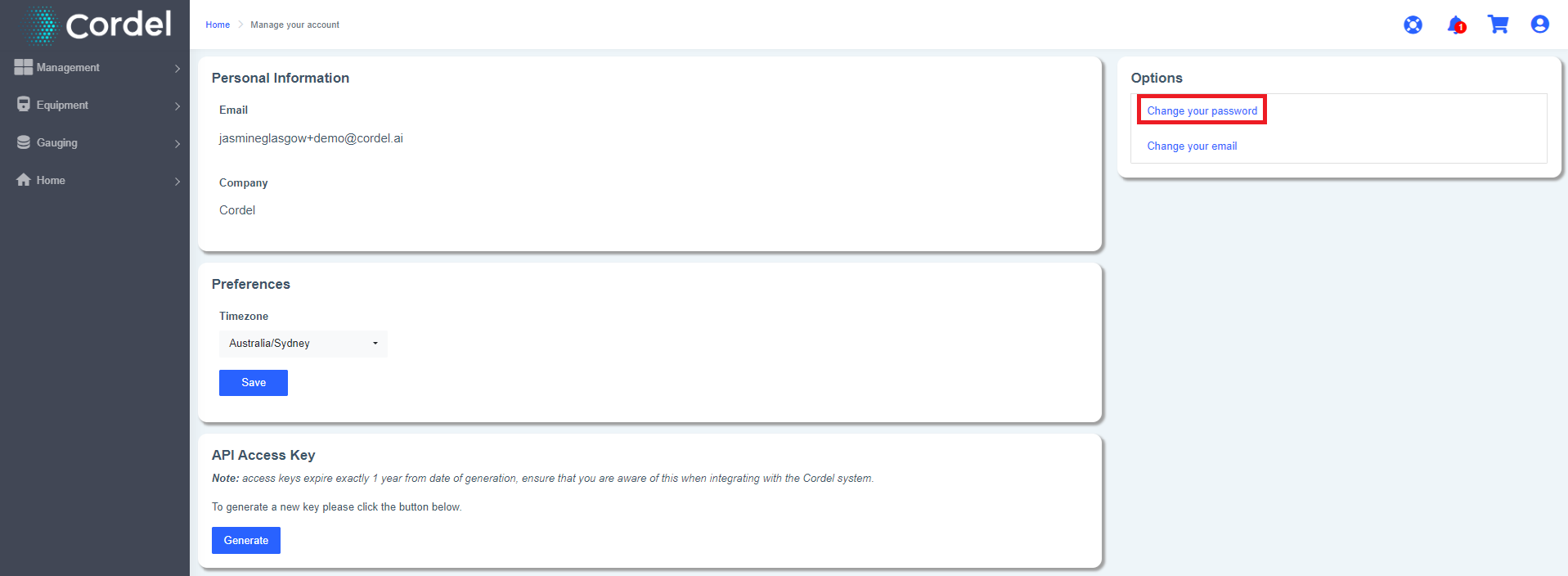
3. In Options, click 'Change your password':
4. Complete the form
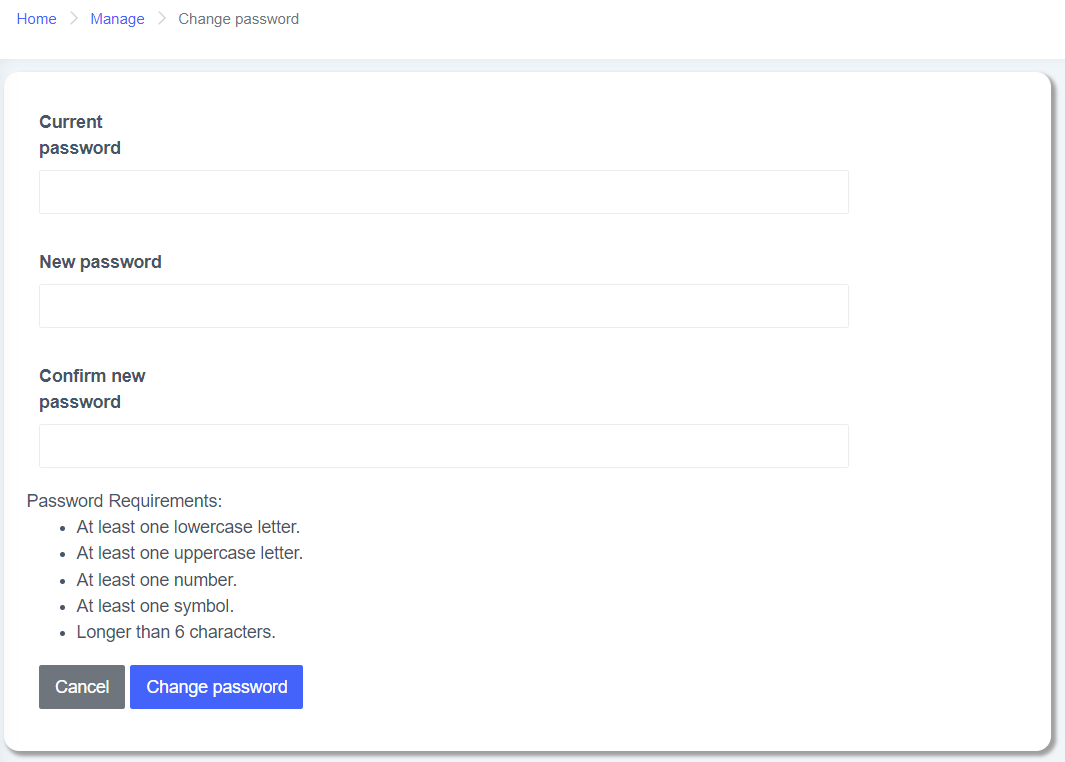
Password Requirements:
-
At least one lowercase letter
-
At least one uppercase letter
-
At least one number
-
At least one symbol
-
Longer than 6 characters
Enter your current password, your new password, and then re-enter your new password in the change password form:
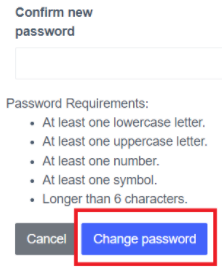
5. Click 'Change password'.
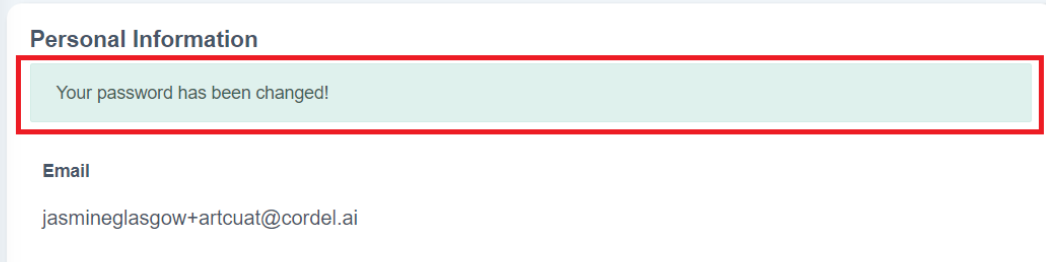
You will be redirected to the Account Management page - and a success message is displayed in the Personal Information section