
Add Jobs/Missions To The Cart
Jobs and missions can be added to the cart in several areas of Cordel Connect.
Adding To The Cart From The Mission List Card
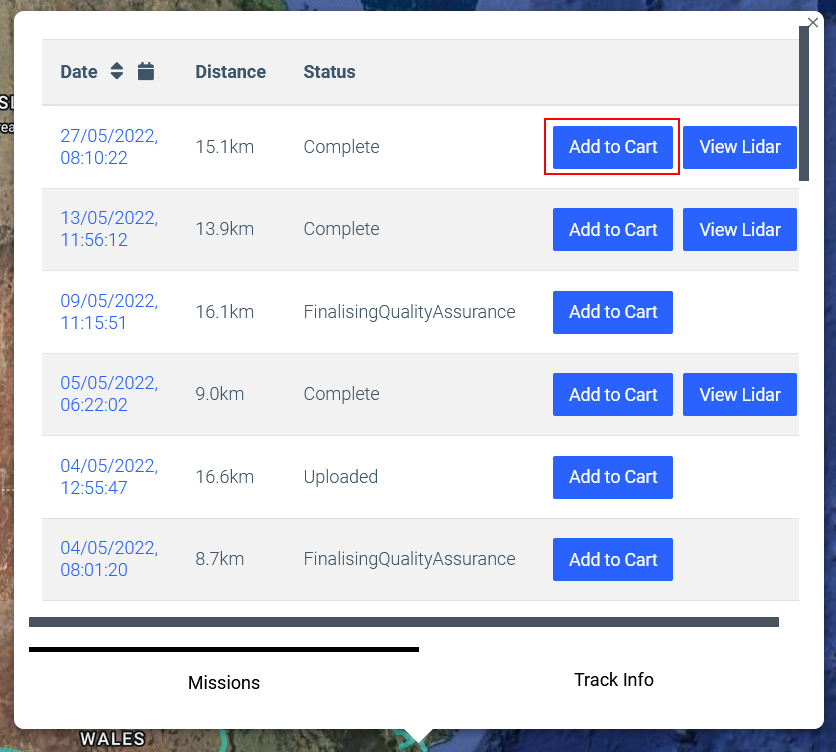
The mission list card on the Explorer page can be viewed at any time for a particular area by clicking on the visible Network Model (if available).
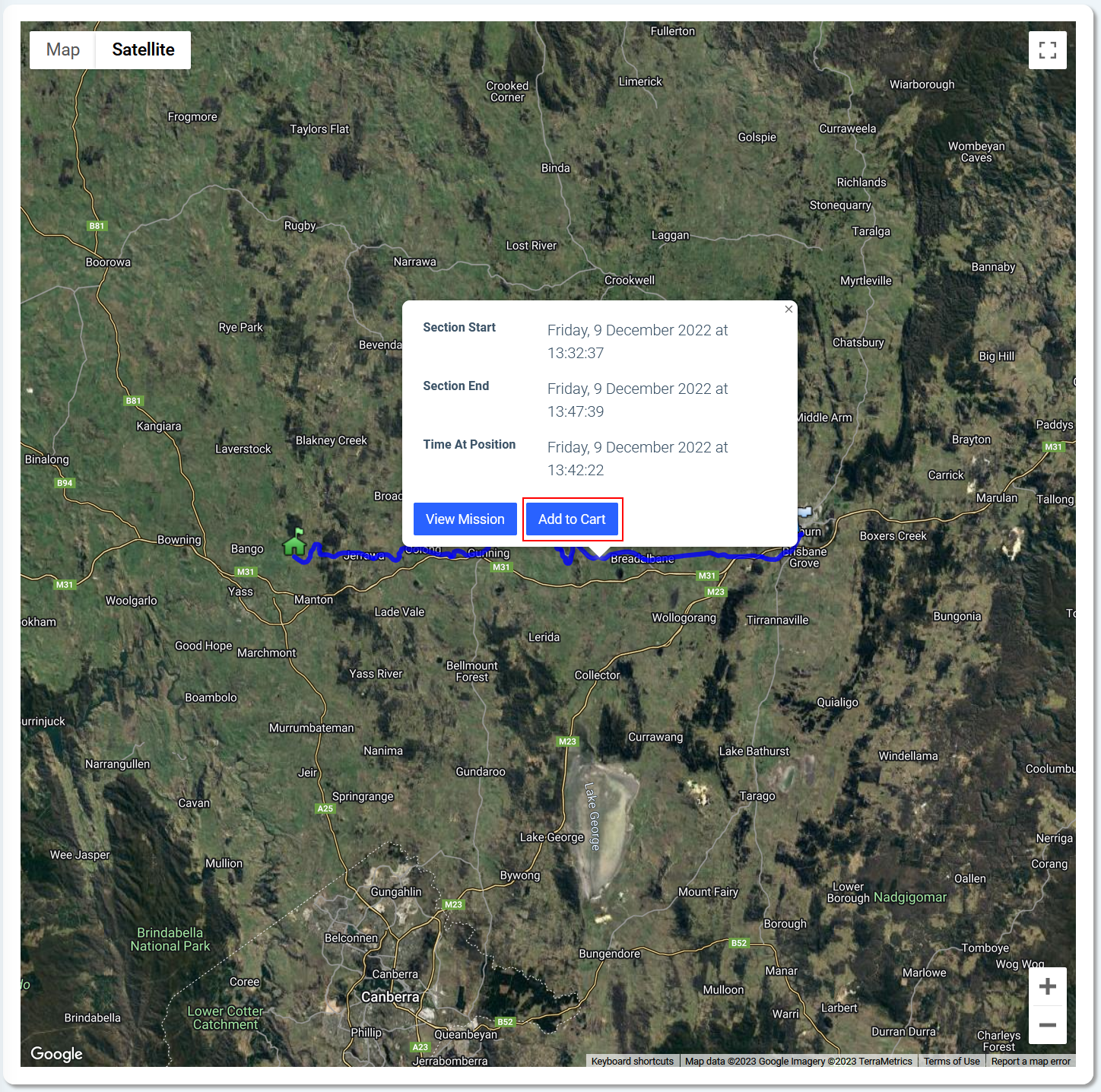
Simply click the 'Add to Cart' button to add a selected mission to the cart for processing.
Adding To The Cart From The Mission Viewer Page
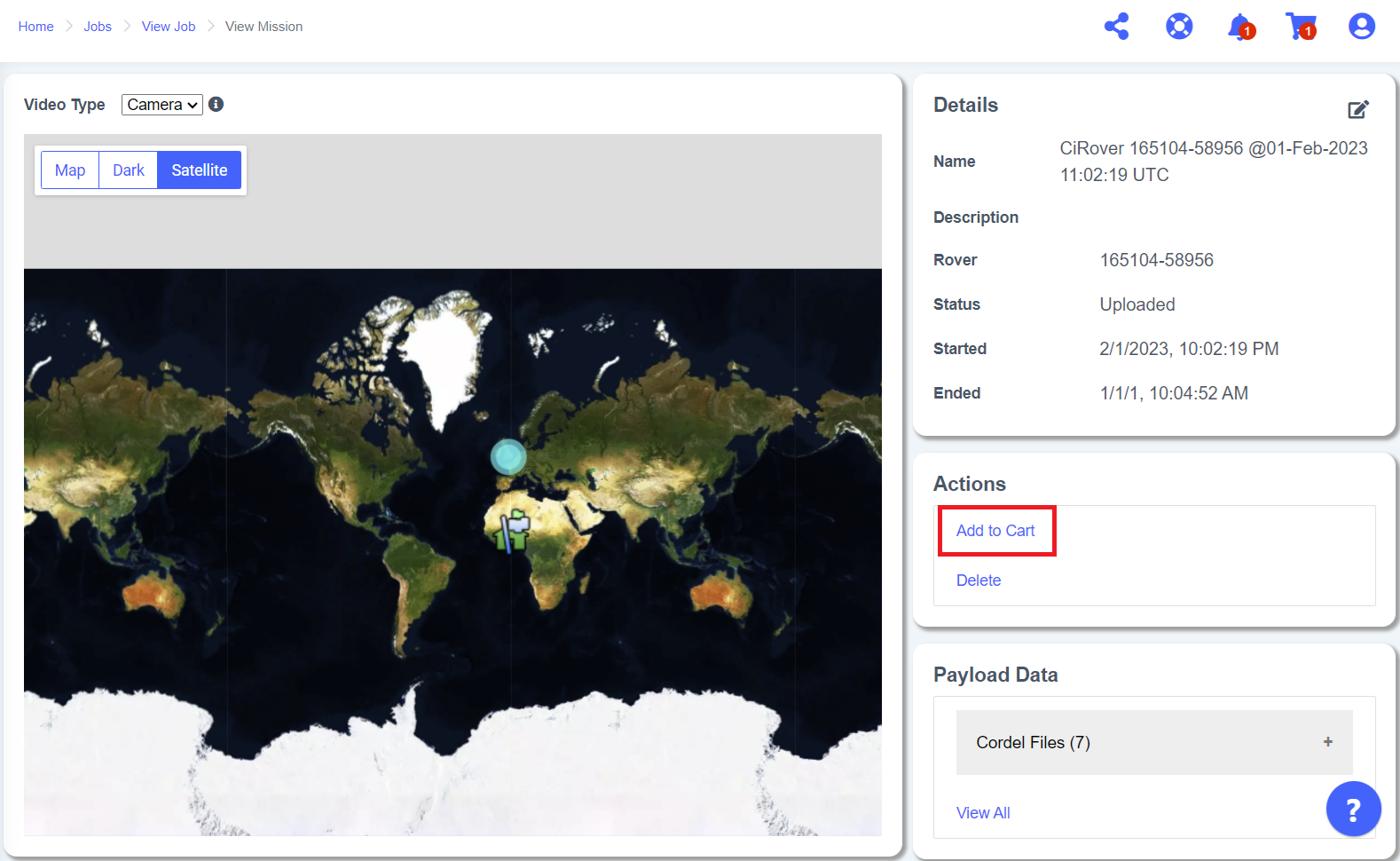
The Mission Viewer page displays more detailed information about the data that was captured over a certain timeframe (typically 15 minutes).
The current mission can be added to the cart by clicking the 'Add Job to Cart' link in the 'Actions' section to the right of the map.
Adding To The Cart From The Job Search Page
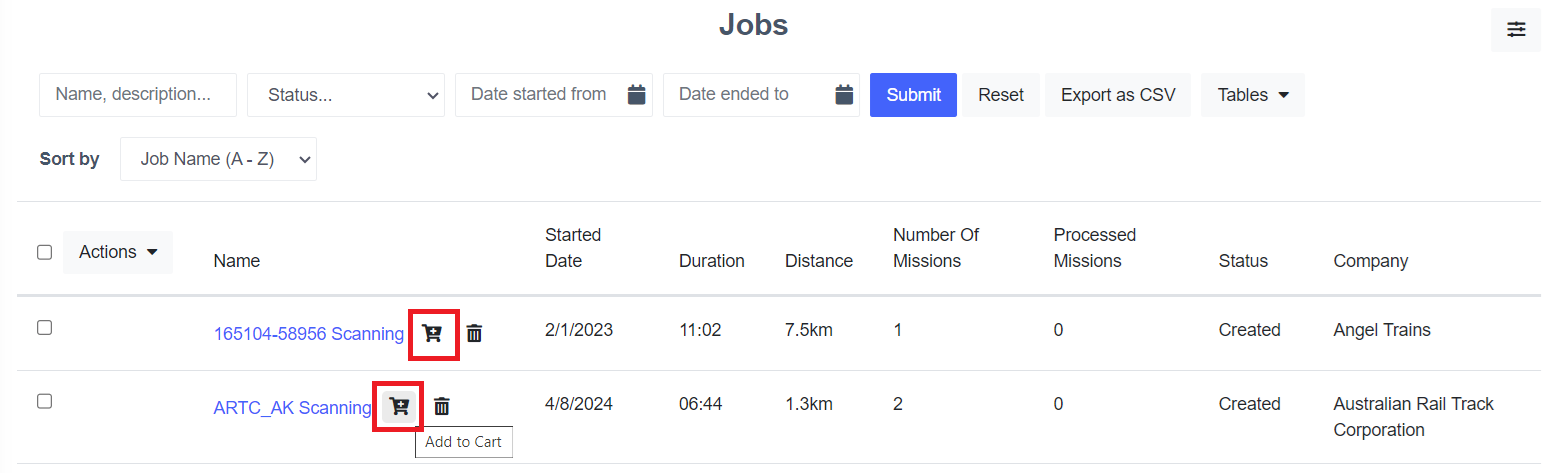
The job search offers a tabular way of filtering and viewing the list of available scan jobs that Cordel has captured.
Click the small 'cart' icon next to a job's name to add the job to the current cart.
Adding To The Cart From The Job Viewer Page
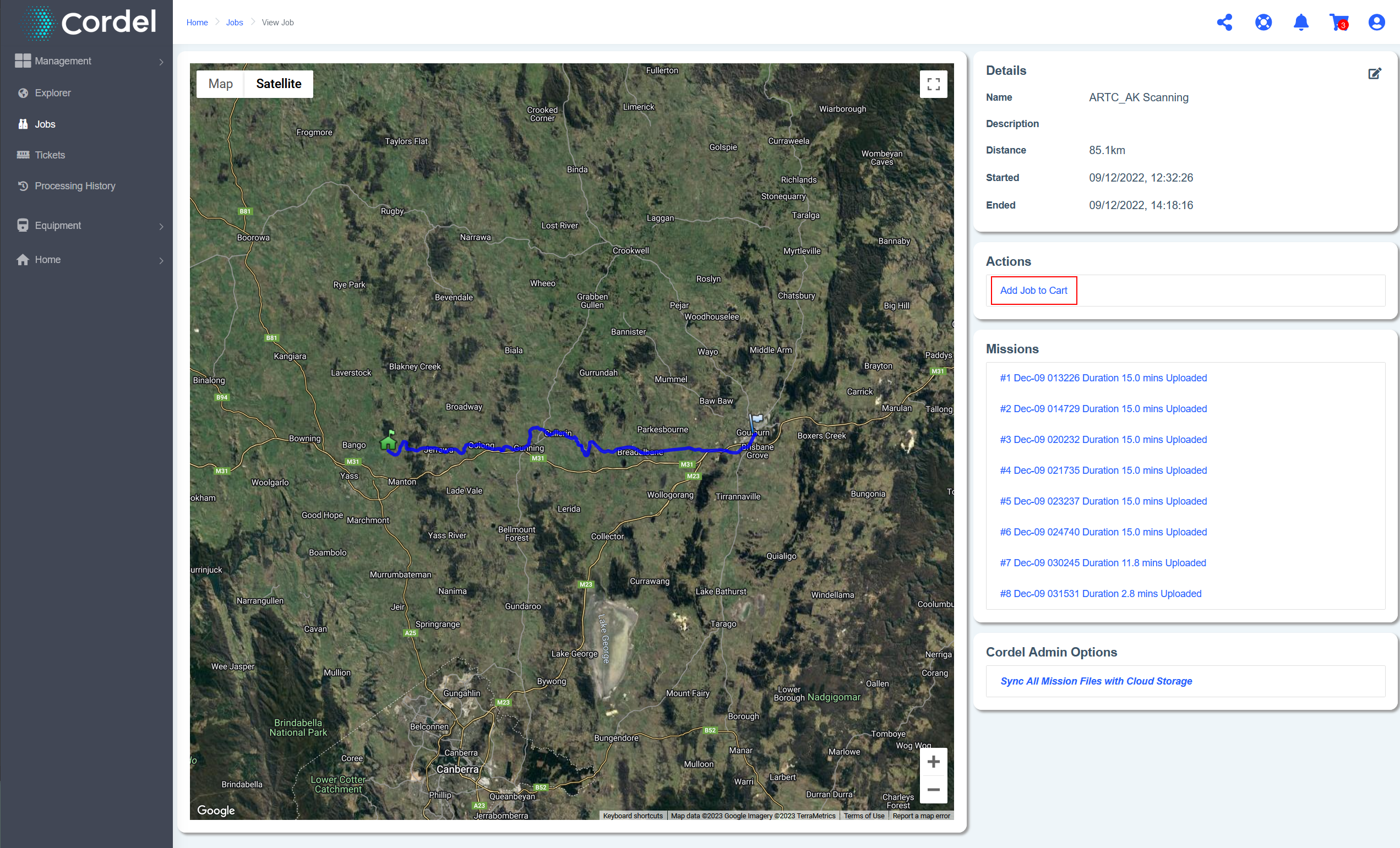
The job viewer page contains the job information, a map of the scanned area, and a list of missions contained within the selected job.
To add the entire job to the cart click the 'Add Job to Cart' link in the 'Actions' section to the right of the map.
Similarly to the Explorer page, users can access the Mission List card by clicking on the Network Model. Users are then able to click 'Add To Cart' from the Mission List Card.
View The Cart
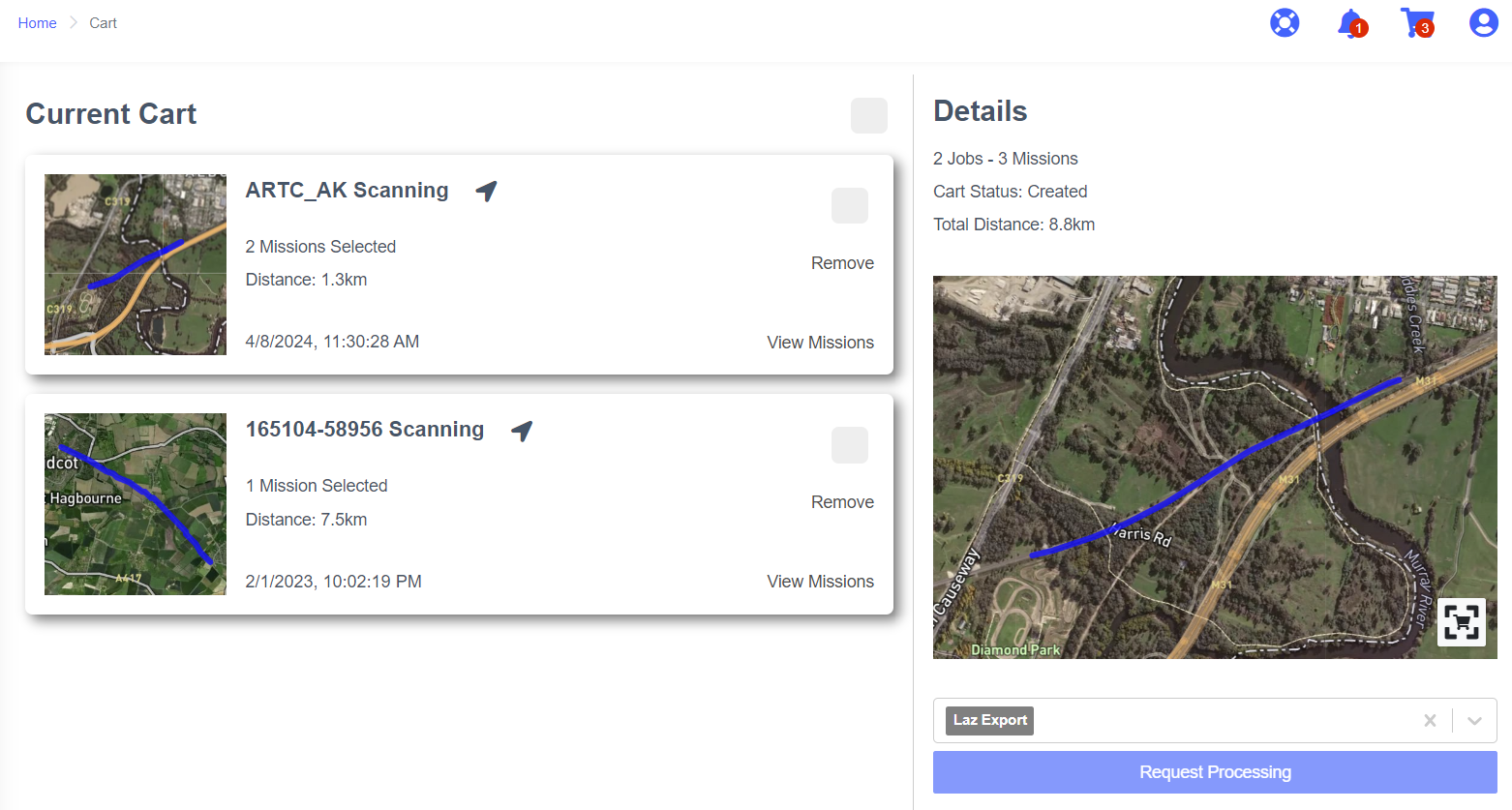
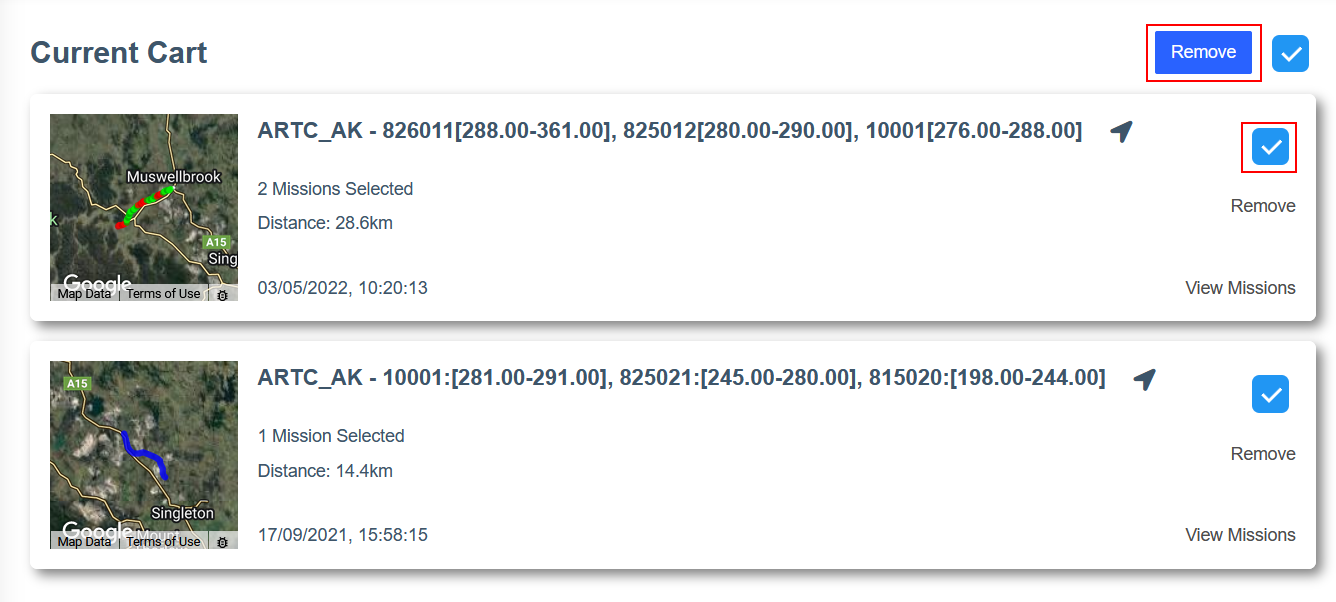
Each job in the cart is visualised by a card on the left of the page
The Job Card (Cart)
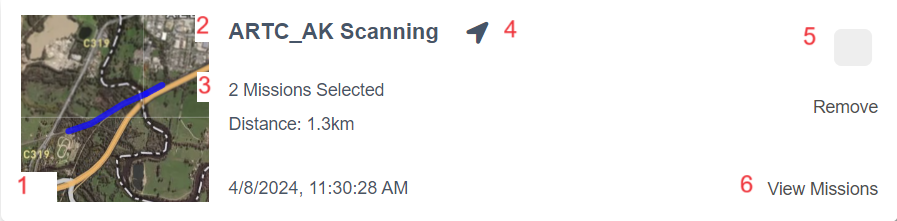
The job card is made up of:
-
The job trail map - this map shows the trajectory of all Missions that are included under the Job in the cart
-
The job name - this links back to the job page
-
The job details, including:
-
The number of missions selected
-
The total distance of the missions selected
-
The date and time the job was captured
-
-
Navigation icon - when clicked this button updates the enlarged cart map to the area that corresponds with that particular job
-
The 'Remove' job action, including:
-
The bulk select checkbox
-
The 'Remove' from cart action
-
-
The 'View Missions' expansion action - which shows the details of each mission selected for processing within a job. A mission can be removed from the cart by clicking the 'Remove' action link.
How To Remove Multiple Jobs (Bulk Job Removal) From The Cart
To remove multiple jobs from the Cart, click the checkbox at the top right jobs to be removed and then click the 'Remove' button
Note: The Remove button only becomes visible once a job/s is selected.
The Cart Details
The details section of the Current Cart page summarises all items in the current cart:

The Cart Map
The cart map shows a visual representation of the selected data and the areas that it covers.
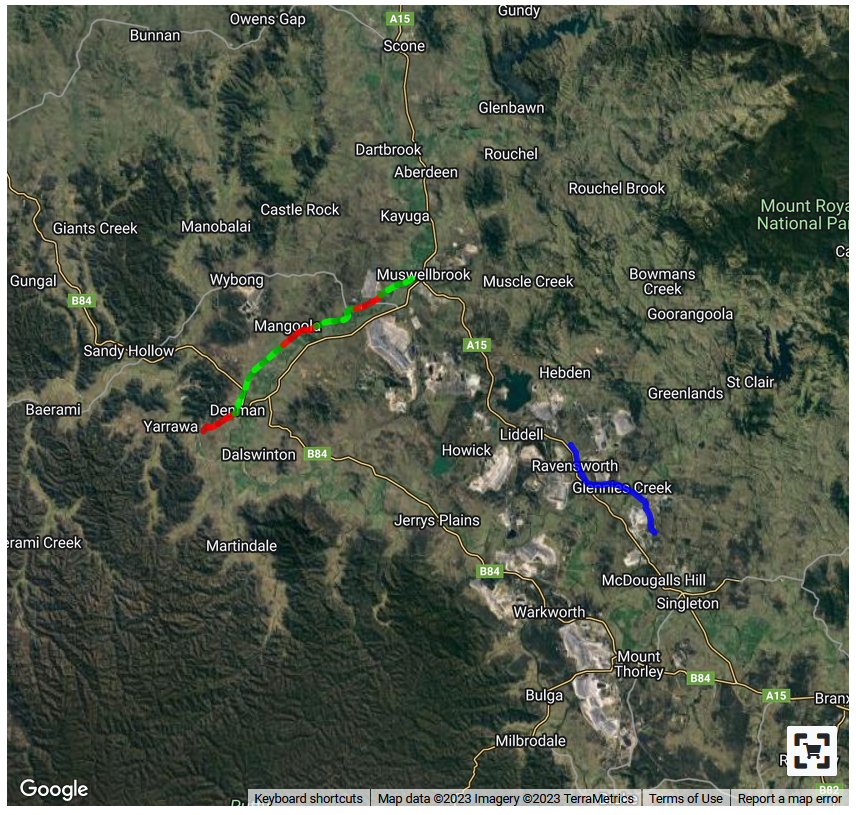
Clicking the button in the bottom right of the map will zoom to show all Jobs in the cart.
How To Request Processing
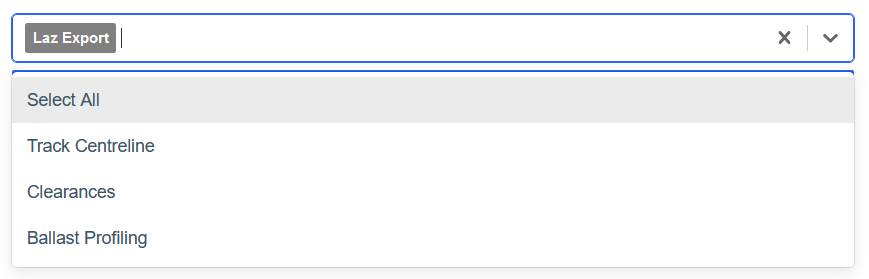
Under the cart map, on the right hand side, select the processing outputs type you are requesting.
Click 'Request Processing'

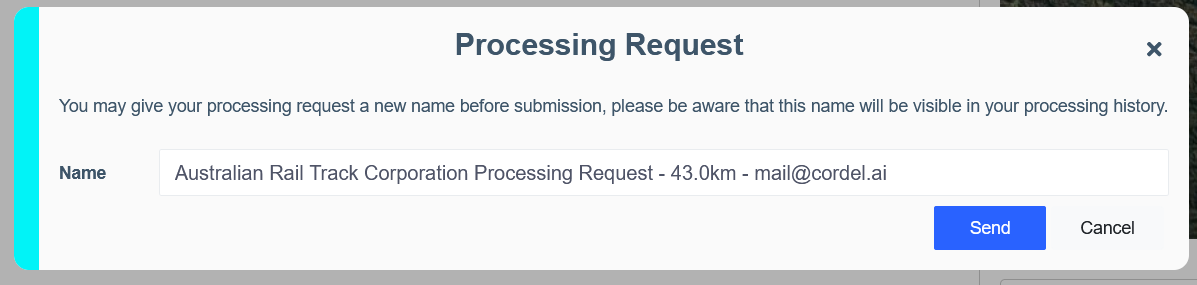
Once the 'Request Processing' button is clicked, the user will be prompted to enter a name for the processing request and confirm that they are ready for the data to be processed.
Processing History
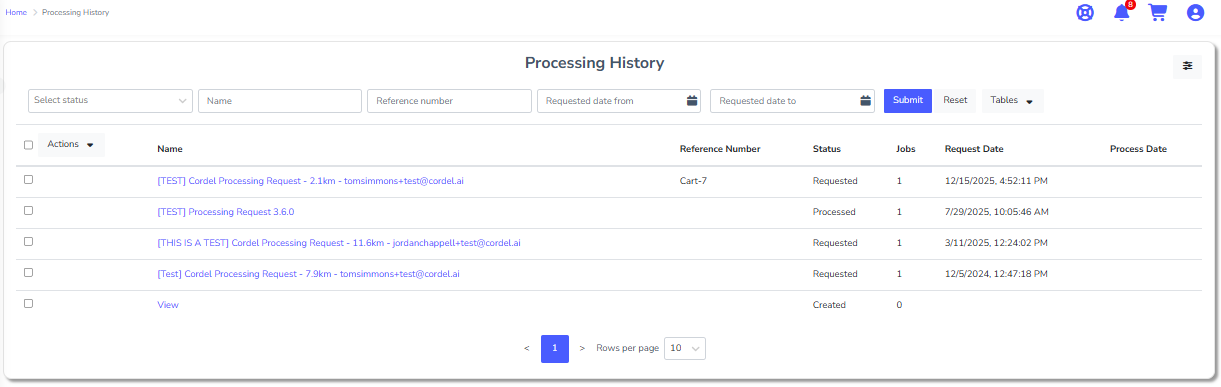
This page gives an overview of all current and historical processing requests. The hyperlinks under the 'Name' column can be clicked to view the details of each processing request.