
Note: Depending on the configuration of your Clearance Connect module, this functionality may be unavailable.
To search for a Slice, Structure or Survey, navigate to Gauging>Slices/Structures/Surveys
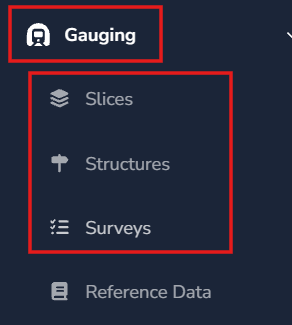
The landing page for each entity is the search page, and has slight variations to the searchable fields and sort options, depending on the entity you search for.
How do I search for a Slice, Structure, Track Segment or Survey?
Each of these entities has a search form (filters) and search results. Whilst there are some differences between Slices, Structures, Track Segments and Survey filters and sort options - the search functionality is consistent across all three entity types.
-
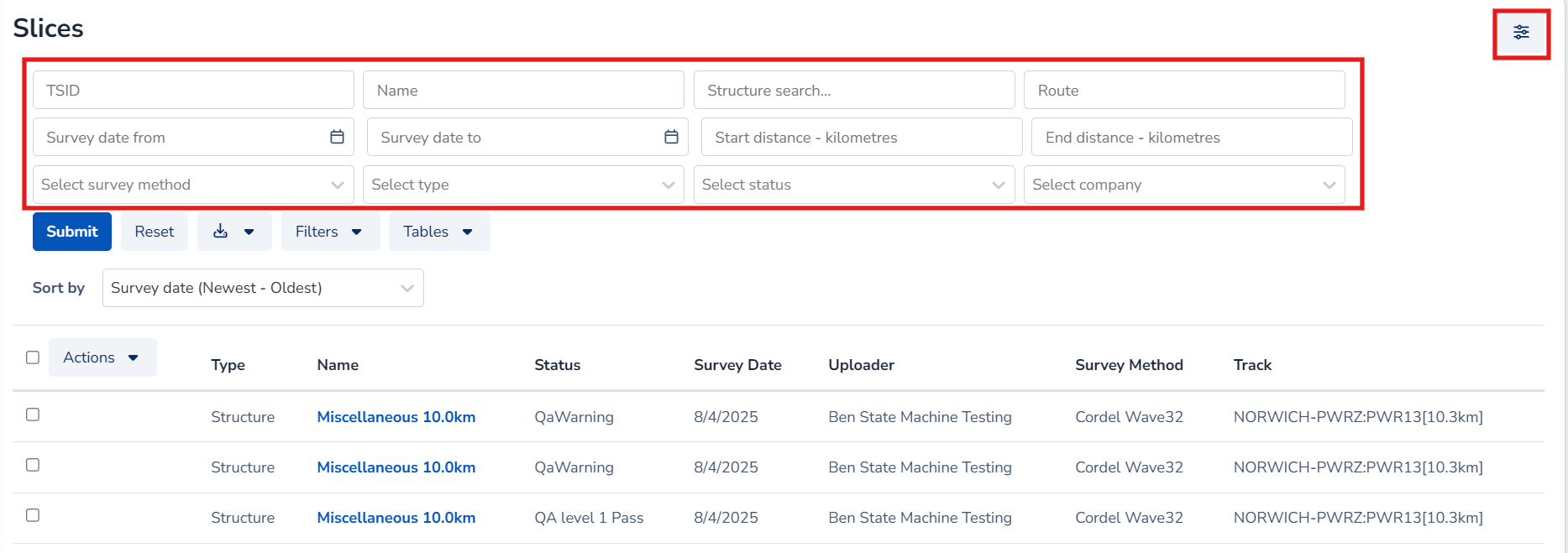
Enter search terms into the filter fields.
-
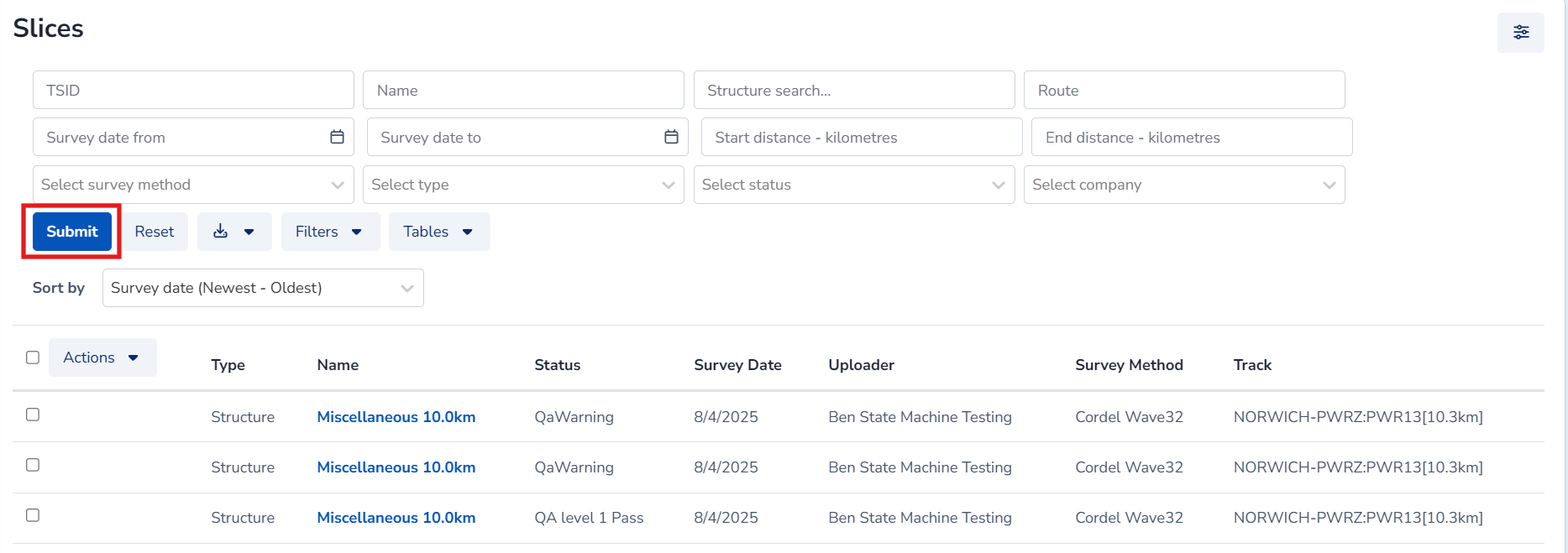
Click 'Submit' to run the search.
The Filters icon in the top right corner allows users to hide/show the search filters.
Which fields are available?
The filters available depend on the entity type being searched (i.e. Slices, Structures, Track Segments or Surveys). Most entities can be searched by name, description, capture date and location - as well as entity specific filters, for example users can search for Surveys by Survey type, Structures by TSID or Slices by Slice Type.
How do I manage Search results?
Users are able to manage how results are displayed, viewed, and exported.
-
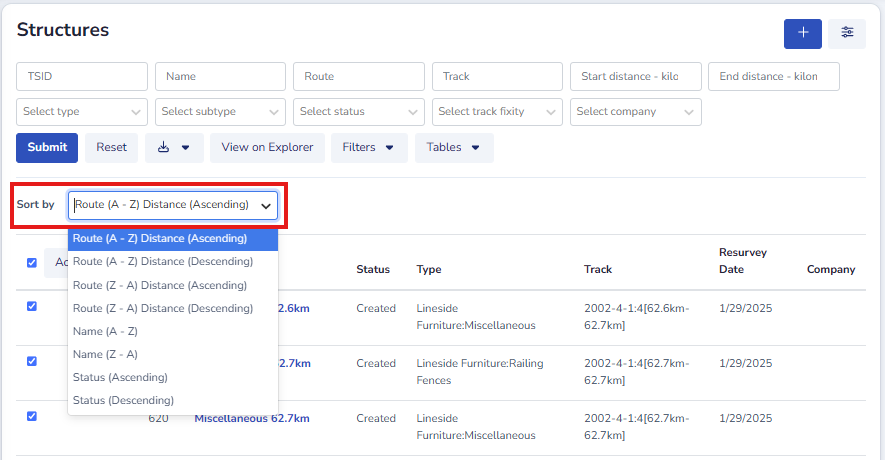
Sort results: select the 'Sort by' dropdown and choose the option you want to sort by.
-
Change results per page: select the 'Rows per page' dropdown and choose how many results to display.

-
Navigate between pages: select a page number, or use '<' and '>' to move backwards or forwards.

-
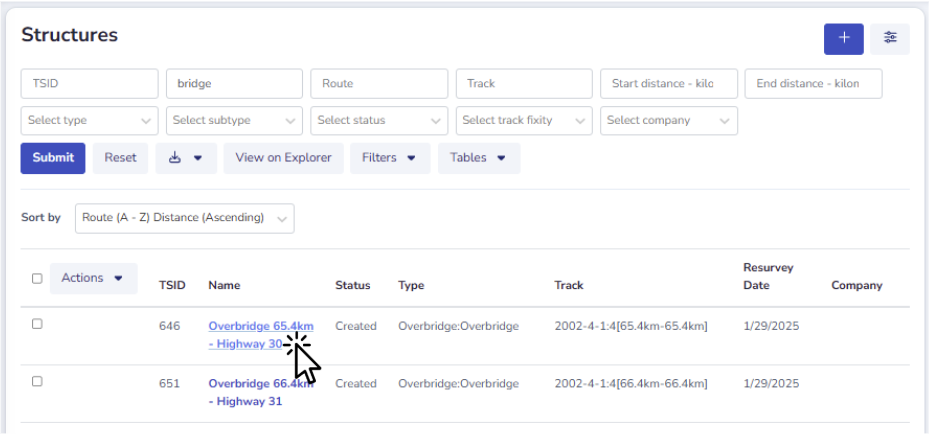
View a result: click the blue hyperlink to open a Slice, Structure, or Survey in view mode; or right click the blue hyperlink and choose to open a result in a new window or tab. This keeps the search screen open for later use.
-
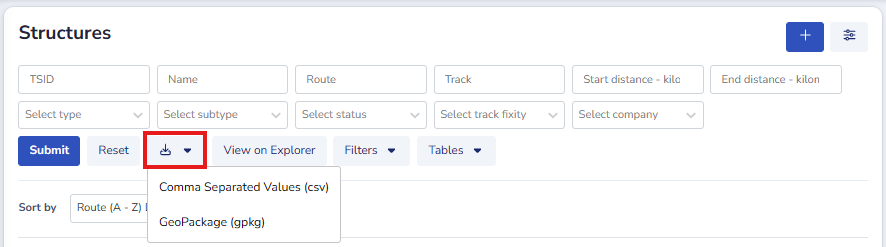
Export results: select the checkboxes against the results you want, then click the (Download) icon to download them as a .CSV or .GPKG file.
-
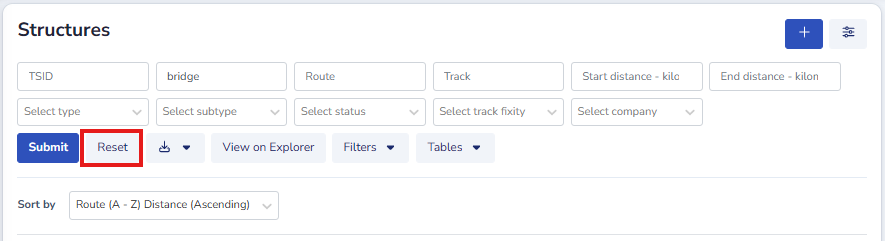
Reset the search: click the reset button to clear all current search criteria.