

This function requires administration permissions.
Site administrators have the power to temporarily alter the 'identity claims' that are assigned to their access credentials for support and data maintenance purposes. This feature allows an admin to assume the same access rights as a particular User or Company in the system.
Note: When an admin uses the impersonation feature, the system continues to track their original identity with all requests.
How to impersonate a user
User impersonation can be used to troubleshoot and diagnose data and access issues that a particular user of the system may experience. When impersonating a user, an admin will appear as that user for access control purposes in the application, they will only be able to use features that the user can, and see data that the user has access to.
-
Login to Cordel Connect with administration permissions
-
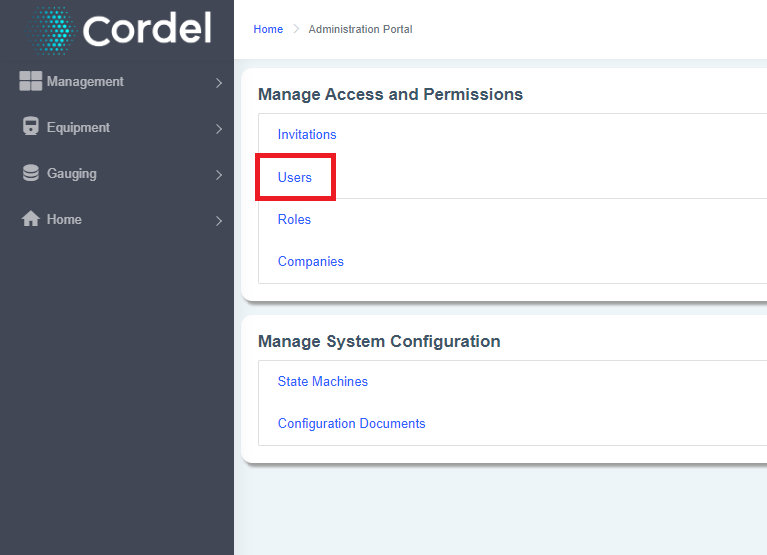
Manage Access and Permissions> Users
-
Find the user you wish to impersonate, and click the 'Impersonate' icon

After clicking the impersonate icon, users are redirected to the Explorer page.
-
The impersonation icon becomes visible in the shortcut menu to indicate to users they are in impersonation mode:
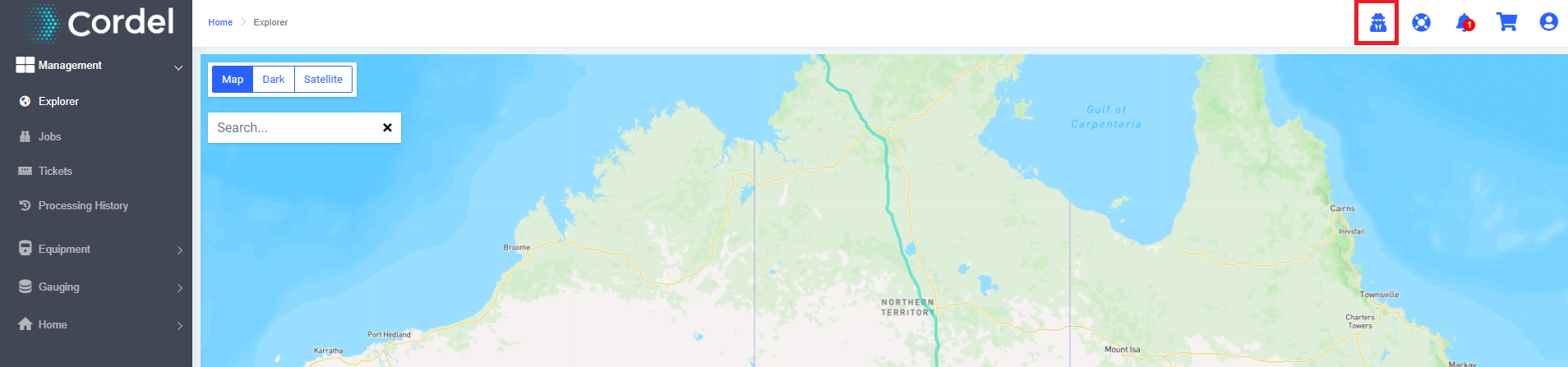
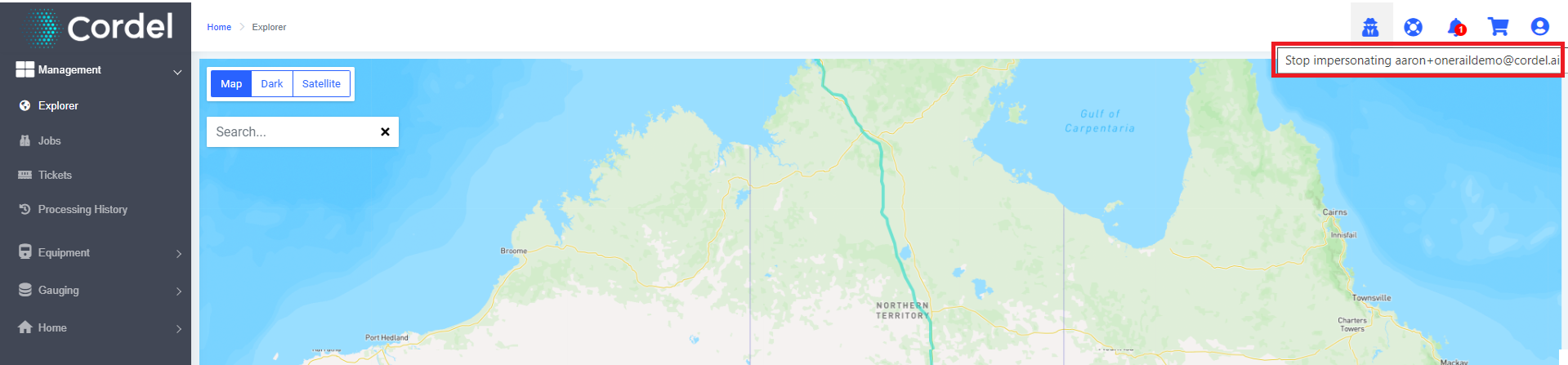
Users can hover over the impersonation icon to view which user they are impersonating
How to stop impersonating a user
Users can either 'Log off' or click the impersonation icon to switch off impersonation mode and return to their usual user settings.
How to impersonate a company
Company impersonation can be an extremely useful diagnosis and data management tool. Company data is localised to users of a specific company, and can only be accessed by those who are authorised to view it.
-
Login to Cordel Connect with administration permissions
-
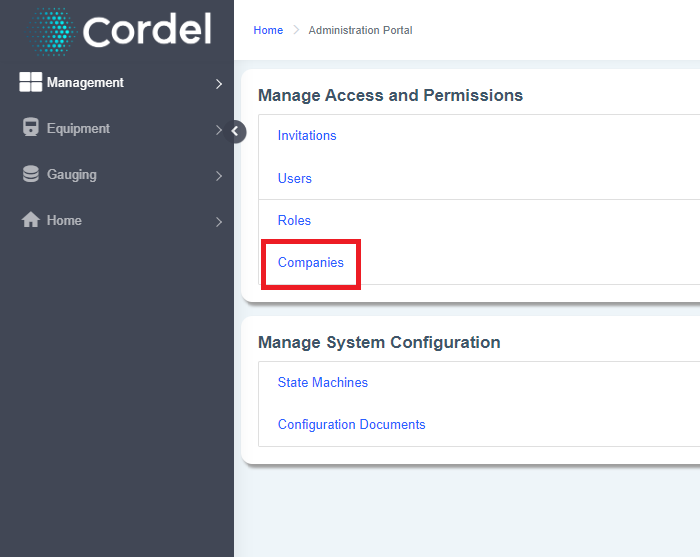
Manage Access and Permissions> Companies
-
Find the company you wish to impersonate, and click the 'Impersonate' icon

After clicking the impersonate icon, users are redirected to the Web Explorer home page.
-
The impersonation icon becomes visible in the shortcut menu to indicate to users they are in impersonation mode:
Note: unlike the 'impersonate user' function, users cannot see the company name they have chosen to impersonate.
How to stop impersonating a company
Users can either 'Log off' or click the impersonation icon to switch off impersonation mode and return to their usual company data and settings.