

The Survey Viewer (the View Survey page) allows users to review detailed information about a Survey, view its history, review the Slices it contains, and view it on a map.
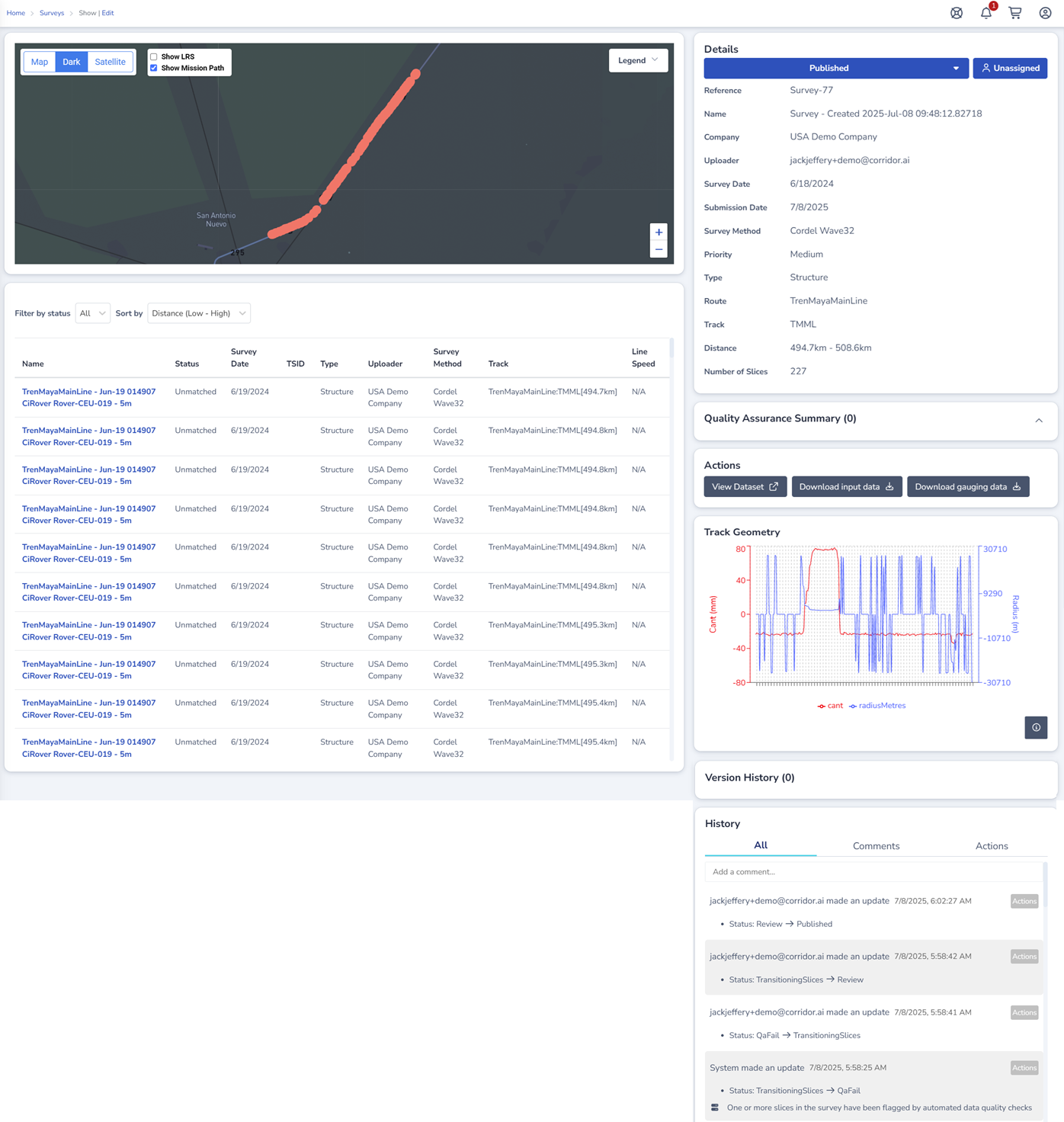
The Map
The Survey Viewer Map displays map markers that represent the location of each Slice in the selected Survey
The Survey Slice List
Each Slice in the selected Survey is listed directly below Survey Viewer Map. Users are able to filter and sort the Survey Slice List, or open a Slice by clicking the corresponding blue hyperlink.
Details
The Survey details/metadata including the Survey status and assignee
Quality Assurance Summary
A log of any QA warnings, failures or passes. Uses can click on a QA warning or Failure to view the Slice that triggered the warning or failure.
Actions
View Video
In the Actions section, click the 'View Dataset' link to view the Forward Facing Video for the selected Survey.
Download Input Data
In the Actions section, click the 'Download Input Data' button to download the original survey data for this Survey.
Download Clearance Data
In the Actions section, click the 'Download Gauging Data' button to download the Cordel gauging data for this Survey.
Track Geometry
The track geometry graph displays key metrics (configured based on client requirements) such as cant, versine, radius etc. for the Slices in the selected Survey.
Hover over the graph and move the mouse to detailed information for each Slice in the selected Survey.
Version History
Version History shows the chain of surveys submitted over time for the selected Survey. This reflects distinct survey runs that have been linked together as parent and child surveys, not a log of edits made within the currently open survey.
Use Version History to see when a track section was last surveyed, or to open a previous survey for comparison.
History
Any actions performed in Cordel Connect is tracked in the Audit log.
How to add a comment to the History
To add a manual comment on a Survey:
-
Click the '+' icon in the top right hand side of the history section
-
Type the comment you wish to add
-
Click save
Note: comments that have been added to History manually can be edited by clicking the edit icon. Entries added to history by the system cannot be edited, and therefore do not display the edit icon.