
Overview
A Structure comprised of one or more assigned Slices.
Typically, users are required to make any necessary changes to Slices prior to assigning them to a Structure.
How To Edit Survey Slices describes how users are able to make the relevant changes required to Slices prior to manual Structure assignment.
How to assign Slices to a Structure
Slices must have the same SurveyDate in order to be assigned the same Structure.
-
From the main menu, select Gauging>Surveys
-
Find the appropriate Survey and click the blue hyperlink
-
Click ‘edit’ from the breadcrumb menu
-
Where necessary, edit the Slices and ensure all changes have been successfully saved.
-
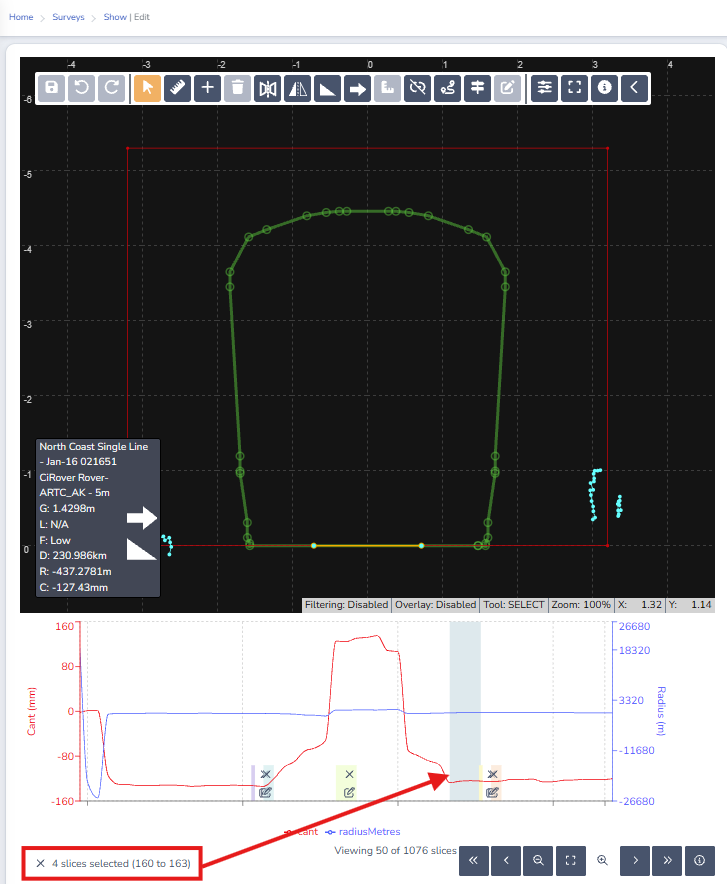
Select the Slices that make up the Structure by clicking and dragging a selection on the Slice Navigator graph
-
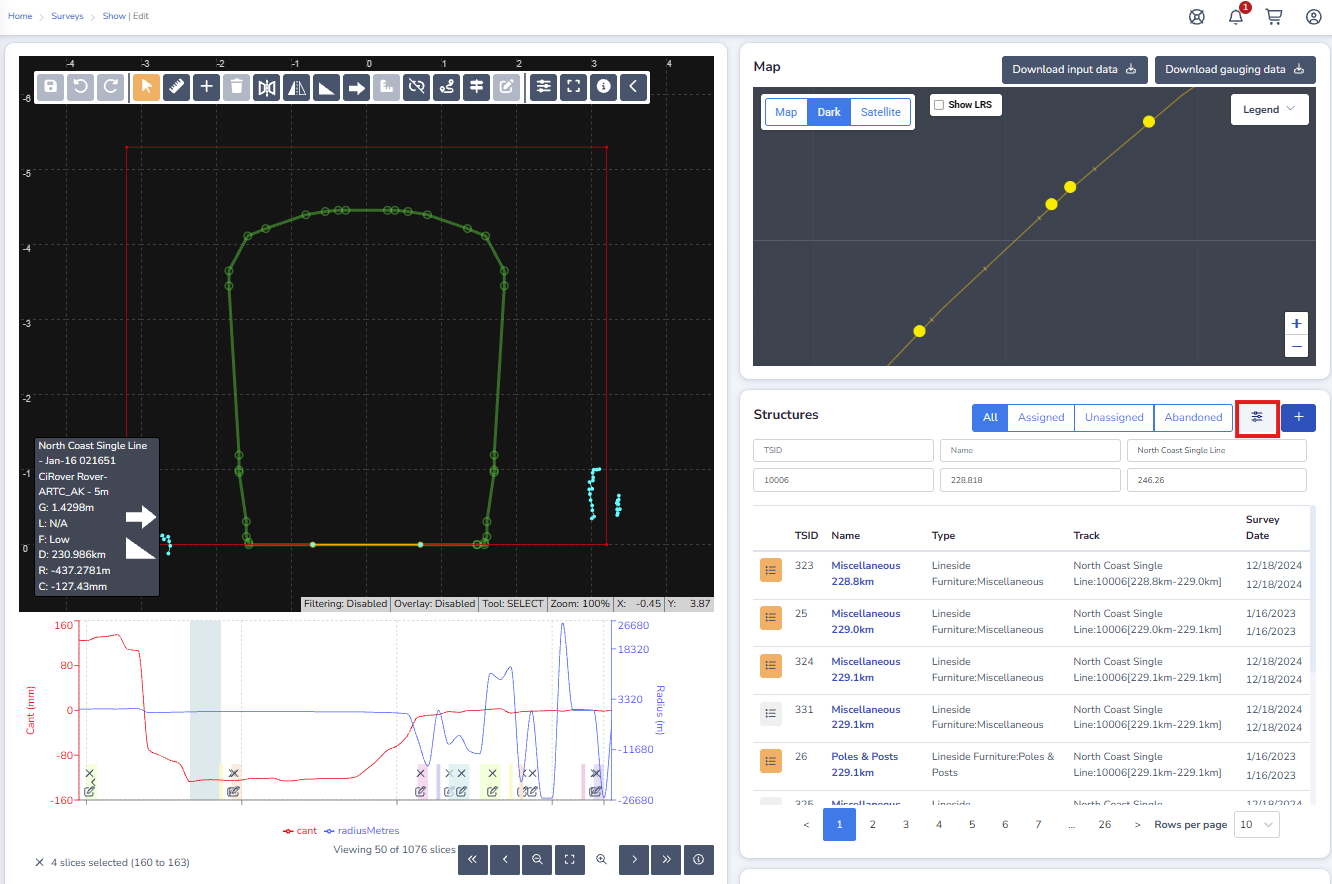
Find the Structure you wish to assign the Slice/s to in the Structures list on the right, using the filters if necessary.
The Structures list will show Structures near the start/end of the Survey, or within the survey mileage on the same ELR as default.
-
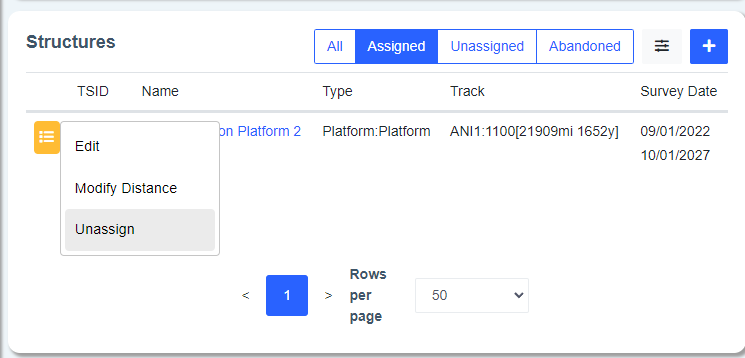
Click the Structure (list) icon to the left of the Structure name, select the “Assign” option.
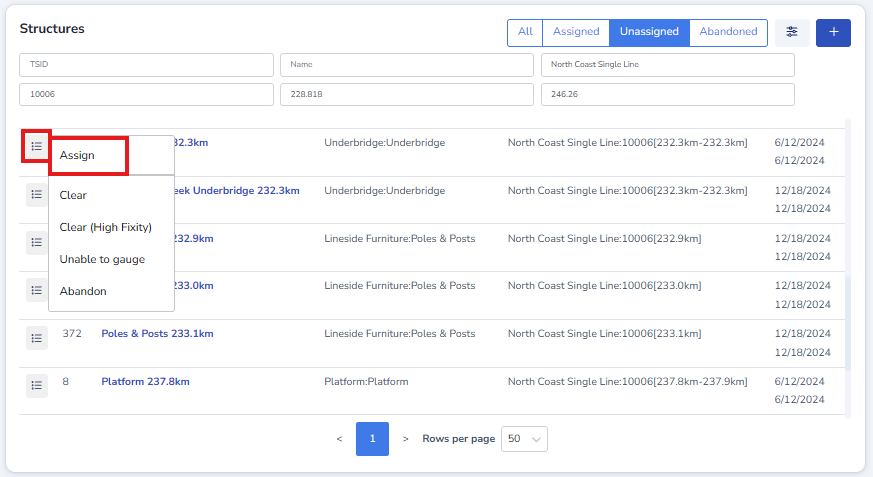
The “Assign” operation is only successful when applied to already saved data.
This operation duplicates the saved Slices at the selected positions and associates them with the Structure. This allows for multiple structures to be assigned to the same Slices or subset of Slices and allowing for unique modifications made if necessary.
-
Once a Structure has Slices assigned to it, the icon is displayed in yellow; the actions available are also updated according.
How to unassign Slices to a Structure
-
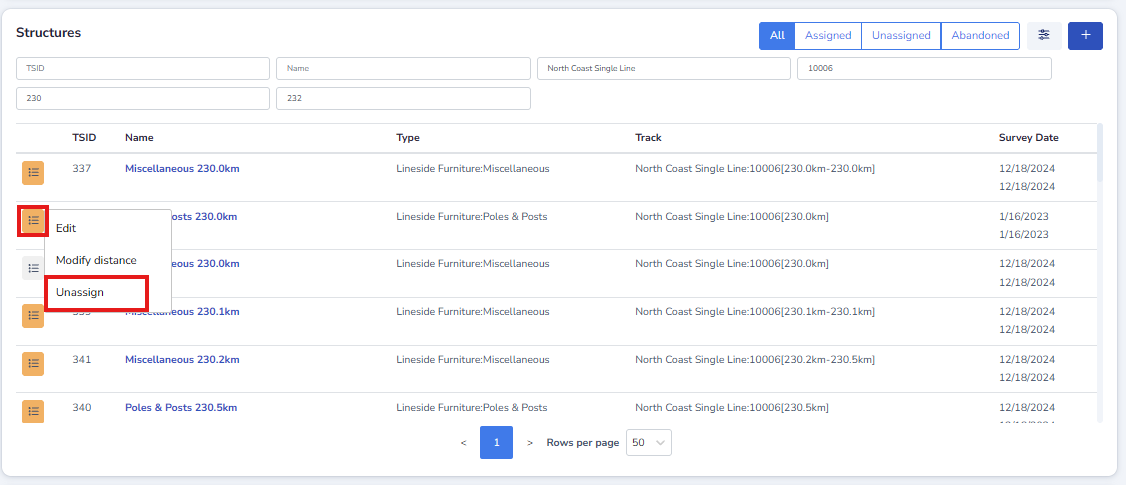
Find the Structure you wish to unassign Slice/s from in the Structures list on the right, using the filters if necessary.
The Structures list will show Structures near the start/end of the Survey, or within the survey mileage on the same ELR as default.
-
Click the Structure (list) icon to the left of the Structure name, select the “Unassign” option.
-
If a Structure no longer has any Slices assigned to it, the icon is displayed in grey; the actions available are also updated according.
The “Unassign” operation is only successful when applied to already saved data.
How to extend or reduce the Slices that are assigned to a Structure
Structures that have Slices assigned to them can have neighboring Slices added or existing Slices removed.
-
Find the Structure you wish to extend or reduce in the Structures list on the right, using the filters if necessary. Only Structures in an assigned status can be extended of reduced.
-
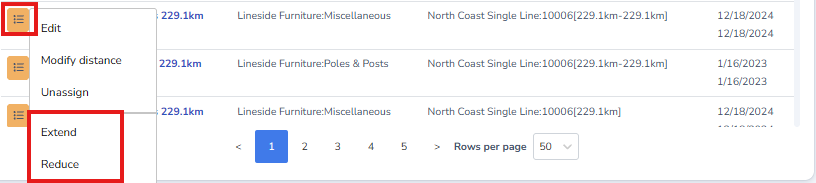
Click the Structure (list) icon and select extend (to add neighboring Slices) or reduce (to remove one or more of the Slices currently assigned to the Structure)
-
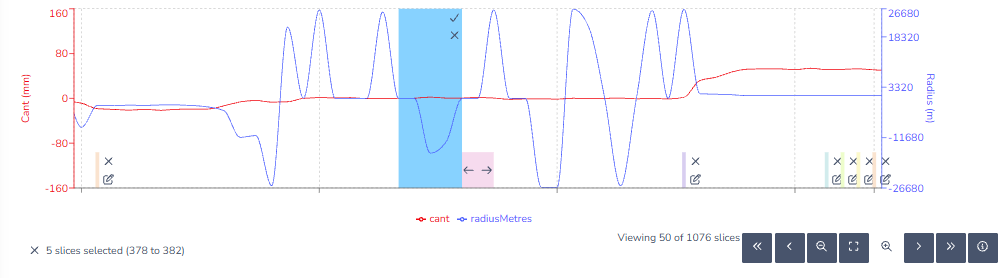
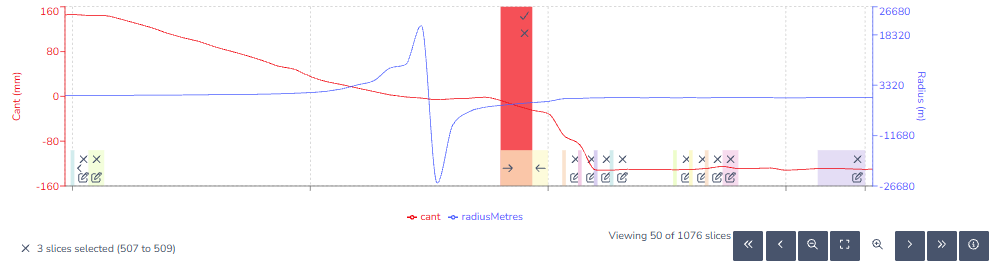
The ‘extend’ or ‘reduce’ arrows will appear on the Slice Navigator graph.
-
Select the Slices you wish to add or remove from the Structure assignment on the Slice Navigator graph.
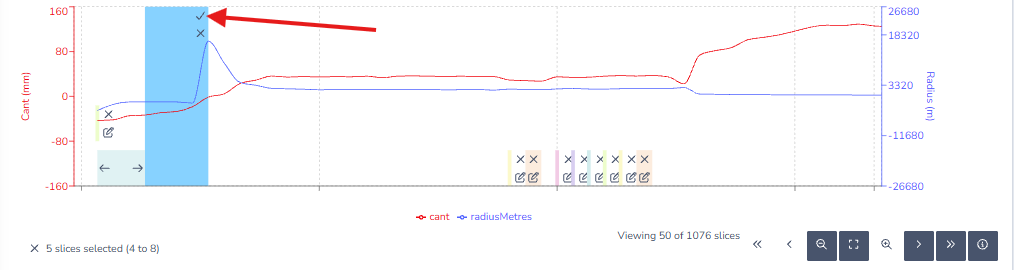
Slices being added will show in blue. Slices being removed will show in red.
-
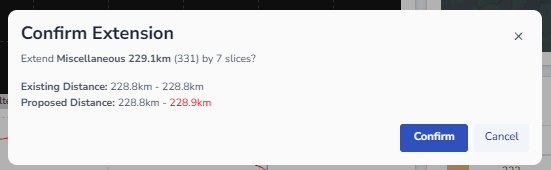
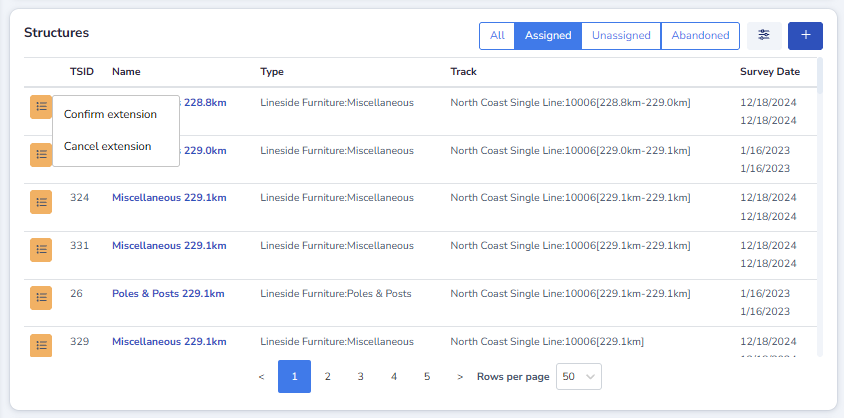
Once you have made your selection, click the tick icon on the selected Slices; or return to the Structure list, click the Structure icon and select “Confirm Extension” or “Confirm Reduction”
-
A confirmation modal will appear which summarises the changes being made, including changes to distance and the number of Slices being added or removed.
Click ‘confirm’ to save your changes